
- How to Migrate from Rank Math to SureRank
- How to Migrate from Yoast to SureRank
- How to Migrate from SEOPress to SureRank SEO
- How to Migrate from Squirrly SEO to SureRank
- How to Migrate from All in One SEO (AIOSEO) to SureRank
- How to Migrate from Slim SEO to SureRank
- How to Migrate from The SEO Framework to SureRank
- Migration Failed: How to Diagnose
- After You Migrate: Verification and Cleanup Checklist
- Sitemaps in SureRank
- How to Enable Video Sitemap in SureRank Pro
- How to Enable the News Sitemap in SureRank
- How to Show the HTML Sitemap on Your Site in SureRank Pro
- How to Regenerate the Sitemap After Excluding a Post Type in SureRank
- Change the Sitemap URL in SureRank
- How to Enable Author Sitemap in SureRank
- How to Exclude Post Types from the Sitemap
- How to Enable the Author Sitemap and Why Authors Are Excluded (Pro)
- Editing Meta Box
- SureRank – Page SEO Checks
- Enabling Page SEO Checks in WordPress
- Image Alt Text – Automatic Optimization
- Link Manager
- Using the SureRank Front-End Meta Box
- How to Edit the Meta Title and Description for a Single Page or Post
- Controlling Indexing with Robot Instructions
- How to Set Global Title and Description Templates with Variables
- How to Set a Canonical URL and How the Canonical Field Works
- Schema Setup in SureRank
- How to Test Schema Markup
- How to Edit Page-Level Schema in SureRank
- Article Schema
- BreadcrumbList
- Organization Schema
- Product Schema
- Person Schema
- SearchAction
- WebPage Schema
- WebSite Schema
- DiscussionForumPosting Schema in SureRank
- How to Add Custom Schema in SureRank
- How to Set Up Local Business Schema for Multiple Locations in SureRank
- FAQ Schema in SureRank
- HowTo Schema in SureRank
- Course Schema in SureRank
- Event Schema in SureRank
- Movie Schema in SureRank
- Podcast Schema in SureRank
- Software Application Schema in SureRank
- Dataset Schema in SureRank
- Video Schema in SureRank
- Claim Review Schema in SureRank
- Book Schema in SureRank
- Job Posting Schema in SureRank
- Service Schema in SureRank
- Recipe Schema in SureRank
- How to Use Schema Pro with SureRank
- Local Business Schema in SureRank
- How to Add a Custom Field in SureRank Schema
- Validating Your Schema: Rich Results Test Warnings vs. Errors
- How to Fix WWW and Non-WWW Version Redirects to Improve Your SEO
- How to Fix: No H1 Heading Found on Your Homepage
- How to Fix Missing H2 Headings on Your Homepage
- Re-run Checks Button in SureRank
- Fix Critical Error: Another SEO Plugin Detected in SureRank
- Fix Warning: Site Tagline Is Not Set in SureRank
- How to Fix: Robots.txt Contains Invalid Rules in SureRank
- How to Fix Multiple SEO Plugins Detected on Your Site
- How to Fix: Homepage is Not Indexable by Search Engines
- Warning: Homepage Does Not Contain Internal Links
- How to Fix: Search Engine Title is Missing on the Page
- Page Level SEO: Broken Links Detected
- How to Fix Missing Alt Text on Images
- How to Fix Page URLs That Are Too Long
- Page Level SEO Warning: No Links Found on This Page
- Page Level SEO Warning: No Images or Videos Found
- Page Level SEO Warning: Missing Search Engine Description
- Page Level SEO Warning: No Subheadings Found on This Page
- Page Level SEO Warning: Canonical Tag is Missing
- Page Level SEO Warning: Open Graph Tags Missing
- What is Google Search Console and how does SureRank use it?
- Recommended Image Sizes
- SureRank – SEO Check Severity Guide
- Using SureRank with Other SEO Plugins – Best Practices
- Import/Export Feature – SureRank Plugin
- What is llms.txt and Does SureRank Support It?
- Does SureRank offer a keyword rank-tracking feature?
- Does SureRank Come With Google Analytics Integration?
- Email Summary in SureRank
- SureRank Role Manager
- Search Engines Not Indexing Your WordPress Site?
- Sitemap Not Showing in SureRank
- Fixing robots.txt Issues in SureRank
- Why a Working Link Is Flagged as Broken (404)
- Which Pages Are Included in Your SureRank Sitemap
- Fixing False SEO Audit Warnings Caused by Caching
- Fixing “Couldn’t Fetch” for Your Sitemap in Google Search Console
- Troubleshooting: Favicon and Logo in Google Search Results (Supported Formats and CDN Gotchas)
- Customize XML Sitemap Top Bar with surerank_sitemap_top_bar_data
- Analyze ACF Field Content with SureRank
- Preserve Modified Date During Updates surerank_freeze_modified_date
- Customize Final Title Tag surerank_final_title
- Customize Post Type Archive Title Output surerank_post_type_archive_title
- Customize Archive Page Title with surerank_archive_title
- CustomizeModify the Search Results Page Title surerank_search_title
- Customizing the 404 Page Title surerank_not_found_title
- Customizing the Title Separator surerank_title_separator
- How to Remove Archive Prefixes from Titles Using SureRank
How to Set Up Local Business Schema for Multiple Locations in SureRank
If your business operates from multiple physical locations, SureRank Premium lets you add a separate Local Business Schema for each location.
For sites with a separate page for each location, you can add the Local Business Schema directly from the SureRank Meta Box on each location page. This keeps the structured data for every physical location separate and easier to manage.
For a complete explanation of the available Local Business Schema fields, see our Local Business Schema in SureRank guide.
How Multi-Location Local Business Schema Works
For every physical business location, you can:
- Create a dedicated WordPress page for the location.
- Add a Local Business Schema directly to that page.
- Enter the address, phone number, opening hours, coordinates, and other details for that specific location.
- Repeat the same process for your other locations.
For example:
| Location | Location Page | Local Business Schema |
|---|---|---|
| Ahmedabad | /locations/ahmedabad/ | Ahmedabad business details |
| Mumbai | /locations/mumbai/ | Mumbai business details |
| Pune | /locations/pune/ | Pune business details |
This helps ensure each location page contains the structured data for the correct physical business location.
Step 1: Create a Page for Each Location
Start by creating a separate WordPress page for each physical location.
For example:
example.com/locations/ahmedabad/example.com/locations/mumbai/example.com/locations/pune/
Each location page should contain information relevant to that specific branch, such as:
- Address
- Phone number
- Opening hours
- Directions
- Services available at that location
- Other location-specific information
Step 2: Open the SureRank Meta Box
Edit the first location page in WordPress and open the SureRank Meta Box.
Inside the Meta Box, go to:
Optimize → Schema
The Schema section shows the schemas currently being used for that page.
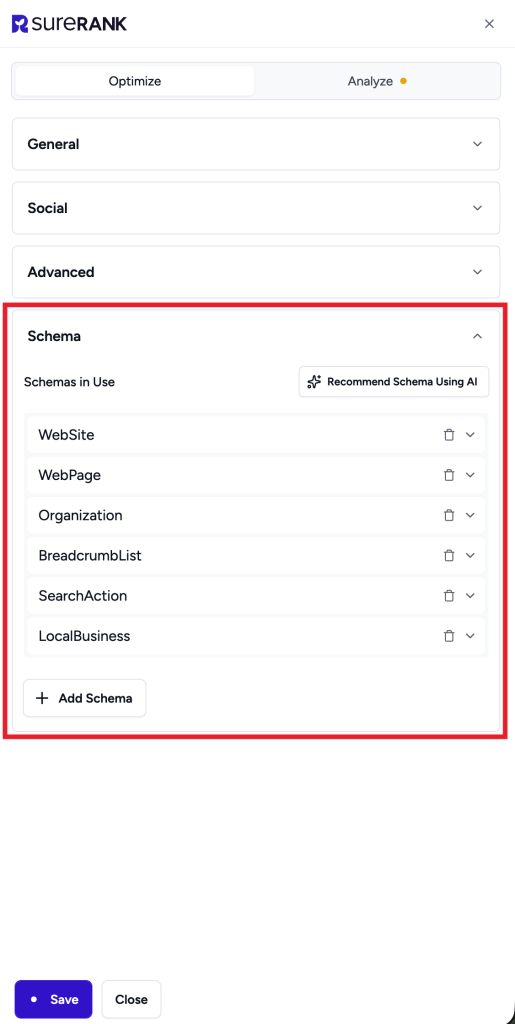
Step 3: Add the Local Business Schema
Inside the Schema section, click Add Schema.
From Choose Schema, select LocalBusiness.
SureRank will add the Local Business Schema to the schema configuration for the page you are editing.
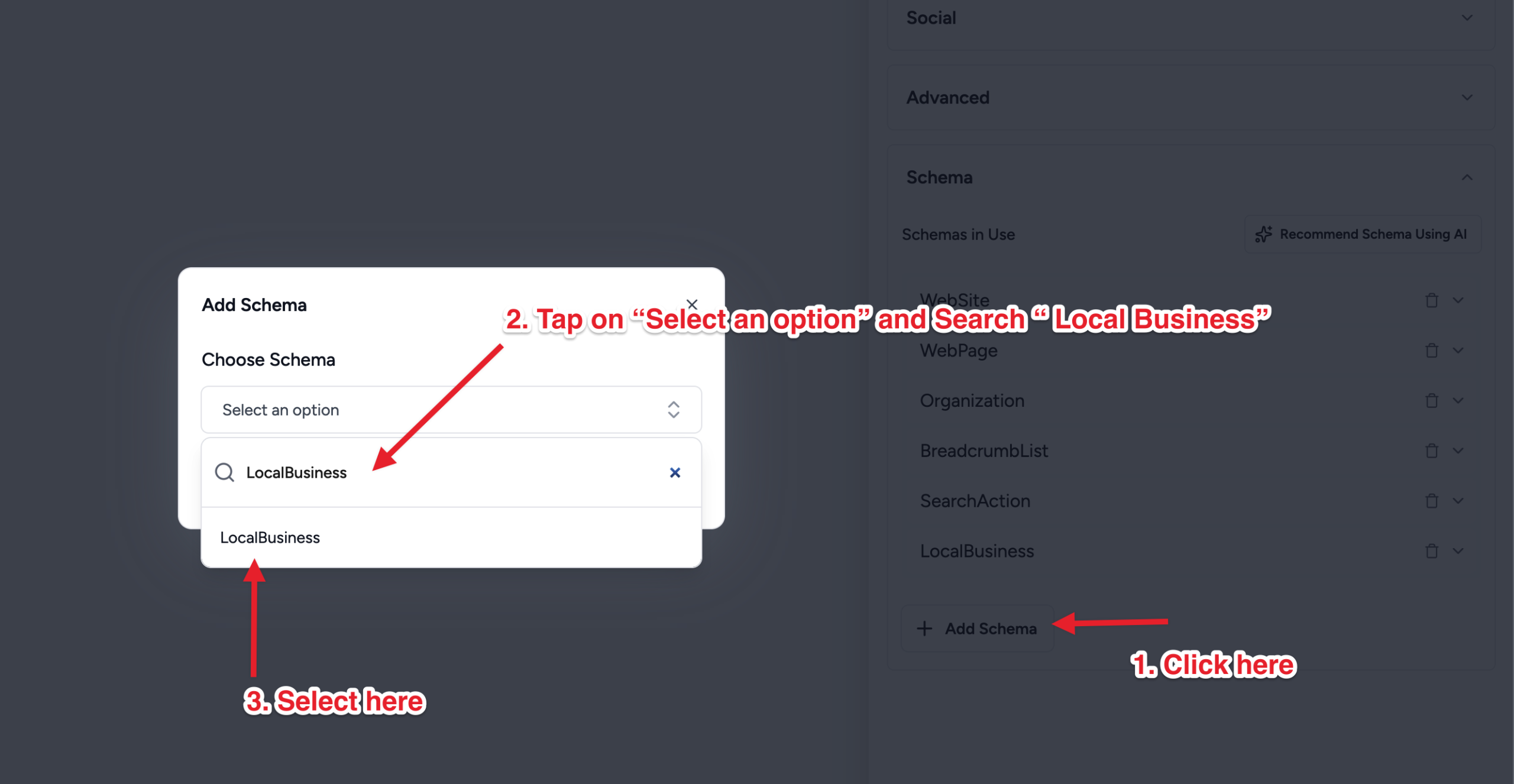
Step 4: Add the Details for That Location
Configure the Local Business Schema using the information for the physical location represented by the page.
For example, if you are editing the Ahmedabad location page, enter the Ahmedabad business details.
Depending on your business, the schema can include:
- Business Type
- Business Name
- Business Description
- Business URL
- Street Address
- City
- State/Region
- Postal Code
- Country
- Latitude
- Longitude
- Phone Number
- Opening Hours
- Has Map
- Area Served
- Price Range
Make sure the information belongs to that specific location.
For example, the Ahmedabad location page should not contain the Mumbai address, phone number, or geographic coordinates.
Use the Location Page as the Business URL
Pay particular attention to the Business URL field.
For a multi-location setup, use the URL of the specific location page rather than the general website homepage.
For example:
https://example.com/locations/ahmedabad
If the field initially contains your main site URL, replace it with the URL for the location you are currently configuring.
Add the Map URL
SureRank provides a field named Has Map.
Use this field to add a URL to a map of the physical business location.
For detailed information about the other available fields, see Local Business Schema in SureRank.
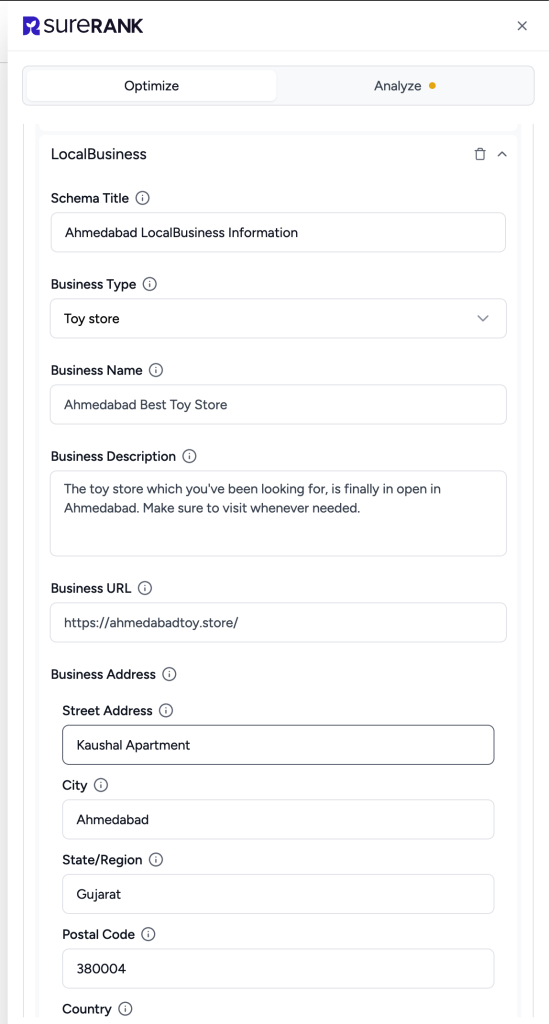
Step 5: Save the Schema
Once you have entered the correct details for the location, click Save in the SureRank Meta Box.
Because you are configuring the schema directly at the page level, you do not need to set Display Conditions for this method.
Important: When schemas are customized at the page level, SureRank uses the page-level schema configuration for that page instead of the global schema configuration. Review the schemas shown under Schemas in Use to make sure the page contains the schema configuration you want.
Step 6: Repeat the Process for Your Other Locations
Open the next location page and repeat the same process.
For example:
- Ahmedabad page → Local Business Schema with Ahmedabad details
- Mumbai page → Local Business Schema with Mumbai details
- Pune page → Local Business Schema with Pune details
Each location can have its own:
- Address
- Phone number
- Opening hours
- Geographic coordinates
- Business URL
- Map URL through the Has Map field
- Area served
- Other location-specific business information
This keeps the structured data for each physical location separate.
Step 7: Verify the Schema on Each Location Page
After configuring all your locations, check each page individually.
Make sure:
- The correct Local Business Schema appears on the page.
- The address belongs to the correct location.
- The phone number is correct.
- The opening hours are correct.
- The geographic coordinates are correct.
- The Business URL points to the correct location page.
- The Has Map URL points to the correct location.
- Details from one location are not appearing on another location page.
You can also test each location page using:
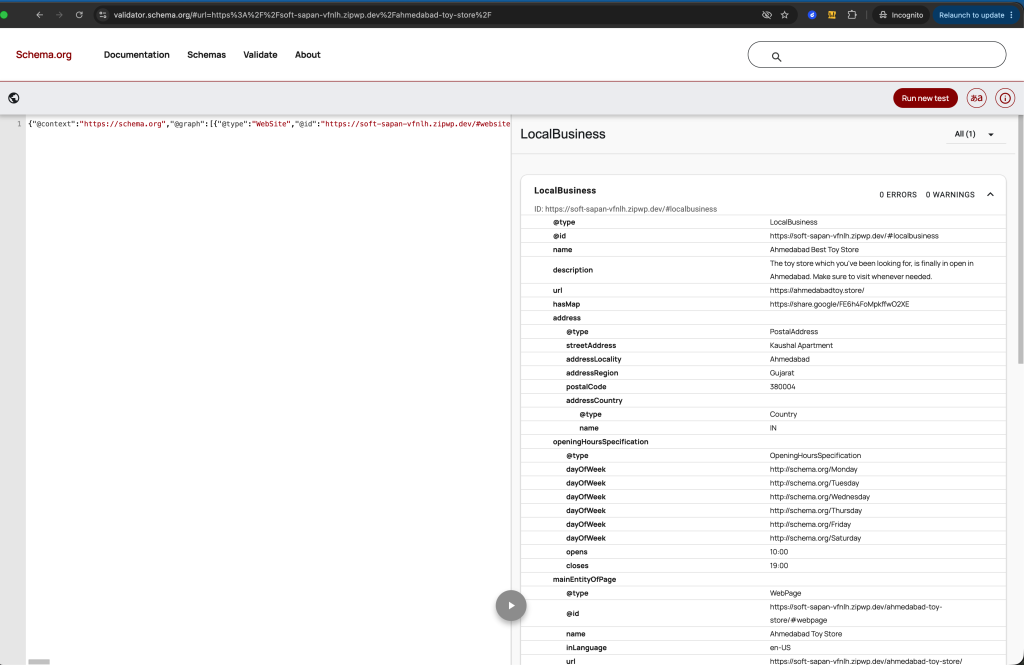
Alternative: Manage Location Schemas from SureRank Schema Settings
If you prefer to manage your Local Business Schemas from one place, you can also create separate schemas from:
SureRank → Advanced → Schema
For example:
- Your Brand – Ahmedabad
- Your Brand – Mumbai
- Your Brand – Pune
When using this method, configure Display Conditions to assign each Local Business Schema to the appropriate location page.
For example:
Display On → Specific Pages / Posts / Taxonomies, etc. → Ahmedabad Location Page
Repeat the process for every location.
Important: Unlike the page-level method, a schema created under the global Schema settings needs a valid Display On condition before SureRank outputs it on a page.
Frequently Asked Questions
Related Docs
We don't respond to the article feedback, we use it to improve our support content.