
- Sitemaps in SureRank
- How to Enable Video Sitemap in SureRank Pro
- How to Enable the News Sitemap in SureRank
- How to Show the HTML Sitemap on Your Site in SureRank Pro
- How to Regenerate the Sitemap After Excluding a Post Type in SureRank
- Change the Sitemap URL in SureRank
- How to Enable Author Sitemap in SureRank
- How to Fix WWW and Non-WWW Version Redirects to Improve Your SEO
- How to Fix: No H1 Heading Found on Your Homepage
- How to Fix Missing H2 Headings on Your Homepage
- Re-run Checks Button in SureRank
- Fix Critical Error: Another SEO Plugin Detected in SureRank
- Fix Warning: Site Tagline Is Not Set in SureRank
- How to Fix: Robots.txt Contains Invalid Rules in SureRank
- How to Fix Multiple SEO Plugins Detected on Your Site
- How to Fix: Homepage is Not Indexable by Search Engines
- Warning: Homepage Does Not Contain Internal Links
- How to Fix: Search Engine Title is Missing on the Page
- Page Level SEO: Broken Links Detected
- How to Fix Missing Alt Text on Images
- How to Fix Page URLs That Are Too Long
- Page Level SEO Warning: No Links Found on This Page
- Page Level SEO Warning: No Images or Videos Found
- Page Level SEO Warning: Missing Search Engine Description
- Page Level SEO Warning: No Subheadings Found on This Page
- Page Level SEO Warning: Canonical Tag is Missing
- Page Level SEO Warning: Open Graph Tags Missing
- What is Google Search Console and how does SureRank use it?
- Recommended Image Sizes
- SureRank – SEO Check Severity Guide
- Using SureRank with Other SEO Plugins – Best Practices
- Import/Export Feature – SureRank Plugin
- What is llms.txt and Does SureRank Support It?
- Does SureRank offer a keyword rank-tracking feature?
- Does SureRank Come With Google Analytics Integration?
- Email Summary in SureRank
- SureRank Role Manager
- Using the Google Indexing API with SureRank
- Customize XML Sitemap Top Bar with surerank_sitemap_top_bar_data
- Analyze ACF Field Content with SureRank
- Preserve Modified Date During Updates surerank_freeze_modified_date
- Customize Final Title Tag surerank_final_title
- Customize Post Type Archive Title Output surerank_post_type_archive_title
- Customize Archive Page Title with surerank_archive_title
- CustomizeModify the Search Results Page Title surerank_search_title
- Customizing the 404 Page Title surerank_not_found_title
- Customizing the Title Separator surerank_title_separator
- How to Remove Archive Prefixes from Titles Using SureRank
SureRank Role Manager
The Role Manager feature in SureRank allows you to control who can access and manage SEO settings on your website.
It helps you assign the right permissions to the right users while keeping important site settings secure.
Why Role Manager Is Required
On most WordPress websites, multiple users work together. For example:
- Editors manage content
- Authors write posts
- Shop managers handle products
- Contributors submit drafts
Without proper control, users may get access to important SEO or global settings that affect the entire website.
The Role Manager helps you:
- Protect critical SEO and technical settings
- Allow only specific roles to access SEO features
- Prevent accidental changes to global configurations
- Maintain better control over your site
This ensures that only trusted users can manage advanced settings, while others can focus only on their tasks.
How to Access Role Manager
Follow these steps:
- Go to your WordPress Dashboard
- Navigate to SureRank → Tools
- Click on Role Manager
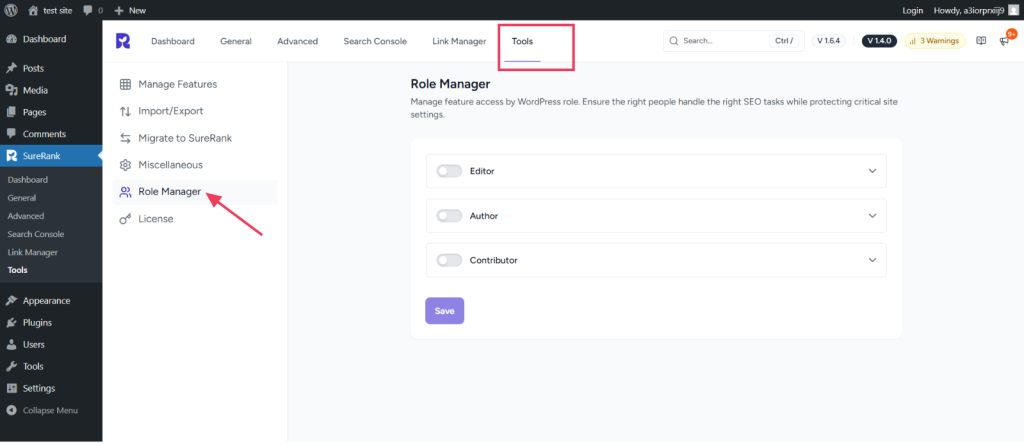
When you open Role Manager, you will see the following message:
Manage feature access by WordPress roles and ensure the right people handle the right SEO tasks while protecting critical site settings.
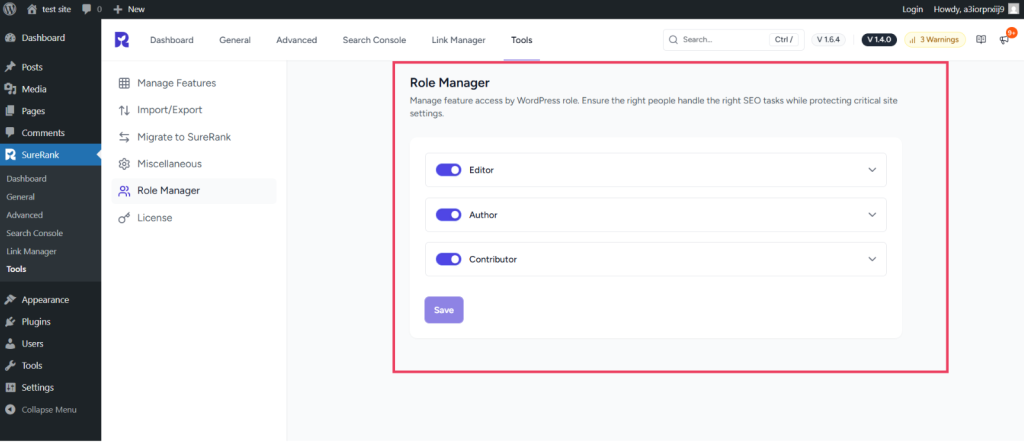
The roles displayed in this section are automatically fetched from your WordPress site.
By default, WordPress roles such as the following will be shown:
- Editor
- Author
- Contributor
If you have installed and activated plugins that create additional user roles (for example, eCommerce or booking plugins), those roles will also appear automatically in the Role Manager.
For example:
- Customer
- Shop Manager
- SureCart Shop Manager
- SureCart Accountant
- SureCart Shop Worker
- SureCart Customer
- LatePoint Customer
- LatePoint Agent
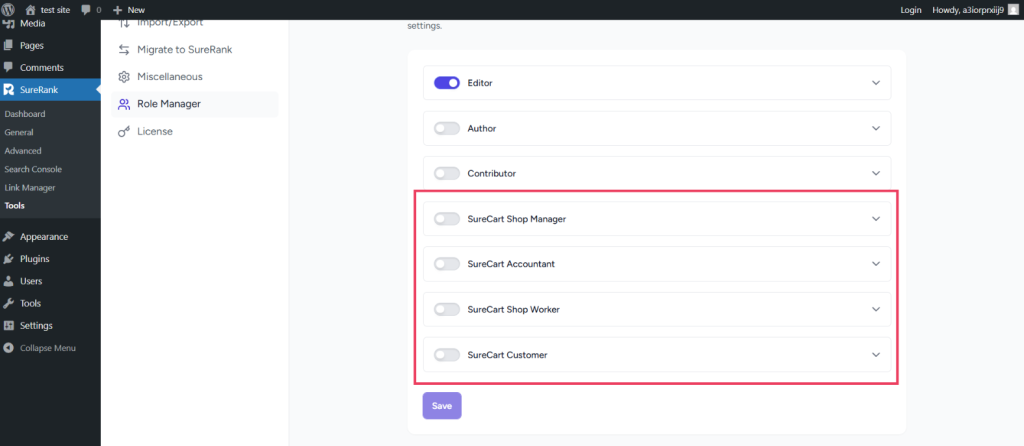
This ensures that any existing or newly created user roles on your site can be managed directly from the Role Manager.
Role Settings Explained (Example: Editor Role)
Click on any role (for example, Editor) to expand its settings.
You will see two main permission options:
1. SureRank Settings (Post-Level Access)
This option allows users to manage SEO settings for individual content items, including:
- Posts
- Pages
- Custom Post Types (if available)
Users with this permission can:
- Manage SEO metadata (title, description, focus keywords, etc.)
- Use the SEO Meta Box
- Access AI features for content optimization
Enable this option if you want Editors or Authors to manage SEO for individual posts and pages without giving them access to site-wide configuration settings.
Post and page-level permissions apply only to individual content items and do not allow users to modify global SEO configurations.
2. Global Settings (Site-Wide Access)
This option allows users to manage:
- SEO configuration
- Performance insights
- Technical SEO controls
- Developer tools
- Other settings that affect the entire website
Important: Global settings impact the whole website. It is recommended to give this access only to trusted users.
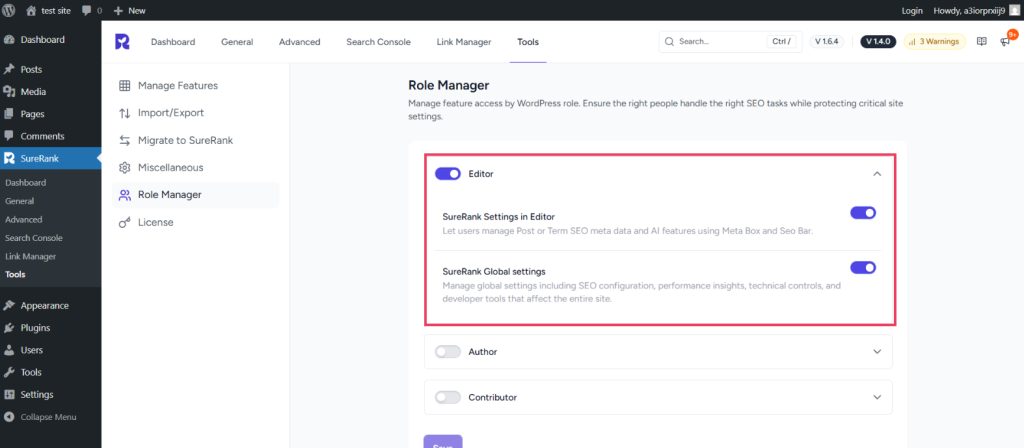
How Permissions Work
You can:
- Enable only SureRank Settings (for post-level SEO access)
- Enable only Global Settings (for site-wide control)
- Enable both options
- Disable both to restrict access completely
After making changes:
- Click Save
- The new permissions will apply immediately
Example: Editor Role After Enabling Access
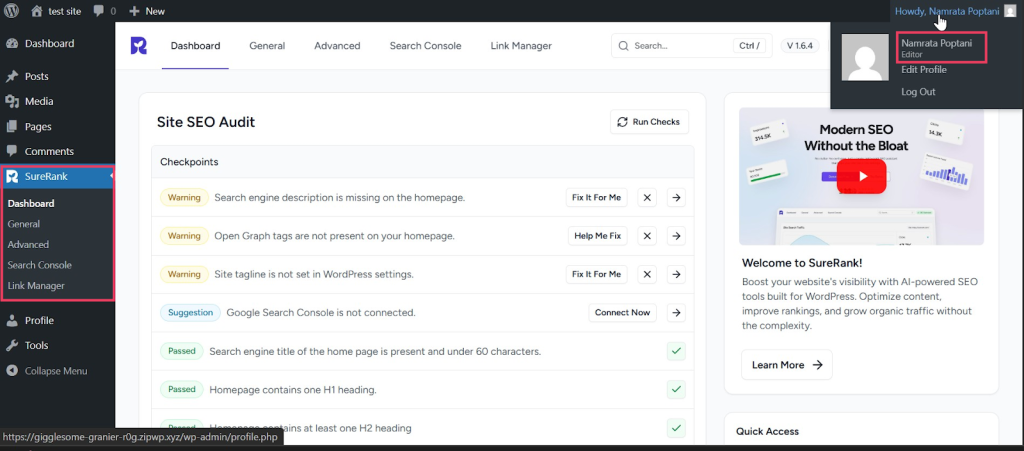
When permissions are enabled for the Editor role:
- SureRank menu appears in the WordPress dashboard
- Editors can access:
- Dashboard
- General Settings
- Advanced Settings
- Search Console
- Content Manager
However:
- Some tool-level settings may remain restricted to Admin users only
Edit SEO Settings on a Page or Post
Once the SureRank Settings (Post & Page Level Access) permission is enabled for a role (for example, Editor or Author), users can optimize SEO directly from the content editor.
Follow these steps:
- Go to your WordPress Dashboard
- Navigate to Pages or Posts
- Click Edit on any page or post
- Inside the editor, look for the SureRank icon or SEO panel
- Click on the SureRank icon to open the SEO settings
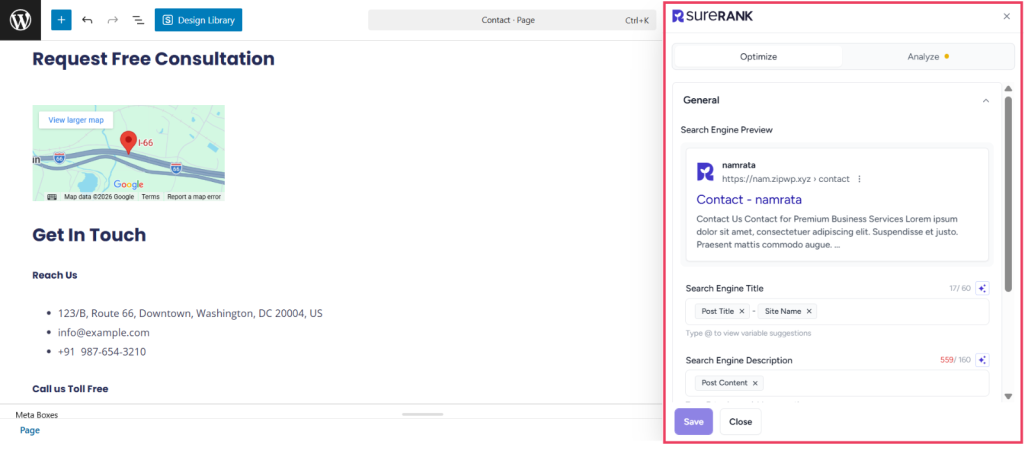
From here, you can:
- Edit SEO Title
- Edit Meta Description
- Set Focus Keywords
- Review SEO analysis
- Use AI features (if enabled)
After making changes, click Update or Publish to save the SEO settings. This allows users to optimize individual pages and posts without accessing global site settings.
Other Roles
You can configure the same settings for:
- Author
- Contributor
- Customer
- Shop Manager
- SureCart Roles
- LatePoint Roles
For each role, you can decide:
- Whether they can manage only post SEO
- Or whether they can access the full global settings
This gives you complete flexibility based on your website structure.
Best Practice Recommendation
For most websites:
- Editors & Authors → Enable SureRank Settings only
- Contributors → Usually keep disabled
- Global Settings → Allow only Admin or trusted users
This keeps your SEO secure while allowing content teams to optimize posts.
Conclusion
The SureRank Role Manager helps you:
- Improve security
- Prevent unwanted changes
- Delegate SEO tasks properly
- Maintain better control over your website
By using Role Manager correctly, you ensure that the right users handle the right SEO responsibilities without affecting critical site settings.
We don't respond to the article feedback, we use it to improve our support content.