
- How to Migrate from Rank Math to SureRank
- How to Migrate from Yoast to SureRank
- How to Migrate from SEOPress to SureRank SEO
- How to Migrate from Squirrly SEO to SureRank
- How to Migrate from All in One SEO (AIOSEO) to SureRank
- How to Migrate from Slim SEO to SureRank
- Migration Failed: How to Diagnose
- After You Migrate: Verification and Cleanup Checklist
- Sitemaps in SureRank
- How to Enable Video Sitemap in SureRank Pro
- How to Enable the News Sitemap in SureRank
- How to Show the HTML Sitemap on Your Site in SureRank Pro
- How to Regenerate the Sitemap After Excluding a Post Type in SureRank
- Change the Sitemap URL in SureRank
- How to Enable Author Sitemap in SureRank
- How to Exclude Post Types from the Sitemap
- How to Enable the Author Sitemap and Why Authors Are Excluded (Pro)
- Editing Meta Box
- SureRank – Page SEO Checks
- Enabling Page SEO Checks in WordPress
- Image Alt Text – Automatic Optimization
- Link Manager
- Using the SureRank Front-End Meta Box
- How to Edit the Meta Title and Description for a Single Page or Post
- Controlling Indexing with Robot Instructions
- How to Set Global Title and Description Templates with Variables
- How to Set a Canonical URL and How the Canonical Field Works
- How to Set the Homepage, Shop, and Archive Title & Description
- Setting Up Site Information for Google’s Knowledge Panel
- Social Settings: Facebook/Open Graph, X (Twitter) Cards, and Profile Links
- Why Do My Image Links Redirect to a Blog Post or My Homepage?
- How to Fix WWW and Non-WWW Version Redirects to Improve Your SEO
- How to Fix: No H1 Heading Found on Your Homepage
- How to Fix Missing H2 Headings on Your Homepage
- Re-run Checks Button in SureRank
- Fix Critical Error: Another SEO Plugin Detected in SureRank
- Fix Warning: Site Tagline Is Not Set in SureRank
- How to Fix: Robots.txt Contains Invalid Rules in SureRank
- How to Fix Multiple SEO Plugins Detected on Your Site
- How to Fix: Homepage is Not Indexable by Search Engines
- Warning: Homepage Does Not Contain Internal Links
- How to Fix: Search Engine Title is Missing on the Page
- Page Level SEO: Broken Links Detected
- How to Fix Missing Alt Text on Images
- How to Fix Page URLs That Are Too Long
- Page Level SEO Warning: No Links Found on This Page
- Page Level SEO Warning: No Images or Videos Found
- Page Level SEO Warning: Missing Search Engine Description
- Page Level SEO Warning: No Subheadings Found on This Page
- Page Level SEO Warning: Canonical Tag is Missing
- Page Level SEO Warning: Open Graph Tags Missing
- What is Google Search Console and how does SureRank use it?
- Recommended Image Sizes
- SureRank – SEO Check Severity Guide
- Using SureRank with Other SEO Plugins – Best Practices
- Import/Export Feature – SureRank Plugin
- What is llms.txt and Does SureRank Support It?
- Does SureRank offer a keyword rank-tracking feature?
- Does SureRank Come With Google Analytics Integration?
- Email Summary in SureRank
- SureRank Role Manager
- Search Engines Not Indexing Your WordPress Site?
- Sitemap Not Showing in SureRank
- Fixing robots.txt Issues in SureRank
- Why a Working Link Is Flagged as Broken (404)
- Which Pages Are Included in Your SureRank Sitemap
- Fixing False SEO Audit Warnings Caused by Caching
- Fixing “Couldn’t Fetch” for Your Sitemap in Google Search Console
- Troubleshooting: Favicon and Logo in Google Search Results (Supported Formats and CDN Gotchas)
- Customize XML Sitemap Top Bar with surerank_sitemap_top_bar_data
- Analyze ACF Field Content with SureRank
- Preserve Modified Date During Updates surerank_freeze_modified_date
- Customize Final Title Tag surerank_final_title
- Customize Post Type Archive Title Output surerank_post_type_archive_title
- Customize Archive Page Title with surerank_archive_title
- CustomizeModify the Search Results Page Title surerank_search_title
- Customizing the 404 Page Title surerank_not_found_title
- Customizing the Title Separator surerank_title_separator
- How to Remove Archive Prefixes from Titles Using SureRank
Using the SureRank Front-End Meta Box
SureRank gives you a faster way to manage SEO without leaving your website. The front-end Meta Box puts your SEO controls directly on any page you are viewing, accessible from the WordPress admin bar at the top of your screen. Instead of switching back and forth between the dashboard and your live site, you can review content, update metadata, and run an SEO analysis all in one place.
What Is the Front-End Meta Box?
The Meta Box gives you full access to SureRank’s per-page SEO settings while you are looking at the live version of that page, making it easy to compare your content with your SEO configuration in real time.
It is available on:
- Singular posts and pages: any published post, page, or custom post type
- Taxonomy term archive pages: category, tag, and custom taxonomy archives
Who Can See It?
By default, the front-end Meta Box is visible only to logged-in administrators.
If you are using SureRank Pro, administrators can extend access to other roles, such as Editor or Author, through the Role Manager (SureRank > Settings > Role Manager).
How to Access the Meta Box
Follow these steps to open the Meta Box from the front end of your site:
- Log in to your WordPress site as an administrator.
- Navigate to any page, post, or archive on your website. You do not need to open the WordPress dashboard.
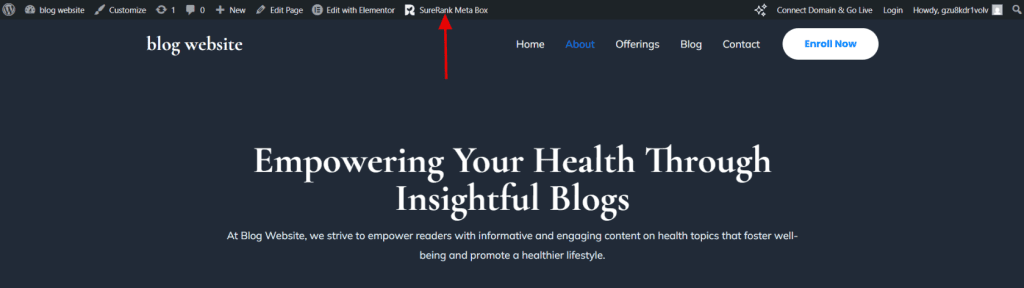
- Look at the admin bar at the top of the screen. You will see the SureRank Meta Box icon in the toolbar.
- Click the SureRank Meta Box icon. The Meta Box panel will slide open on the right side of the page.
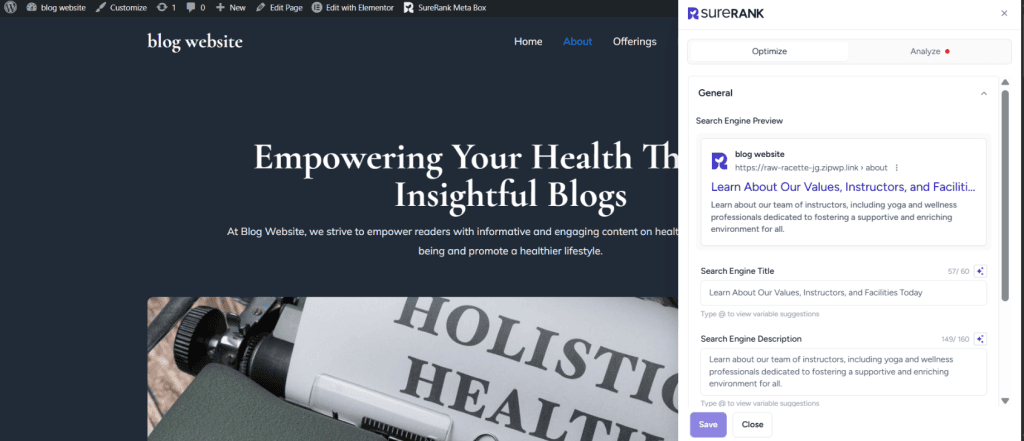
- You are now ready to review and update SEO settings for that page without leaving the front end.
What’s Inside the Meta Box
The Meta Box contains two tabs that cover everything from configuration to live analysis.
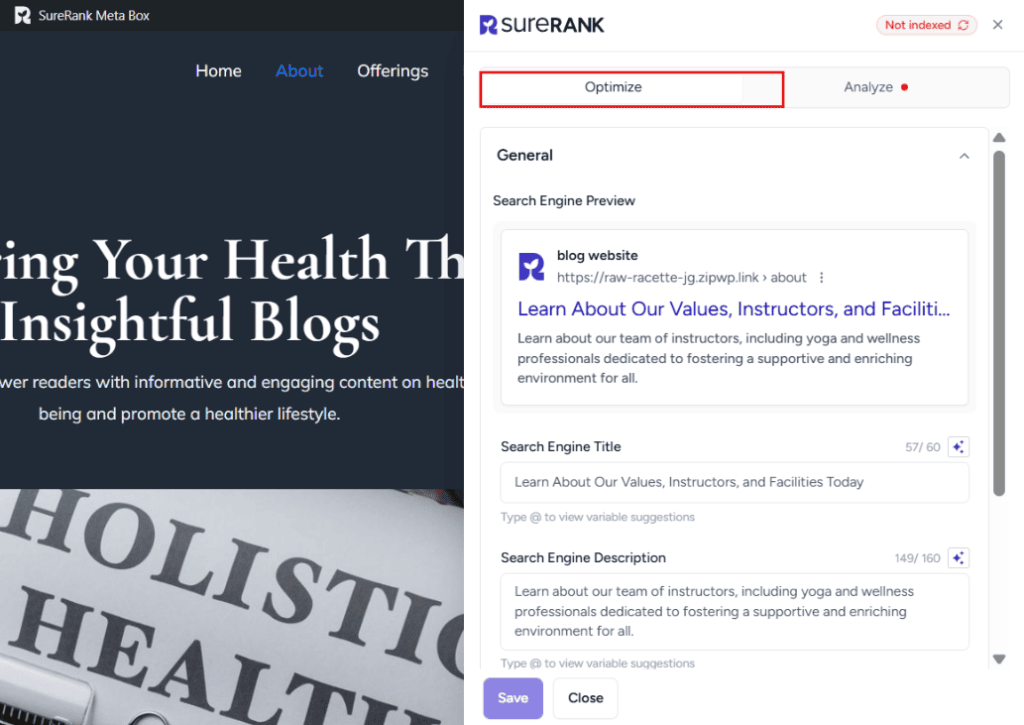
Optimize Tab
This is the default tab when you open the Meta Box. It contains all the SEO settings for the current page, so you can make changes while viewing your live content side by side. Settings available in this tab include:
- General Settings (Meta Title, Meta Description, SERP)
- Social Settings (OpenGraph and Twitter Metadata)
- Advanced Settings (Robot Instructions and Canonical URL)
- Schema
Analyze Tab
The Analyze tab runs a real-time SEO analysis of the current page and displays the results in categorized groups. It checks:
- Keyword usage across the content
- Headings structure
- Image alt text
- Broken links
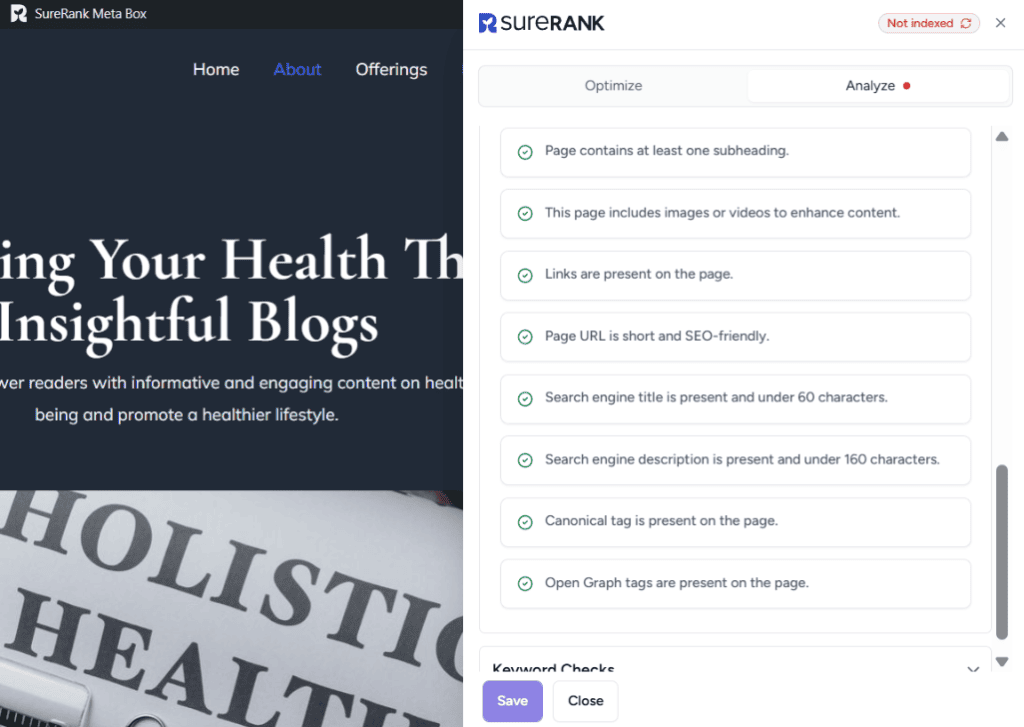
Results update as you make changes, so you get immediate feedback without having to save and reload.
Why Use the Front-End Meta Box?
- See your live page and SEO settings at the same time, no switching between screens.
- Every change you make is informed by what your visitors actually see.
- Faster iteration: update, review, and move on without reloading or navigating away.
- Works across posts, pages, and archive pages, wherever your content lives.
- Fine-tune metadata for any page type, from blog posts to product pages to category archives, all from the front end.
We don't respond to the article feedback, we use it to improve our support content.