
- How to Migrate from Rank Math to SureRank
- How to Migrate from Yoast to SureRank
- How to Migrate from SEOPress to SureRank SEO
- How to Migrate from Squirrly SEO to SureRank
- How to Migrate from All in One SEO (AIOSEO) to SureRank
- How to Migrate from Slim SEO to SureRank
- Migration Failed: How to Diagnose
- After You Migrate: Verification and Cleanup Checklist
- Sitemaps in SureRank
- How to Enable Video Sitemap in SureRank Pro
- How to Enable the News Sitemap in SureRank
- How to Show the HTML Sitemap on Your Site in SureRank Pro
- How to Regenerate the Sitemap After Excluding a Post Type in SureRank
- Change the Sitemap URL in SureRank
- How to Enable Author Sitemap in SureRank
- How to Exclude Post Types from the Sitemap
- How to Enable the Author Sitemap and Why Authors Are Excluded (Pro)
- Editing Meta Box
- SureRank – Page SEO Checks
- Enabling Page SEO Checks in WordPress
- Image Alt Text – Automatic Optimization
- Link Manager
- Using the SureRank Front-End Meta Box
- How to Edit the Meta Title and Description for a Single Page or Post
- Controlling Indexing with Robot Instructions
- How to Set Global Title and Description Templates with Variables
- How to Set a Canonical URL and How the Canonical Field Works
- How to Fix WWW and Non-WWW Version Redirects to Improve Your SEO
- How to Fix: No H1 Heading Found on Your Homepage
- How to Fix Missing H2 Headings on Your Homepage
- Re-run Checks Button in SureRank
- Fix Critical Error: Another SEO Plugin Detected in SureRank
- Fix Warning: Site Tagline Is Not Set in SureRank
- How to Fix: Robots.txt Contains Invalid Rules in SureRank
- How to Fix Multiple SEO Plugins Detected on Your Site
- How to Fix: Homepage is Not Indexable by Search Engines
- Warning: Homepage Does Not Contain Internal Links
- How to Fix: Search Engine Title is Missing on the Page
- Page Level SEO: Broken Links Detected
- How to Fix Missing Alt Text on Images
- How to Fix Page URLs That Are Too Long
- Page Level SEO Warning: No Links Found on This Page
- Page Level SEO Warning: No Images or Videos Found
- Page Level SEO Warning: Missing Search Engine Description
- Page Level SEO Warning: No Subheadings Found on This Page
- Page Level SEO Warning: Canonical Tag is Missing
- Page Level SEO Warning: Open Graph Tags Missing
- What is Google Search Console and how does SureRank use it?
- Recommended Image Sizes
- SureRank – SEO Check Severity Guide
- Using SureRank with Other SEO Plugins – Best Practices
- Import/Export Feature – SureRank Plugin
- What is llms.txt and Does SureRank Support It?
- Does SureRank offer a keyword rank-tracking feature?
- Does SureRank Come With Google Analytics Integration?
- Email Summary in SureRank
- SureRank Role Manager
- Search Engines Not Indexing Your WordPress Site?
- Sitemap Not Showing in SureRank
- Fixing robots.txt Issues in SureRank
- Why a Working Link Is Flagged as Broken (404)
- Which Pages Are Included in Your SureRank Sitemap
- Fixing False SEO Audit Warnings Caused by Caching
- Fixing “Couldn’t Fetch” for Your Sitemap in Google Search Console
- Troubleshooting: Favicon and Logo in Google Search Results (Supported Formats and CDN Gotchas)
- Customize XML Sitemap Top Bar with surerank_sitemap_top_bar_data
- Analyze ACF Field Content with SureRank
- Preserve Modified Date During Updates surerank_freeze_modified_date
- Customize Final Title Tag surerank_final_title
- Customize Post Type Archive Title Output surerank_post_type_archive_title
- Customize Archive Page Title with surerank_archive_title
- CustomizeModify the Search Results Page Title surerank_search_title
- Customizing the 404 Page Title surerank_not_found_title
- Customizing the Title Separator surerank_title_separator
- How to Remove Archive Prefixes from Titles Using SureRank
After You Migrate: Verification and Cleanup Checklist
Once you’ve migrated, this guide walks you through verifying that everything transferred correctly, understanding why old or duplicate meta tags may still be visible, and safely uninstalling your previous SEO plugin.
Step 1: Confirm the Migration Finished
- Go to SureRank → Tools → Migrate to SureRank.
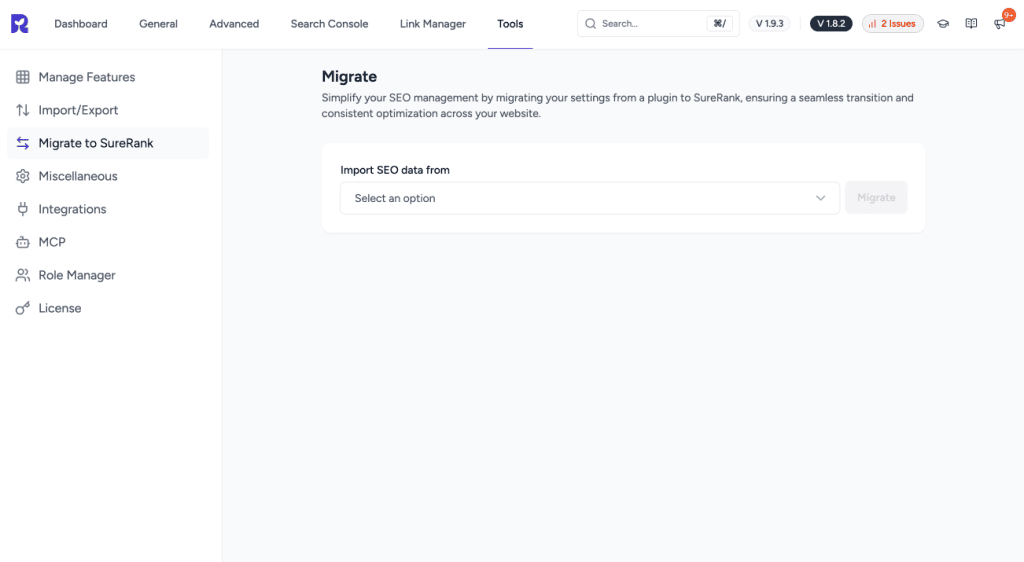
- If it already ran, you’ll see a “Migration Completed” notice naming the source plugin.
- Spot-check a handful of pages: homepage, a regular post, and one item per post type or category you use. Open each in the editor. The SureRank SEO panel’s Title, Meta Description, Robots, and Social fields should already be filled with your old values.
- Check site-wide defaults at SureRank → General. Old title and description templates, separator, and social profile links should be there.
- Give it a minute, then check yoursite.com/surerank-sitemap.xml. SureRank auto-schedules a sitemap refresh shortly after migration completes.
Re-running migration on a page is safe if fields look blank. It won’t create duplicates.
Step 2: What Migrates Automatically, and What Doesn’t
| Migrated Automatically | Not Migrated, Set Up Again Manually |
| Meta titles and descriptions | Schema / structured data (FAQ, Review, Recipe, etc.) |
| Robots directives (noindex, nofollow…) | Robots.txt editor content |
| Open Graph and Twitter fields | Breadcrumbs settings |
| Sitemap settings, site info | Redirects |
| Image SEO settings | Search Console connection, email reports |
Step 3: Why Old or Duplicate Meta Tags Might Still Show Up
Migration copies data into SureRank. It never touches or deletes anything belonging to the old plugin. In order of likelihood:
- The old plugin is still active. SureRank’s frontend only ever reads its own surerank_settings_* fields, so it has no awareness of Yoast, Rank Math, or SEOPress meta keys at all. There’s no “which one wins” conflict. If the old plugin is still active, it independently prints its own <title>, meta description, OG tags, and schema into <head>, so both sets appear. Deactivating it fixes this immediately.
- Schema wasn’t migrated (see Step 2). It needs to be re-added in SureRank’s Schema tab.
- Page or CDN caching is serving a page generated before migration. Clear all caches. SureRank’s migration screen detects active cache plugins and recommends pausing them during migration for this reason.
- Social platform caches (Facebook, X, LinkedIn). Use their debugger or inspector tools to force a re-scrape.
- Search engine result lag. Google may show an old title or description for days. That’s normal, not a bug.
Quick check: view page source (Ctrl/Cmd+U) and search for <title>, name=”description”, and og:title. Each should appear exactly once. Two means another plugin is still active.
Step 4: Safely Removing the Old Plugin
Deactivate is not the same as delete. Deactivating stops the plugin’s output immediately but leaves its saved data untouched in the database. Deleting removes its files. Whether its data is also cleaned up depends entirely on that plugin’s own uninstall routine, not on SureRank.
Recommended order
- Complete Steps 1 and 2 first. Don’t remove the old plugin until key pages look right in SureRank.
- Deactivate it. The Migrate screen shows a one-click “Deactivate [Plugin]” prompt right after migration; this also deactivates its Pro or premium companion plugin if detected. Otherwise, deactivate manually from Plugins → Installed Plugins.
- Reload pages and recheck the page source for duplicate tags.
- Clear caches again.
- Once confident, delete the old plugin from Plugins → Installed Plugins if it’s no longer needed. This is optional, but it lets the plugin’s own cleanup routine run and keeps things tidy.
Quick Checklist
- Migrate screen shows migration completed for the old plugin
- Homepage and a few posts checked in the SureRank editor
- Global templates and social profiles match the old setup
- Schema, redirects, and breadcrumbs manually recreated where needed
- Page source shows exactly one title, description, and OG tag set
- All caches cleared
- Old plugin deactivated
- Social debuggers re-scraped, if needed
- Old plugin deleted (optional)
We don't respond to the article feedback, we use it to improve our support content.