
- Sitemaps in SureRank
- How to Enable Video Sitemap in SureRank Pro
- How to Enable the News Sitemap in SureRank
- How to Show the HTML Sitemap on Your Site in SureRank Pro
- How to Regenerate the Sitemap After Excluding a Post Type in SureRank
- Change the Sitemap URL in SureRank
- How to Enable Author Sitemap in SureRank
- How to Fix WWW and Non-WWW Version Redirects to Improve Your SEO
- How to Fix: No H1 Heading Found on Your Homepage
- How to Fix Missing H2 Headings on Your Homepage
- Re-run Checks Button in SureRank
- Fix Critical Error: Another SEO Plugin Detected in SureRank
- Fix Warning: Site Tagline Is Not Set in SureRank
- How to Fix: Robots.txt Contains Invalid Rules in SureRank
- How to Fix Multiple SEO Plugins Detected on Your Site
- How to Fix: Homepage is Not Indexable by Search Engines
- Warning: Homepage Does Not Contain Internal Links
- How to Fix: Search Engine Title is Missing on the Page
- Page Level SEO: Broken Links Detected
- How to Fix Missing Alt Text on Images
- How to Fix Page URLs That Are Too Long
- Page Level SEO Warning: No Links Found on This Page
- Page Level SEO Warning: No Images or Videos Found
- Page Level SEO Warning: Missing Search Engine Description
- Page Level SEO Warning: No Subheadings Found on This Page
- Page Level SEO Warning: Canonical Tag is Missing
- Page Level SEO Warning: Open Graph Tags Missing
- What is Google Search Console and how does SureRank use it?
- Recommended Image Sizes
- SureRank – SEO Check Severity Guide
- Using SureRank with Other SEO Plugins – Best Practices
- Import/Export Feature – SureRank Plugin
- What is llms.txt and Does SureRank Support It?
- Does SureRank offer a keyword rank-tracking feature?
- Does SureRank Come With Google Analytics Integration?
- Email Summary in SureRank
- SureRank Role Manager
- Customize XML Sitemap Top Bar with surerank_sitemap_top_bar_data
- Analyze ACF Field Content with SureRank
- Preserve Modified Date During Updates surerank_freeze_modified_date
- Customize Final Title Tag surerank_final_title
- Customize Post Type Archive Title Output surerank_post_type_archive_title
- Customize Archive Page Title with surerank_archive_title
- CustomizeModify the Search Results Page Title surerank_search_title
- Customizing the 404 Page Title surerank_not_found_title
- Customizing the Title Separator surerank_title_separator
- How to Remove Archive Prefixes from Titles Using SureRank
How to Edit the Meta Title and Description for a Single Page or Post
SureRank lets you set a custom search engine title and description for any individual page or post, overriding the site-wide template. This doc covers where to find that panel across the block editor, Classic Editor, page builders, and the live front end of your site.
Open SureRank MetBox
In the Block Editor (Gutenberg)
- Open the post or page for editing.
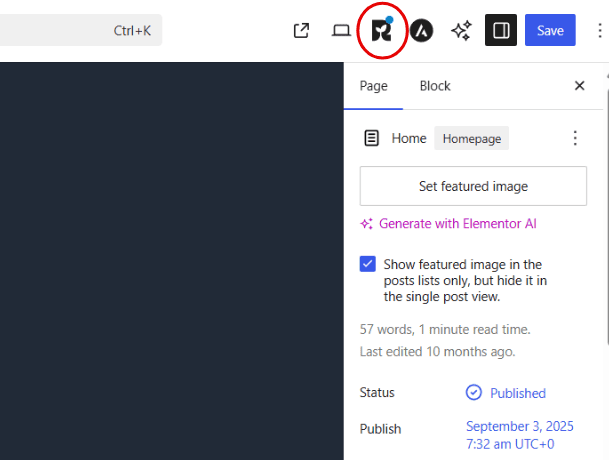
- Select the SureRank icon in the editor toolbar, or open the Settings sidebar and select the SureRank SEO panel. Its toolbar icon shows an “Optimize Here” label when SEO issues are detected. It’s also available from the editor’s More Options menu as SureRank Meta Box.
- This opens the full SureRank panel where all fields below are edited.
In the Classic Editor
- Open the post or page for editing.
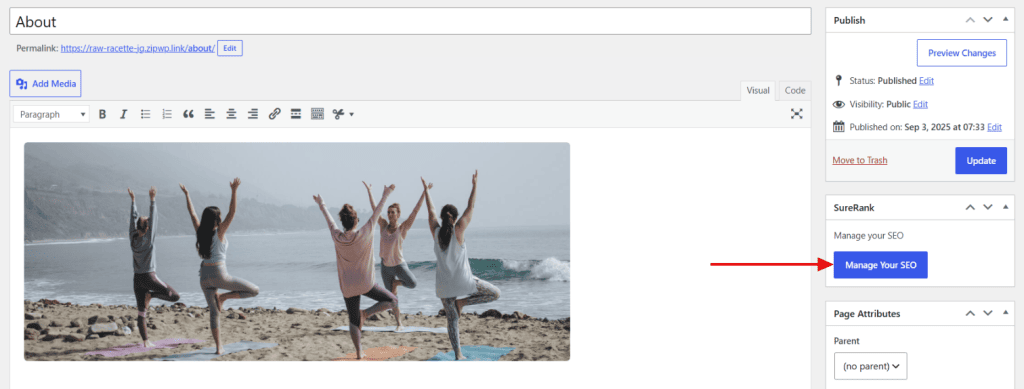
- Scroll below the content editor to the SureRank meta box and select it to open the same panel.
In Page Builders (Elementor or Bricks)
- Open the page in the page builder.
- Select the SureRank icon in the builder’s top toolbar to open the same panel.
In Divi
- Open the page in the Divi Visual Builder.
- Select SureRank SEO from the WordPress admin bar. Divi surfaces the panel there rather than as an icon inside the builder canvas.
From the Live Front End of Your Site
- While logged in and viewing any normal page, post, or category/tag archive on your site, not in a page builder’s edit mode, look for SureRank SEO in the WordPress admin bar at the top of the screen.
- Selecting it opens the same SureRank panel inline, without needing to open the editor at all. This requires the admin bar to be visible and your user account to have the appropriate SEO editing permission.
What You Can Edit
The panel has two top-level tabs: Optimize and Analyze. The fields below live in the Optimize tab, organized into expandable sections in this order.
General
- Search Engine Title: the page’s meta title, with a live character counter against SureRank’s recommended length.
- Search Engine Description: the meta description, also with a live character counter.
- A live search engine preview updates as you type, showing the favicon, site name, URL breadcrumb, and truncated title/description exactly as they may appear in search results.
Social
- Separate Social Title, Social Description, and Social Image fields for Facebook and X (Twitter), plus a “Use Data from Facebook Tab” toggle to reuse the Facebook fields for X instead of setting them separately.
- A live social card preview for both networks.
Advanced
- Robots controls: No Index, No Follow, No Archive.
- Canonical URL.
Schema
- Add or edit structured data (schema) for this specific page. See [How SureRank Schema Inheritance Works: Global vs Per-Page Overrides, to be published] for how this interacts with site-wide schema.
Also available: a Focus Keyword field, used for on-page keyword analysis in the Analyze tab.
Expected Outcome
Once saved, the page’s title and description override SureRank’s site-wide template for that single page, and the search preview reflects exactly what was entered.
Notes or Limitations
- If a page builder is active on a page, the Gutenberg sidebar panel and publish-flow SEO panel are hidden in favor of the builder’s own SureRank access point (toolbar icon for Elementor/Bricks, admin bar item for Divi). The underlying fields and data are the same either way.
- The front-end admin bar panel is meant for viewing or editing a finished live page. It doesn’t appear while a page builder’s own preview or edit mode is active, since those have their own dedicated SureRank access point.
- All fields save to that post’s metadata and only affect the individual page or post being edited. They don’t change the site-wide Meta Templates.
FAQ
Q: If I don’t set a title or description for a page, what shows in search results instead?
A: SureRank falls back to the site-wide Meta Template for that content type.
Q: Does editing the title here change the actual page heading/title on the front end?
A: No, this only changes the meta title used by search engines and browser tabs, not the visible on-page heading.
Q: I don’t see SureRank SEO in my admin bar on the front end, why not?
A: Check that the admin bar is enabled for your account (Users → Your Profile → Toolbar), that you have SEO editing permission, and that you’re viewing a normal page, post, or archive rather than a page builder’s edit or preview mode.
We don't respond to the article feedback, we use it to improve our support content.