
- Sitemaps in SureRank
- How to Enable Video Sitemap in SureRank Pro
- How to Enable the News Sitemap in SureRank
- How to Show the HTML Sitemap on Your Site in SureRank Pro
- How to Regenerate the Sitemap After Excluding a Post Type in SureRank
- Change the Sitemap URL in SureRank
- How to Enable Author Sitemap in SureRank
- How to Fix WWW and Non-WWW Version Redirects to Improve Your SEO
- How to Fix: No H1 Heading Found on Your Homepage
- How to Fix Missing H2 Headings on Your Homepage
- Re-run Checks Button in SureRank
- Fix Critical Error: Another SEO Plugin Detected in SureRank
- Fix Warning: Site Tagline Is Not Set in SureRank
- How to Fix: Robots.txt Contains Invalid Rules in SureRank
- How to Fix Multiple SEO Plugins Detected on Your Site
- How to Fix: Homepage is Not Indexable by Search Engines
- Warning: Homepage Does Not Contain Internal Links
- How to Fix: Search Engine Title is Missing on the Page
- Page Level SEO: Broken Links Detected
- How to Fix Missing Alt Text on Images
- How to Fix Page URLs That Are Too Long
- Page Level SEO Warning: No Links Found on This Page
- Page Level SEO Warning: No Images or Videos Found
- Page Level SEO Warning: Missing Search Engine Description
- Page Level SEO Warning: No Subheadings Found on This Page
- Page Level SEO Warning: Canonical Tag is Missing
- Page Level SEO Warning: Open Graph Tags Missing
- What is Google Search Console and how does SureRank use it?
- Recommended Image Sizes
- SureRank – SEO Check Severity Guide
- Using SureRank with Other SEO Plugins – Best Practices
- Import/Export Feature – SureRank Plugin
- What is llms.txt and Does SureRank Support It?
- Does SureRank offer a keyword rank-tracking feature?
- Does SureRank Come With Google Analytics Integration?
- Email Summary in SureRank
- SureRank Role Manager
- Customize XML Sitemap Top Bar with surerank_sitemap_top_bar_data
- Analyze ACF Field Content with SureRank
- Preserve Modified Date During Updates surerank_freeze_modified_date
- Customize Final Title Tag surerank_final_title
- Customize Post Type Archive Title Output surerank_post_type_archive_title
- Customize Archive Page Title with surerank_archive_title
- CustomizeModify the Search Results Page Title surerank_search_title
- Customizing the 404 Page Title surerank_not_found_title
- Customizing the Title Separator surerank_title_separator
- How to Remove Archive Prefixes from Titles Using SureRank
How to Migrate from Slim SEO to SureRank
If your website is currently using Slim SEO, you can easily migrate your SEO settings to SureRank using the built-in migration tool. SureRank allows you to import your existing SEO metadata so you can continue managing your SEO without losing previously configured settings.
Before You Begin
Before starting the migration process, please ensure the following:
- The SureRank plugin is installed and activated on your WordPress website.
- The Slim SEO plugin is installed and active so SureRank can detect the existing SEO data.
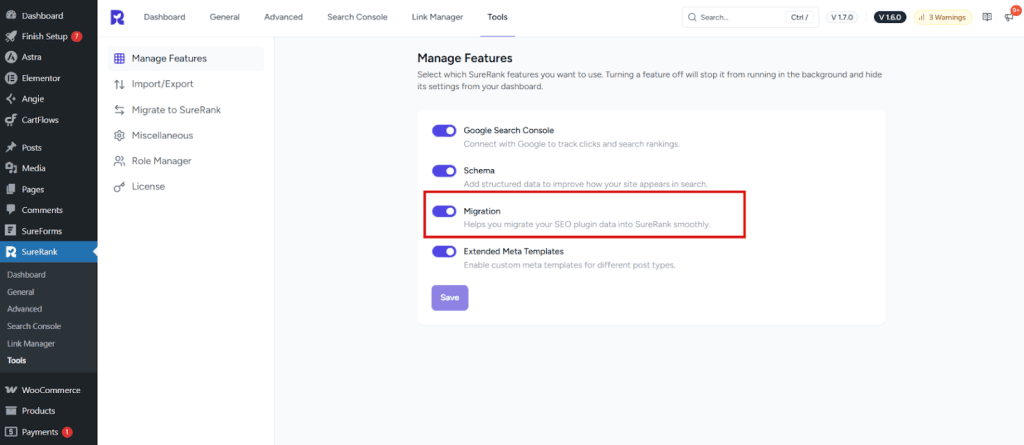
- Make sure the Migration feature is enabled in: SureRank → Tools → Manage Features.
- Take a full backup of your website. This helps you restore your site if anything unexpected happens during migration.
How to Migrate SEO Settings
Follow the steps below to migrate your SEO settings from Slim SEO to SureRank.
Step 1: Open the Migration Tool
Log in to your WordPress Dashboard and navigate to: SureRank → Tools → Migrate to SureRank
From the list of supported plugins, select Slim SEO.
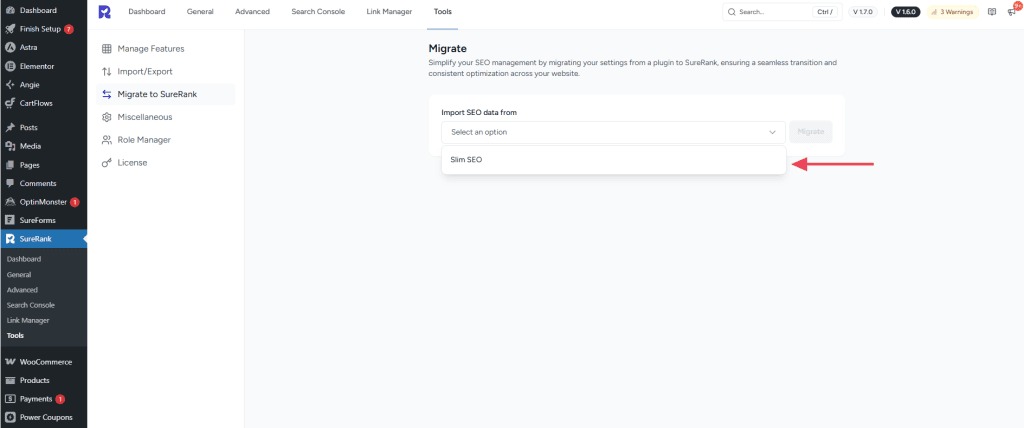
SureRank will automatically detect the SEO metadata stored by the Slim SEO plugin.
Step 2: Start the Migration
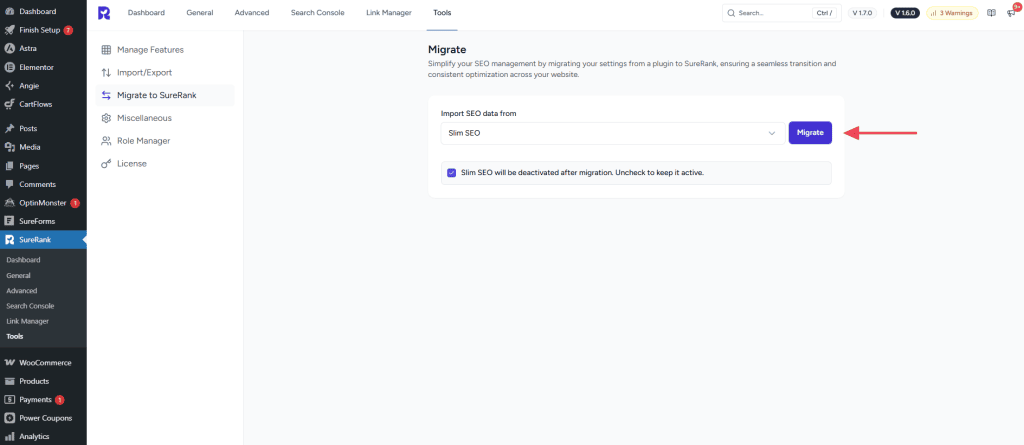
Click the Migrate button to begin migrating your SEO data.
Note:
The checkbox is enabled by default to automatically deactivate Slim SEO after the migration. This helps avoid conflicts caused by running multiple SEO plugins simultaneously.
You can uncheck this option if you want to keep the plugin active temporarily for review after migration.
SureRank will import the supported SEO metadata including:
- SEO Titles
- Meta Descriptions
- Focus Keywords
- Social Metadata (Open Graph / Twitter)
- Indexing Settings
Depending on the number of posts and pages on your website, the migration may take a few moments.
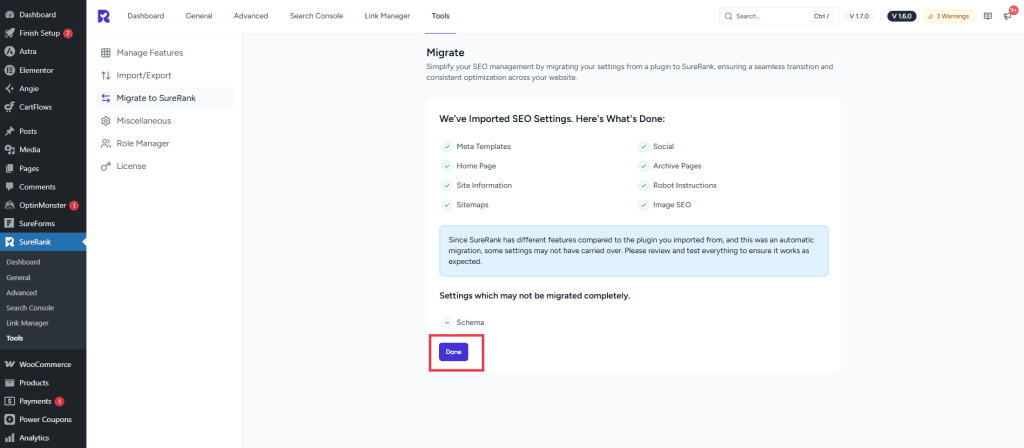
Once the import process finishes, SureRank will display a summary of the migrated data. Review the imported settings, and if everything looks correct, click Done to finalize the migration.
Step 3: Verify the Imported Data
Once the migration is complete, verify that your SEO data has been imported correctly.
- Navigate to Posts → All Posts or Pages → All Pages.
- Open any post or page.
- Scroll down to the SureRank SEO panel.
Confirm that the following fields appear correctly:
- SEO Title
- Meta Description
- Focus Keyword
- Social Metadata
How to Migrate Redirections & Meta Templates
Follow the same migration steps above to import your SEO settings from Slim SEO.
If SureRank Pro is active, the importer will automatically migrate:
- Slim SEO Redirections
- Meta Templates (Global SEO Templates)
These will be imported during the same migration process.
Verify Imported Redirections
To confirm that your redirections were imported successfully:
- Go to SureRank → Link Manager → Redirections
- It will redirect you to the Redirection Manager.
- Check that your Slim SEO redirections are listed there.
Important Note About Schema Migration
SureRank currently does not migrate Schema markup from Slim SEO.
Schema markup is structured data that helps search engines better understand your content and display enhanced results such as:
- Articles
- FAQs
- Products
- Reviews
Since each plugin uses its own schema implementation, these schema settings cannot be automatically transferred during migration.
After completing the migration, you should review your posts and pages and manually configure any required schema settings in SureRank.
You can configure Schema settings by navigating to: SureRank → Advanced → Schema
After Migration
Once the migration is complete:
- Review your SEO settings in SureRank
- Confirm that titles, descriptions, and keywords are correctly imported
- Check that redirections are functioning properly
- Reconfigure any schema settings that were previously used in Slim SEO
After verifying everything, you can safely remove the Slim SEO plugin from your website.
We don't respond to the article feedback, we use it to improve our support content.