
- Sitemaps in SureRank
- How to Enable Video Sitemap in SureRank Pro
- How to Enable the News Sitemap in SureRank
- How to Show the HTML Sitemap on Your Site in SureRank Pro
- How to Regenerate the Sitemap After Excluding a Post Type in SureRank
- Change the Sitemap URL in SureRank
- How to Enable Author Sitemap in SureRank
- How to Fix WWW and Non-WWW Version Redirects to Improve Your SEO
- How to Fix: No H1 Heading Found on Your Homepage
- How to Fix Missing H2 Headings on Your Homepage
- Re-run Checks Button in SureRank
- Fix Critical Error: Another SEO Plugin Detected in SureRank
- Fix Warning: Site Tagline Is Not Set in SureRank
- How to Fix: Robots.txt Contains Invalid Rules in SureRank
- How to Fix Multiple SEO Plugins Detected on Your Site
- How to Fix: Homepage is Not Indexable by Search Engines
- Warning: Homepage Does Not Contain Internal Links
- How to Fix: Search Engine Title is Missing on the Page
- Page Level SEO: Broken Links Detected
- How to Fix Missing Alt Text on Images
- How to Fix Page URLs That Are Too Long
- Page Level SEO Warning: No Links Found on This Page
- Page Level SEO Warning: No Images or Videos Found
- Page Level SEO Warning: Missing Search Engine Description
- Page Level SEO Warning: No Subheadings Found on This Page
- Page Level SEO Warning: Canonical Tag is Missing
- Page Level SEO Warning: Open Graph Tags Missing
- What is Google Search Console and how does SureRank use it?
- Recommended Image Sizes
- SureRank – SEO Check Severity Guide
- Using SureRank with Other SEO Plugins – Best Practices
- Import/Export Feature – SureRank Plugin
- What is llms.txt and Does SureRank Support It?
- Does SureRank offer a keyword rank-tracking feature?
- Does SureRank Come With Google Analytics Integration?
- Email Summary in SureRank
- SureRank Role Manager
- Customize XML Sitemap Top Bar with surerank_sitemap_top_bar_data
- Analyze ACF Field Content with SureRank
- Preserve Modified Date During Updates surerank_freeze_modified_date
- Customize Final Title Tag surerank_final_title
- Customize Post Type Archive Title Output surerank_post_type_archive_title
- Customize Archive Page Title with surerank_archive_title
- CustomizeModify the Search Results Page Title surerank_search_title
- Customizing the 404 Page Title surerank_not_found_title
- Customizing the Title Separator surerank_title_separator
- How to Remove Archive Prefixes from Titles Using SureRank
How to Fix: Search Engine Title is Missing on the Page
If SureRank shows the following critical SEO issue: “Search engine title is missing on the page.”
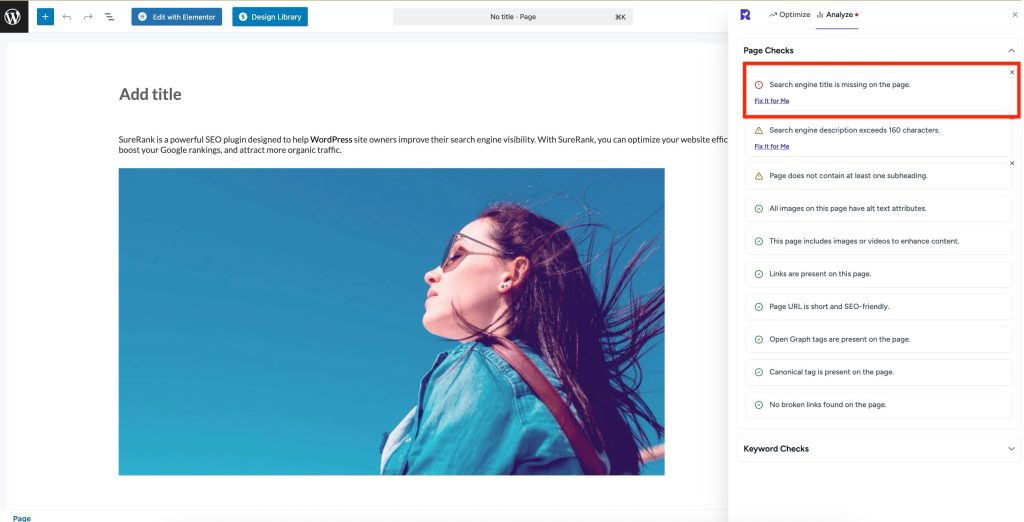
This means your page doesn’t have an SEO title set. The SEO title is one of the most important elements for search engines and users, as it tells both what the page is about.
What’s the problem
When a page doesn’t have a title:
- Search engines may use random text from your page instead.
- Your pages can look unprofessional in search results.
- Click-through rates may drop because visitors don’t see a clear title.
- You lose the chance to include important keywords that help your ranking.
Why this matters
- Improves visibility: Titles are the first thing users see in Google search.
- Boosts SEO: A well-written title helps search engines understand your content.
- Increases clicks: Clear and engaging titles attract more visitors.
How to fix it
Step 1 – Open the page settings
- Log in to your WordPress dashboard.
- Go to Pages, Posts, Product, or CPT and click Edit on the page with the issue.
Step 2 – Add a search engine title in SureRank
- Open SureRank settings.
- Configure Search Engine Title
- Enter a clear, keyword-rich title (e.g., instead of “Home” → “Affordable Web Design Services | YourBrand”).
- You can also set a custom meta field for the Search Engine Title.
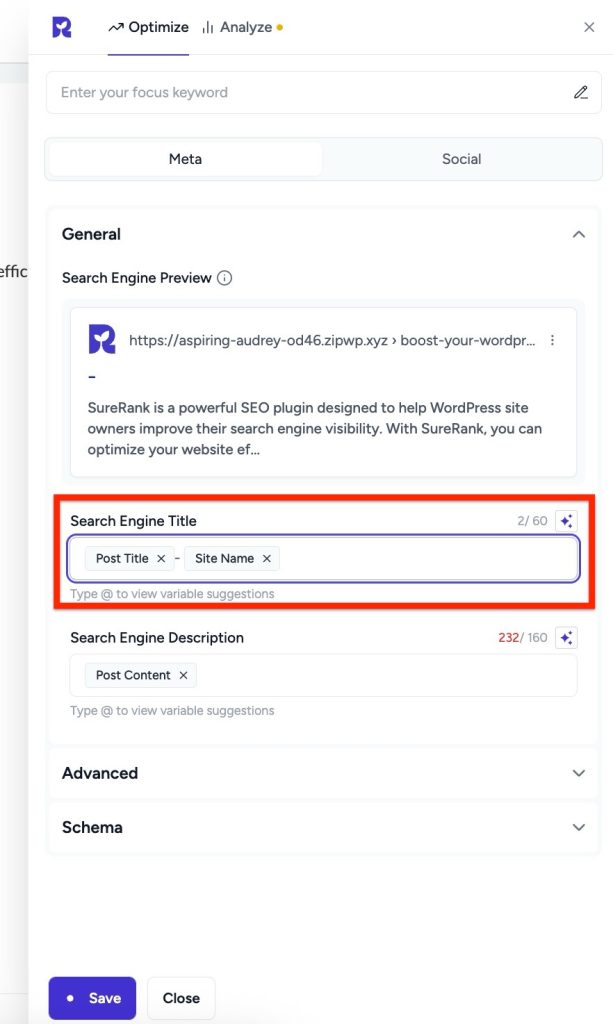
Tip: Keep your title between 50–60 characters so it doesn’t get cut off in search results.
Step 3 – Save
- Click Save to save your changes.
Step 4 – Verify with SureRank
- Edit the page in WordPress.
- Click the SureRank icon in the top-right corner of the editor.
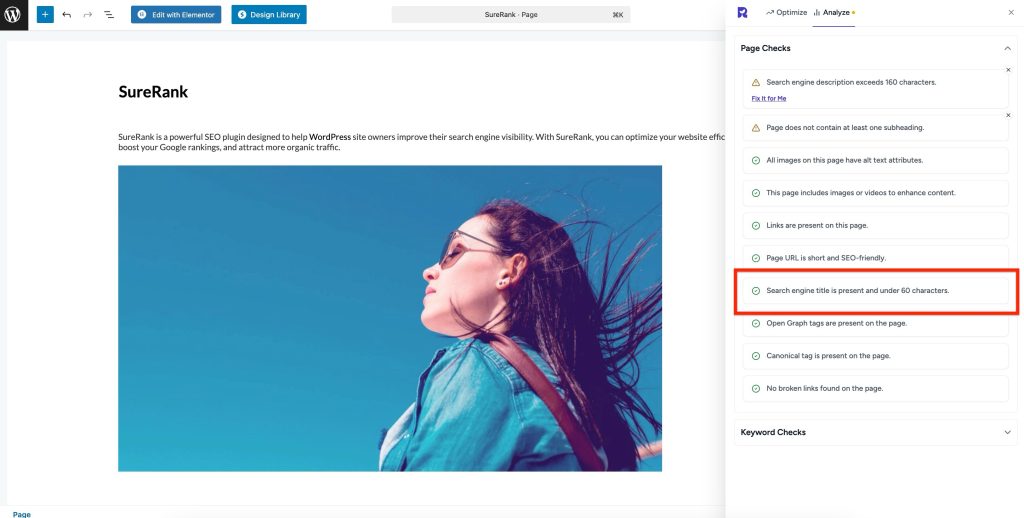
- Select Analyze – this will open the Analyze tab, showing a list of Page Checks.
- Once the changes are made, the SureRank page-level check will automatically run and update the status.
- If editing the page using a Page Builder, please save your changes in the editor before refreshing the checks.
Best practices for SEO titles
- Include your main keyword naturally.
- Add your brand name at the end if space allows.
- Make it unique for each page.
- Write it for humans first, make it engaging, not just keyword-stuffed.
Was this doc helpful?
What went wrong?
We don't respond to the article feedback, we use it to improve our support content.
Table of Contents