
- Sitemaps in SureRank
- How to Enable Video Sitemap in SureRank Pro
- How to Enable the News Sitemap in SureRank
- How to Show the HTML Sitemap on Your Site in SureRank Pro
- How to Regenerate the Sitemap After Excluding a Post Type in SureRank
- Change the Sitemap URL in SureRank
- How to Enable Author Sitemap in SureRank
- Schema Setup in SureRank
- How to Test Schema Markup
- How to Edit Page-Level Schema in SureRank
- Article Schema
- BreadcrumbList
- Organization Schema
- Product Schema
- Person Schema
- SearchAction
- WebPage Schema
- WebSite Schema
- DiscussionForumPosting Schema in SureRank
- How to Add Custom Schema in SureRank
- FAQ Schema in SureRank
- HowTo Schema in SureRank
- Course Schema in SureRank
- Event Schema in SureRank
- Movie Schema in SureRank
- Podcast Schema in SureRank
- Software Application Schema in SureRank
- Dataset Schema in SureRank
- Video Schema in SureRank
- Claim Review Schema in SureRank
- Book Schema in SureRank
- Job Posting Schema in SureRank
- Service Schema in SureRank
- Recipe Schema in SureRank
- How to Use Schema Pro with SureRank
- Local Business Schema in SureRank
- How to Add a Custom Field in SureRank Schema
- How to Fix WWW and Non-WWW Version Redirects to Improve Your SEO
- How to Fix: No H1 Heading Found on Your Homepage
- How to Fix Missing H2 Headings on Your Homepage
- Re-run Checks Button in SureRank
- Fix Critical Error: Another SEO Plugin Detected in SureRank
- Fix Warning: Site Tagline Is Not Set in SureRank
- How to Fix: Robots.txt Contains Invalid Rules in SureRank
- How to Fix Multiple SEO Plugins Detected on Your Site
- How to Fix: Homepage is Not Indexable by Search Engines
- Warning: Homepage Does Not Contain Internal Links
- How to Fix: Search Engine Title is Missing on the Page
- Page Level SEO: Broken Links Detected
- How to Fix Missing Alt Text on Images
- How to Fix Page URLs That Are Too Long
- Page Level SEO Warning: No Links Found on This Page
- Page Level SEO Warning: No Images or Videos Found
- Page Level SEO Warning: Missing Search Engine Description
- Page Level SEO Warning: No Subheadings Found on This Page
- Page Level SEO Warning: Canonical Tag is Missing
- Page Level SEO Warning: Open Graph Tags Missing
- What is Google Search Console and how does SureRank use it?
- Recommended Image Sizes
- SureRank – SEO Check Severity Guide
- Using SureRank with Other SEO Plugins – Best Practices
- Import/Export Feature – SureRank Plugin
- What is llms.txt and Does SureRank Support It?
- Does SureRank offer a keyword rank-tracking feature?
- Does SureRank Come With Google Analytics Integration?
- Email Summary in SureRank
- SureRank Role Manager
- Customize XML Sitemap Top Bar with surerank_sitemap_top_bar_data
- Analyze ACF Field Content with SureRank
- Preserve Modified Date During Updates surerank_freeze_modified_date
- Customize Final Title Tag surerank_final_title
- Customize Post Type Archive Title Output surerank_post_type_archive_title
- Customize Archive Page Title with surerank_archive_title
- CustomizeModify the Search Results Page Title surerank_search_title
- Customizing the 404 Page Title surerank_not_found_title
- Customizing the Title Separator surerank_title_separator
- How to Remove Archive Prefixes from Titles Using SureRank
How to Add a Custom Field in SureRank Schema
This feature allows you to add additional schema properties manually to any schema type, such as Product, Article, Event, and more.
This guide explains how to add a custom field to any schema.
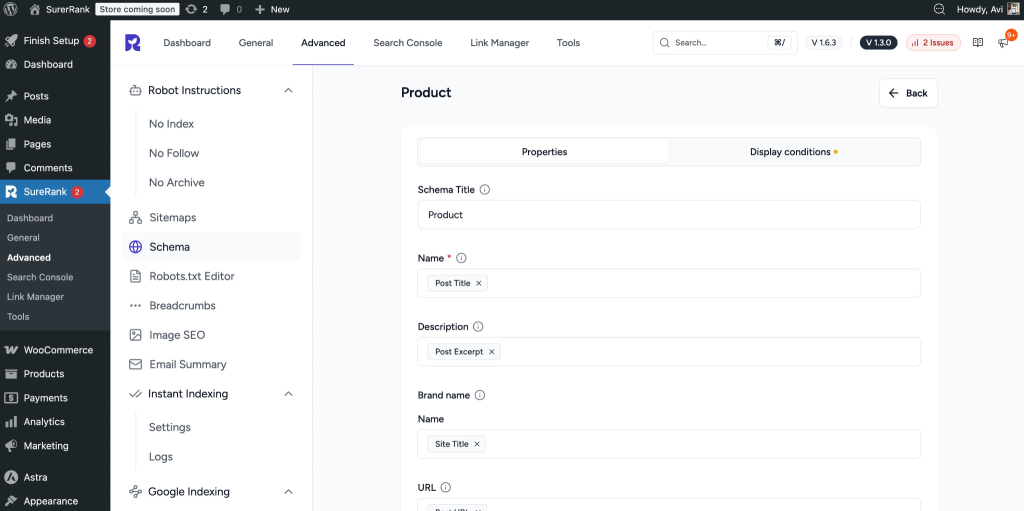
Step 1: Edit the Schema
- Go to SureRank → Schema.
- Edit the schema you want to modify (for example, Product schema).
- Scroll down to the bottom of the schema settings.
Step 2: Click on “Add Field”
At the bottom of the schema settings, click on the Add Field button.
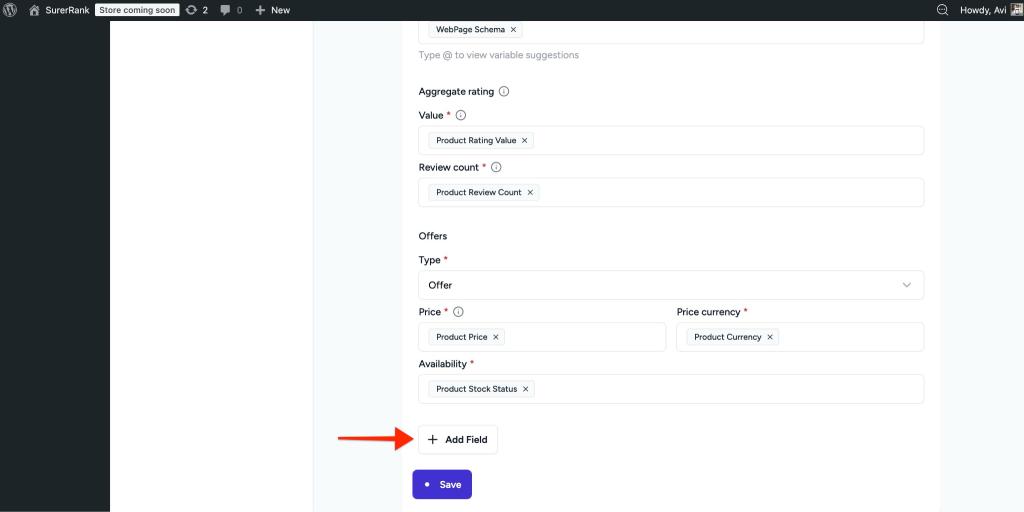
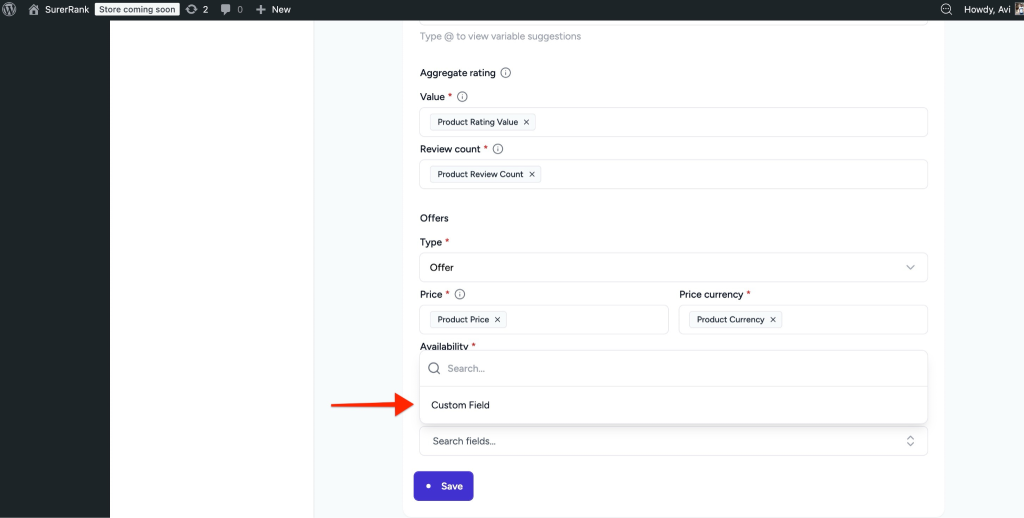
Once you click the button, a dropdown menu will appear.
Step 3: Select “Custom Field”
From the dropdown list, select Custom Field.
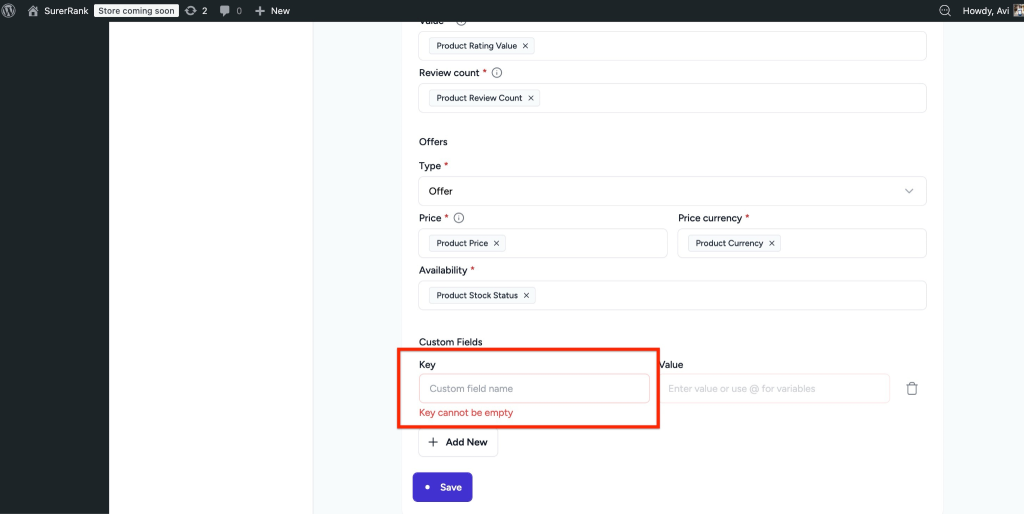
Step 4: Add the Custom Schema Key
After selecting Custom Field:
- Enter the Schema Property Key (for example: gtin, brand, mpn, etc.).
- This key should match the structured data property you want to add.
Step 5: Add the Value
Now you need to define the value for that key.
You have three options:
1. Map an Existing Dynamic Field
Click on the @ icon and select an existing field from the dropdown list.
This allows SureRank to dynamically fetch the value.
![Dynamic Field Mapping]](https://surerank.com/wp-content/uploads/2026/02/image-5-1024x521.png "How to Add a Custom Field in SureRank Schema")
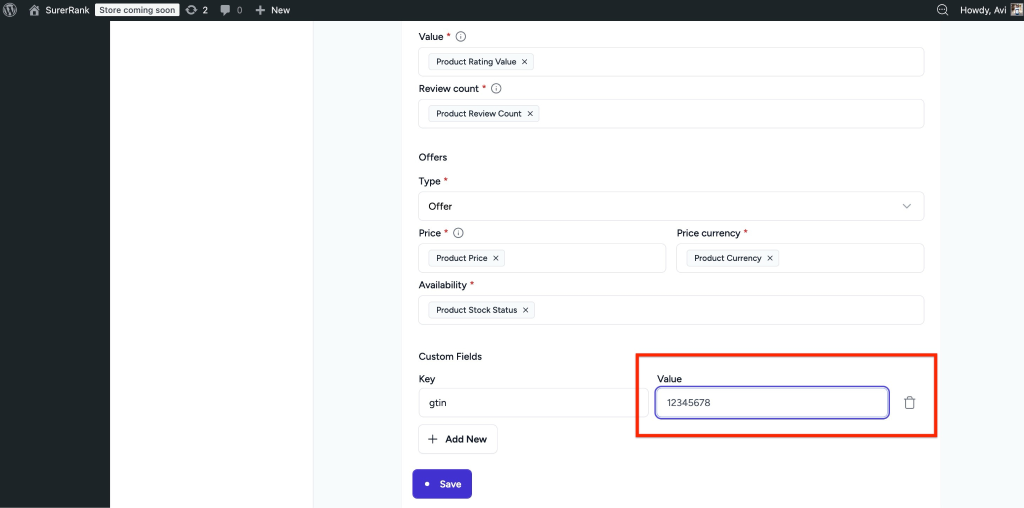
2. Add a Manual Value
You can manually enter a fixed value directly into the field.
This is useful if the value does not change.
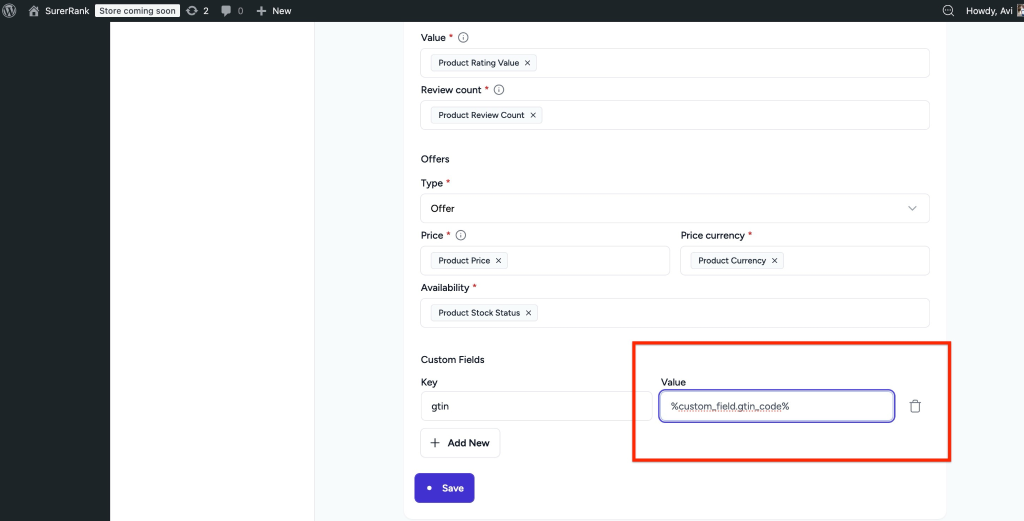
3. Map an ACF Field
If you are using Advanced Custom Fields (ACF):
- Add the ACF field.
- SureRank will automatically pull the value from that field.
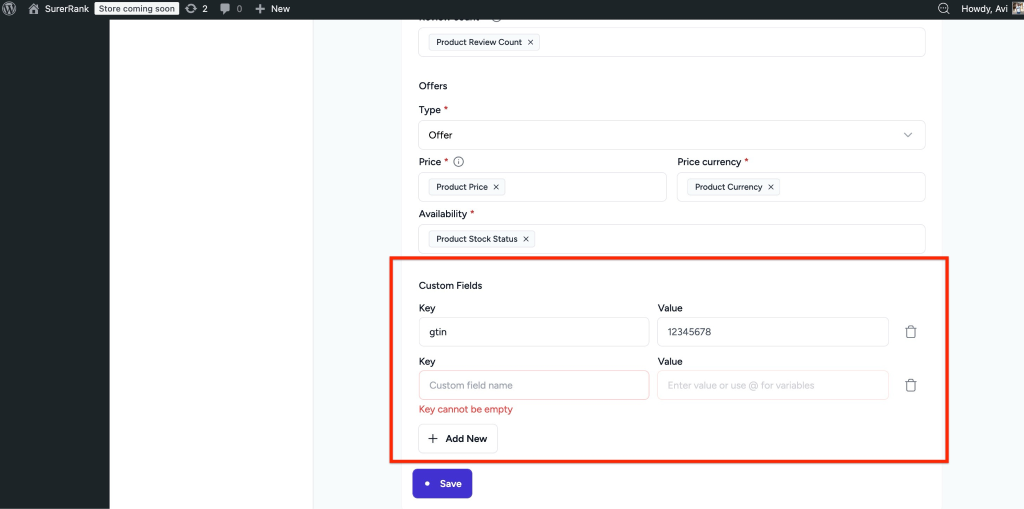
Step 6: Add More Custom Fields (Optional)
If required, click Add Field again to add multiple custom properties.
You can:
- Add as many custom fields as needed
- Delete any field using the delete/remove option
Step 7: Save the Schema
After adding all required fields:
- Click Save.
- The schema will now include the custom properties.
Step 8: Test the Schema
After saving, it is recommended to test the schema.
You can use:
Important Notes
- The Custom Field feature is available only in the SureRank Pro version.
- This feature works with all schema types supported in SureRank.
- Make sure the property name (key) follows the official Schema.org format.
- Incorrect property names may not validate in testing tools.
By using the Custom Field option, you can fully customize your schema markup and add any additional structured data required for your website.
We don't respond to the article feedback, we use it to improve our support content.