
- Sitemaps in SureRank
- How to Enable Video Sitemap in SureRank Pro
- How to Enable the News Sitemap in SureRank
- How to Show the HTML Sitemap on Your Site in SureRank Pro
- How to Regenerate the Sitemap After Excluding a Post Type in SureRank
- Change the Sitemap URL in SureRank
- How to Enable Author Sitemap in SureRank
- How to Fix WWW and Non-WWW Version Redirects to Improve Your SEO
- How to Fix: No H1 Heading Found on Your Homepage
- How to Fix Missing H2 Headings on Your Homepage
- Re-run Checks Button in SureRank
- Fix Critical Error: Another SEO Plugin Detected in SureRank
- Fix Warning: Site Tagline Is Not Set in SureRank
- How to Fix: Robots.txt Contains Invalid Rules in SureRank
- How to Fix Multiple SEO Plugins Detected on Your Site
- How to Fix: Homepage is Not Indexable by Search Engines
- Warning: Homepage Does Not Contain Internal Links
- How to Fix: Search Engine Title is Missing on the Page
- Page Level SEO: Broken Links Detected
- How to Fix Missing Alt Text on Images
- How to Fix Page URLs That Are Too Long
- Page Level SEO Warning: No Links Found on This Page
- Page Level SEO Warning: No Images or Videos Found
- Page Level SEO Warning: Missing Search Engine Description
- Page Level SEO Warning: No Subheadings Found on This Page
- Page Level SEO Warning: Canonical Tag is Missing
- Page Level SEO Warning: Open Graph Tags Missing
- What is Google Search Console and how does SureRank use it?
- Recommended Image Sizes
- SureRank – SEO Check Severity Guide
- Using SureRank with Other SEO Plugins – Best Practices
- Import/Export Feature – SureRank Plugin
- What is llms.txt and Does SureRank Support It?
- Does SureRank offer a keyword rank-tracking feature?
- Does SureRank Come With Google Analytics Integration?
- Email Summary in SureRank
- SureRank Role Manager
- Customize XML Sitemap Top Bar with surerank_sitemap_top_bar_data
- Analyze ACF Field Content with SureRank
- Preserve Modified Date During Updates surerank_freeze_modified_date
- Customize Final Title Tag surerank_final_title
- Customize Post Type Archive Title Output surerank_post_type_archive_title
- Customize Archive Page Title with surerank_archive_title
- CustomizeModify the Search Results Page Title surerank_search_title
- Customizing the 404 Page Title surerank_not_found_title
- Customizing the Title Separator surerank_title_separator
- How to Remove Archive Prefixes from Titles Using SureRank
- Customize Homepage Pagination Format surerank_homepage_pagination_format
- Customize Maximum SEO Title Length surerank_title_length
- Enable/Disable Pagination in SureRank Archives surerank_show_pagination
- Show or Hide Site Name in SEO Title surerank_show_site_name
- Customize Robots Meta Tags surerank_robots_meta_array
- Add “noindex” to Paginated Pages surerank_noindex_paginated_pages
- Customize Meta Description Length surerank_description_length
- Customize Product Category Rewrite Rules surerank_product_category_rewrite_rules
- Remove Product Category Base surerank_remove_product_category_base
- Customize Category URL Structure surerank_remove_category_base
- Disable Permalinks in RSS Feeds surerank_disable_permalink_in_feed
- Customize Maximum URL Slug Length surerank_url_length
- Disable Feed Indexing in SureRank surerank_disable_feed_indexing
- Open External Links in New Tab
- Enabling the AI (MCP) Integration and Connecting an AI Client
Enabling the AI (MCP) Integration and Connecting an AI Client
SureRank supports the Model Context Protocol (MCP), which lets AI clients such as Claude, ChatGPT, and Cursor connect directly to a WordPress site and read or update SEO settings, page and term metadata, SEO checks, sitemap configuration, and robots.txt through SureRank. This document covers turning the integration on and connecting a compatible AI client to it.
Note: This doc applies to SureRank 1.8.2 and later. Earlier versions do not include the MCP settings screen.
What This Integration Does
Once enabled, MCP exposes the following SEO abilities to a connected AI client:
| Area | Abilities |
| Content | List content types, list content items, get/update post SEO, get/update term SEO |
| Site settings | Get/update global SEO settings, get/update robots.txt, get/update sitemap settings |
| Analysis | Get post SEO checks, get term SEO checks |
An AI client with these abilities can, for example, audit a batch of posts for missing meta descriptions and update them, adjust sitemap or robots.txt rules, or pull SEO check results for a page, all through natural-language requests to the connected client instead of the SureRank admin screens.
Important: Every ability still enforces the manage_options capability check on the WordPress side. Connecting an AI client only works with an account that has Administrator-level permissions.
How to Enable MCP
- Go to WordPress Dashboard → SureRank → Tools → MCP.
- Turn on Enable MCP.
- If the WP MCP Adapter plugin isn’t detected on the site, an inline warning titled “MCP Adapter plugin not detected” appears, explaining that the WP MCP Adapter plugin is required to connect AI clients. Select Download from GitHub, then install it the usual way:
- Go to Plugins → Add New → Upload Plugin.
- Upload the downloaded mcp-adapter.zip file.
- Select Install Now, then Activate.
- Return to SureRank → Tools → MCP. Once the adapter is active, the warning disappears and the Connect Your AI Client panel appears below the toggle.
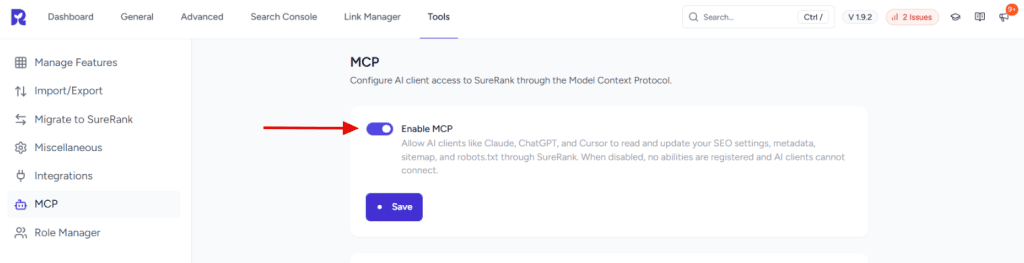
Note: Turning Enable MCP off immediately stops all abilities from being registered. No AI client can connect or read/write data while it’s off.
Connecting an AI Client
The Connect Your AI Client panel generates a ready-to-use connection config. It uses your existing WordPress login and an Application Password. SureRank does not generate a separate API key or token for MCP.
Step 1: Create an Application Password
Select Open Application Passwords in the panel (opens Users → Profile → Application Passwords), and generate a new password. Copy it; it’s only shown once.
Step 2: Choose a Connection Scope
Use the tabs above the generated config:
- SureRank Only: connects to SureRank’s abilities alone, at https://yoursite.com/wp-json/surerank/v1/mcp.
- Global: connects to every WordPress ability exposed through the WP MCP Adapter’s default server (including other plugins that register abilities), at https://yoursite.com/wp-json/mcp/mcp-adapter-default-server.
Step 3: Copy the Generated Config
Use the copy icon in the top-right of the code block:
{

  "mcpServers": {

    "yoursite-com-surerank": {

      "command": "npx",

      "args": [ "-y", "@automattic/mcp-wordpress-remote@latest" ],

      "env": {

        "WP_API_URL": "https://yoursite.com/wp-json/surerank/v1/mcp",

        "WP_API_USERNAME": "your-wp-username",

        "WP_API_PASSWORD": "your-application-password"

      }

    }

  }

}Replace “your-application-password” with the Application Password from Step 1.
Step 4: Add the Config to Your AI Client
| Client | Config file |
| Claude Code | .mcp.json |
| Claude Desktop | claude_desktop_config.json |
| Cursor | .cursor/mcp.json |
| VS Code | .vscode/mcp.json |
If a config file already lists other MCP servers, add this entry alongside them rather than replacing the file. For VS Code, nest the entry under a servers key instead of mcpServers.
Tip: Select the sparkle icon next to the code block to copy a setup prompt instead of raw JSON. It’s written to be pasted into an AI coding assistant (like Claude Code or Cursor) so it can locate the right config file for your OS and client and apply the change for you.
Expected Outcome
After the config is added (and the client restarted, if required), the AI client can list and call SureRank’s MCP tools, for example retrieving a post’s SEO title/description or updating robots.txt rules, using the account whose Application Password was used to connect.
Settings Explained
| Setting | Description |
| Enable MCP | Master switch. When off, no SureRank abilities are registered and no AI client can connect, regardless of client-side config. |
| SureRank Only (tab) | Generates a config scoped to only SureRank’s SEO abilities. |
| Global (tab) | Generates a config scoped to all abilities exposed by the WP MCP Adapter site-wide. |
Notes and Limitations
- MCP access always uses standard WordPress Application Passwords. There’s no SureRank-specific API key to manage. Revoking access means deleting the Application Password under Users → Profile → Application Passwords.
- The WP MCP Adapter plugin must stay active for either scope to work, even though SureRank’s toggle is what registers the abilities.
- All abilities require an Administrator-level account.
- Copying the config or prompt uses the browser clipboard API, which requires HTTPS (or localhost).
Troubleshooting
“MCP Adapter plugin not detected” keeps showing after installing it Confirm it’s activated under Plugins → Installed Plugins, not just uploaded.
The AI client can’t connect after adding the config Verify the Application Password (not account password) was used, Enable MCP is on, and the account is an Administrator.
The copy button doesn’t do anything. The admin page likely isn’t served over HTTPS; copy the config manually instead.
We don't respond to the article feedback, we use it to improve our support content.