
- Installing SureRank
- SureRank Onboarding Guide
- How to Activate Your SureRank Pro License
- SureRank Dashboard Overview
- General Settings
- Advanced Settings
- Search Console – SureRank
- Managing URL Redirection in SureRank
- SureRank Feature Management – Quick Guide
- Robots.txt Feature in SureRank
- Instant Indexing in SureRank Pro
- Using the Focus Keyword Feature in SureRank
- Image SEO – SureRank
- Google Indexing in SureRank
- How to Configure Custom Fields with SureRank
- Breadcrumbs Feature in SureRank Pro
- Extended Meta Templates in SureRank Pro
- SureRank Pro – Link Suggestions
- Sitemaps in SureRank
- How to Enable Video Sitemap in SureRank Pro
- How to Enable the News Sitemap in SureRank
- How to Show the HTML Sitemap on Your Site in SureRank Pro
- How to Regenerate the Sitemap After Excluding a Post Type in SureRank
- Change the Sitemap URL in SureRank
- How to Enable Author Sitemap in SureRank
- How to Fix WWW and Non-WWW Version Redirects to Improve Your SEO
- How to Fix: No H1 Heading Found on Your Homepage
- How to Fix Missing H2 Headings on Your Homepage
- Re-run Checks Button in SureRank
- Fix Critical Error: Another SEO Plugin Detected in SureRank
- Fix Warning: Site Tagline Is Not Set in SureRank
- How to Fix: Robots.txt Contains Invalid Rules in SureRank
- How to Fix Multiple SEO Plugins Detected on Your Site
- How to Fix: Homepage is Not Indexable by Search Engines
- Warning: Homepage Does Not Contain Internal Links
- How to Fix: Search Engine Title is Missing on the Page
- Page Level SEO: Broken Links Detected
- How to Fix Missing Alt Text on Images
- How to Fix Page URLs That Are Too Long
- Page Level SEO Warning: No Links Found on This Page
- Page Level SEO Warning: No Images or Videos Found
- Page Level SEO Warning: Missing Search Engine Description
- Page Level SEO Warning: No Subheadings Found on This Page
- Page Level SEO Warning: Canonical Tag is Missing
- Page Level SEO Warning: Open Graph Tags Missing
- What is Google Search Console and how does SureRank use it?
- Recommended Image Sizes
- SureRank – SEO Check Severity Guide
- Using SureRank with Other SEO Plugins – Best Practices
- Import/Export Feature – SureRank Plugin
- What is llms.txt and Does SureRank Support It?
- Does SureRank offer a keyword rank-tracking feature?
- Does SureRank Come With Google Analytics Integration?
- Email Summary in SureRank
- SureRank Role Manager
- Customize XML Sitemap Top Bar with surerank_sitemap_top_bar_data
- Analyze ACF Field Content with SureRank
- Preserve Modified Date During Updates surerank_freeze_modified_date
- Customize Final Title Tag surerank_final_title
- Customize Post Type Archive Title Output surerank_post_type_archive_title
- Customize Archive Page Title with surerank_archive_title
- CustomizeModify the Search Results Page Title surerank_search_title
- Customizing the 404 Page Title surerank_not_found_title
- Customizing the Title Separator surerank_title_separator
- How to Remove Archive Prefixes from Titles Using SureRank
Google Indexing in SureRank
This document explains how to use the Google Indexing feature in SureRank. It is written in simple, step‑by‑step language so you can easily set it up and start sending URLs to Google for faster indexing.
What is Google Indexing?
Google Indexing allows you to notify Google directly when your content is published, updated, or removed. Instead of waiting for Google to discover changes on its own, SureRank sends an indexing request using Google’s Indexing API.
This helps Google:
- Discover new content faster
- Update changed pages quickly
- Remove deleted URLs from search results
Note: Google Indexing API is mainly recommended for job posting and live streaming pages. Usage is subject to Google’s policies and quota limits.
Where to Find Google Indexing in SureRank
Follow these steps:
- Go to your WordPress Dashboard.
- Navigate to SureRank → Advanced Settings.
- Scroll to the bottom.
- Click on Google Indexing.
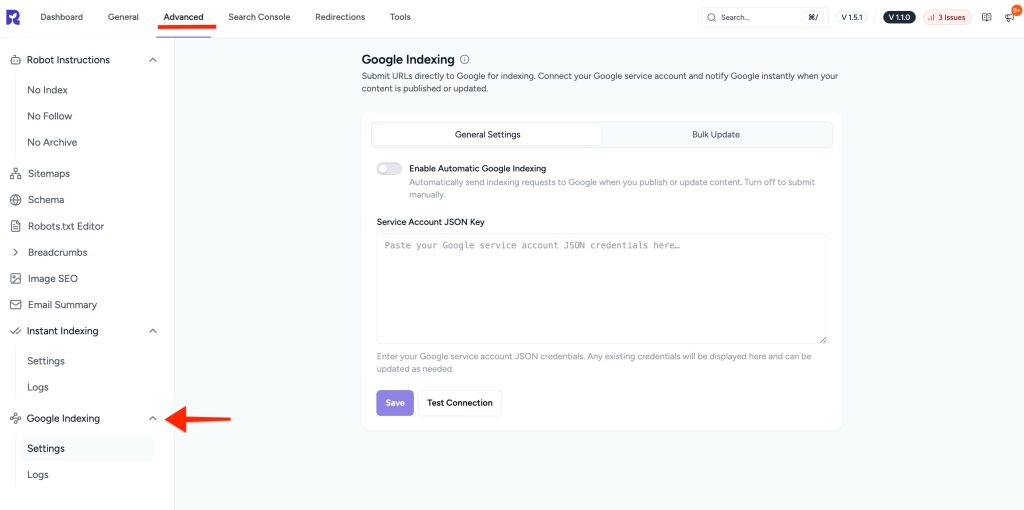
Google Indexing Settings Overview
Inside Google Indexing, you will see two tabs:
- General Settings
- Bulk Update
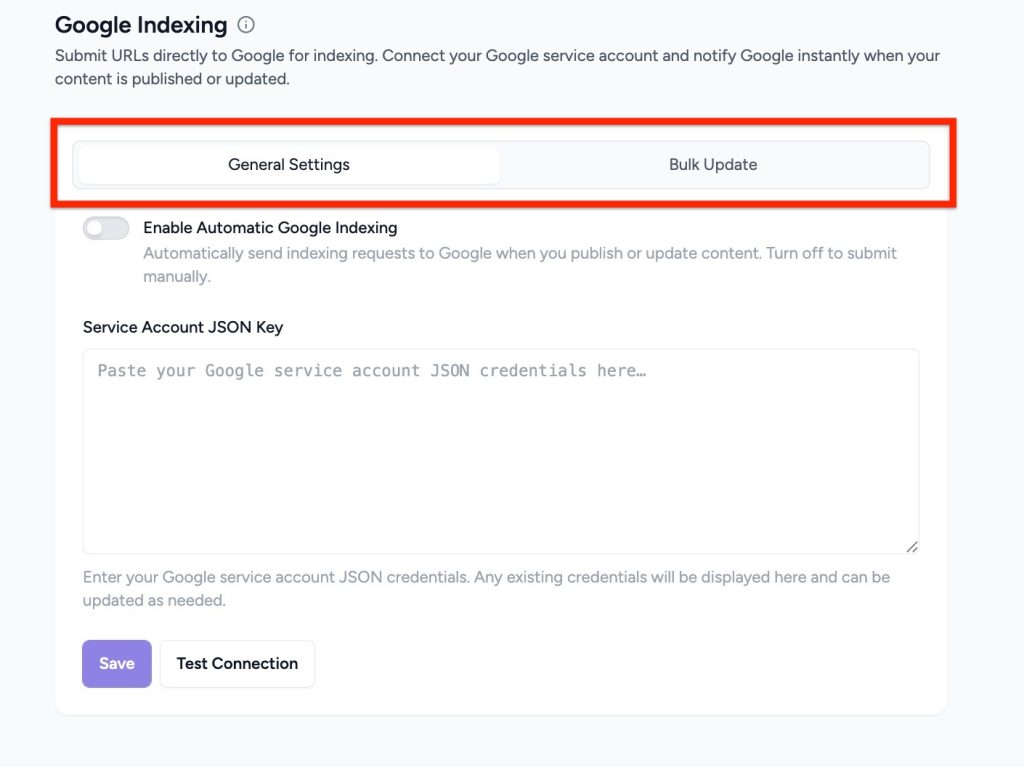
General Settings
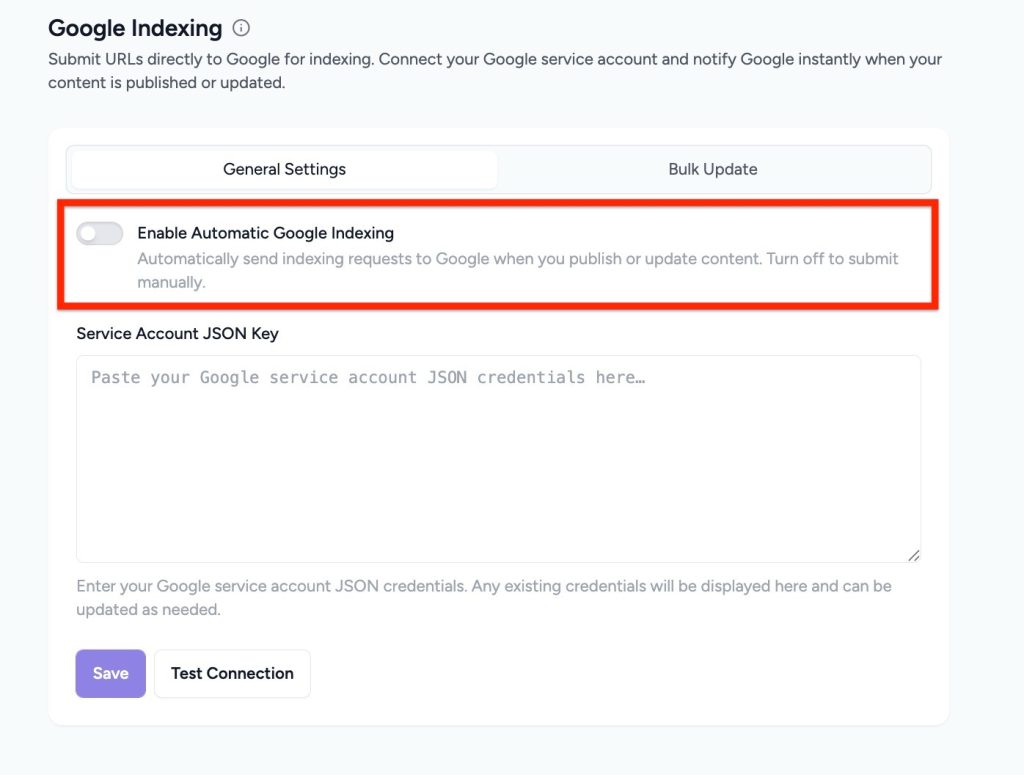
1. Enable Automatic Google Indexing
You will see a toggle option:
- Enable Automatic Google Indexing
When enabled, SureRank will automatically send an indexing request to Google whenever you:
- Publish new content
- Update existing content
This removes the need to manually submit URLs every time.
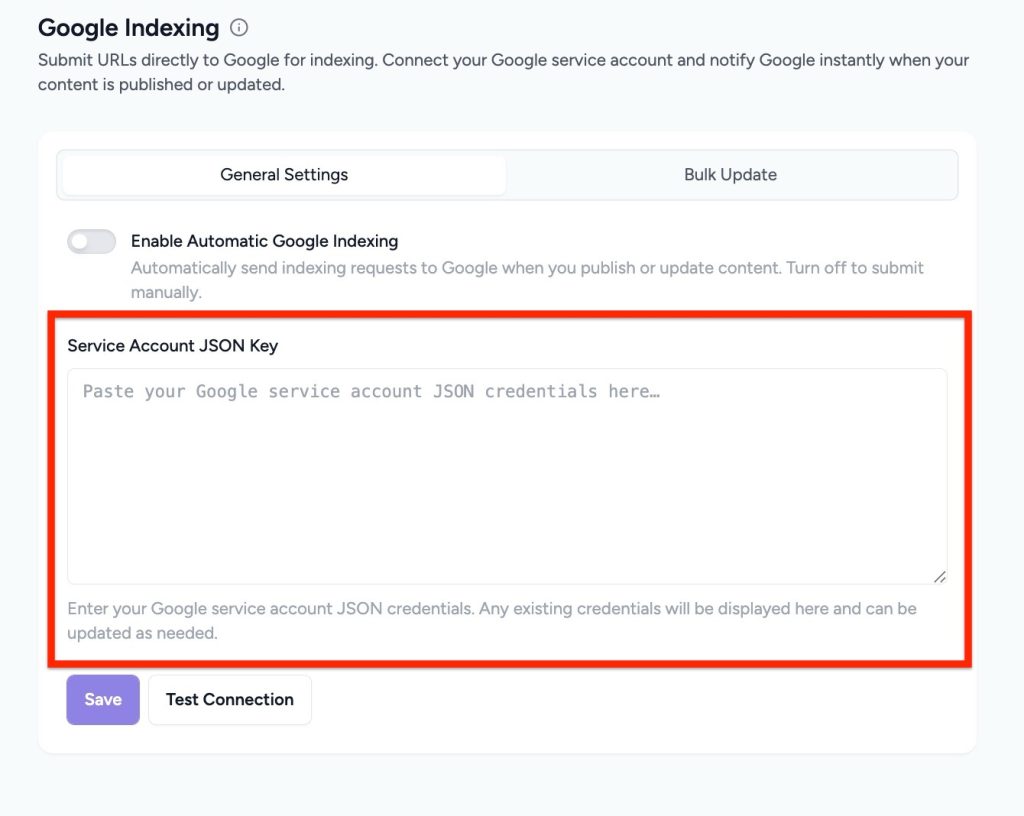
2. Service Account JSON Key
To connect SureRank with Google Indexing API, you must add a Google Service Account JSON Key.
- Paste your Google Service Account JSON credentials into the field provided.
- If a credential already exists, it will be replaced when you paste a new one.
- Click Save after adding the key.
3. Test Connection
After saving the Service Account JSON Key:
- Click Test Connection
- SureRank will verify whether the connection with Google is successful
This confirms that your API setup is correct.
Bulk Update
The Bulk Update tab lets you manually submit or remove URLs in bulk.
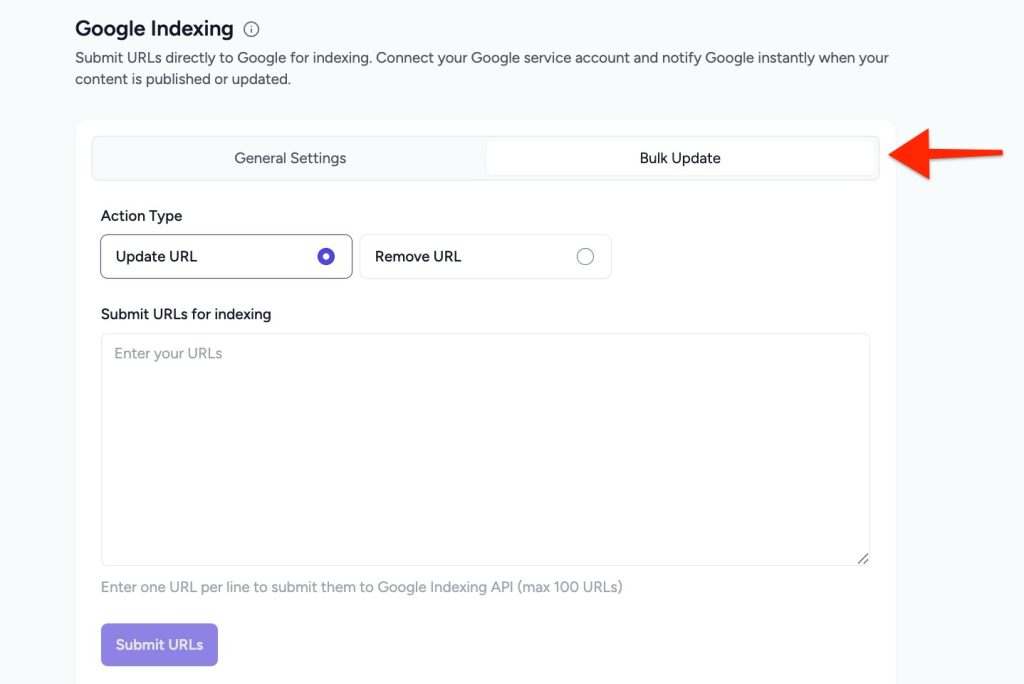
1. Select Action Type
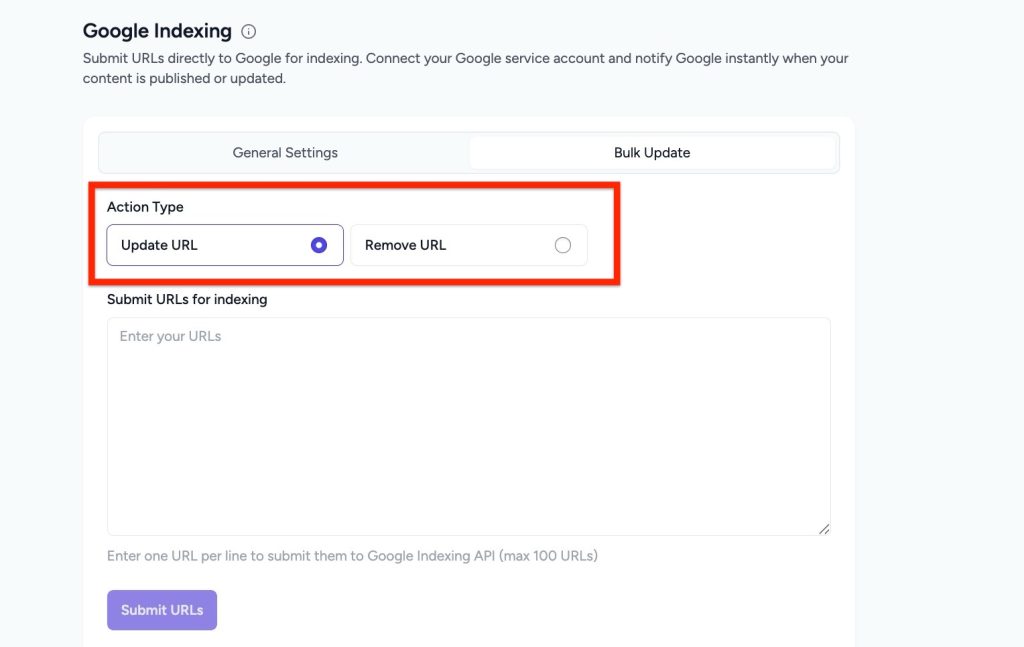
You can choose one of the following actions:
- Update URL – Notify Google about new or updated content
- Remove URL – Request Google to remove a URL from search results
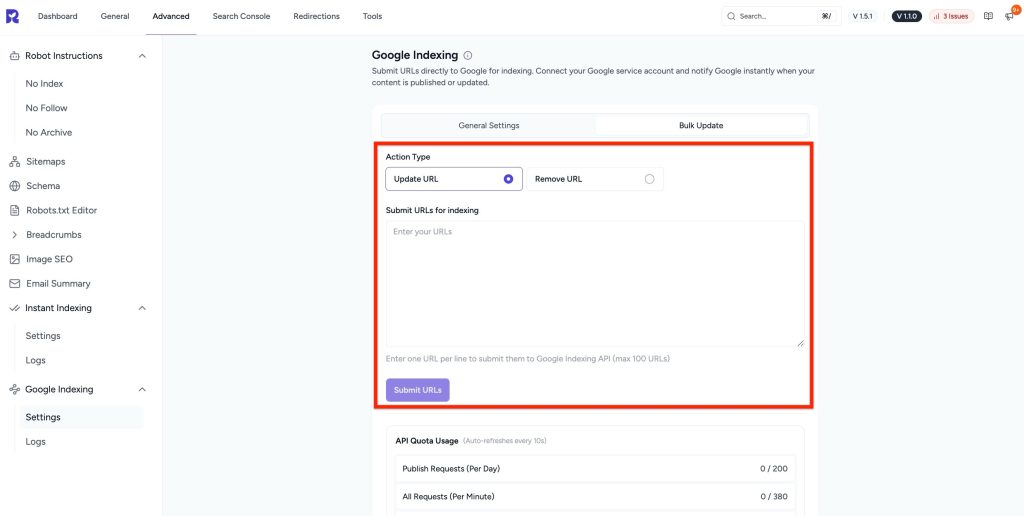
2. Submit URLs for Indexing
- Enter the URLs you want to submit
- You can add up to 100 URLs at a time
- Click Submit to send the request
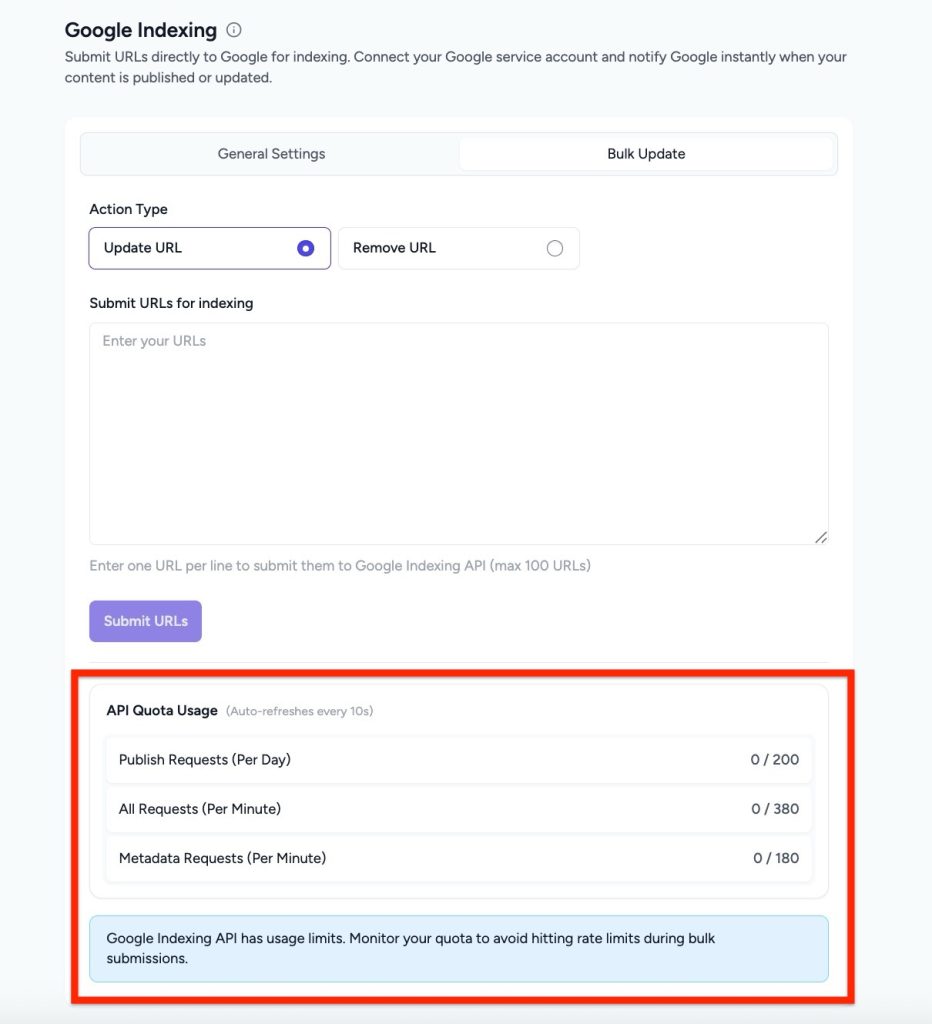
3. API Quota Usage
Below the URL submission area, you will see API Quota Usage details.
This section refreshes every 10 seconds and shows:
- Publish requests per day
- All requests per minute
- Metadata requests per minute
This helps you:
- Monitor Google Indexing API usage
- Avoid hitting rate limits during bulk submissions
Important Notes
- Google enforces strict API quota limits
- Avoid submitting too many URLs at once
- Bulk submissions support a maximum of 100 URLs per request
- Use this feature only for supported content types as per Google guidelines
For official Google documentation, refer to:
- Google Indexing API – Using the API
Summary
The Google Indexing feature in SureRank helps you:
- Automatically notify Google of content changes
- Manually submit or remove URLs in bulk
- Monitor API usage and avoid rate limits
Once configured correctly, it ensures faster and more reliable indexing for your important pages.
We don't respond to the article feedback, we use it to improve our support content.