
- How to Migrate from Rank Math to SureRank
- How to Migrate from Yoast to SureRank
- How to Migrate from SEOPress to SureRank SEO
- How to Migrate from Squirrly SEO to SureRank
- How to Migrate from All in One SEO (AIOSEO) to SureRank
- How to Migrate from Slim SEO to SureRank
- Migration Failed: How to Diagnose
- After You Migrate: Verification and Cleanup Checklist
- Sitemaps in SureRank
- How to Enable Video Sitemap in SureRank Pro
- How to Enable the News Sitemap in SureRank
- How to Show the HTML Sitemap on Your Site in SureRank Pro
- How to Regenerate the Sitemap After Excluding a Post Type in SureRank
- Change the Sitemap URL in SureRank
- How to Enable Author Sitemap in SureRank
- How to Exclude Post Types from the Sitemap
- How to Enable the Author Sitemap and Why Authors Are Excluded (Pro)
- Editing Meta Box
- SureRank – Page SEO Checks
- Enabling Page SEO Checks in WordPress
- Image Alt Text – Automatic Optimization
- Link Manager
- Using the SureRank Front-End Meta Box
- How to Edit the Meta Title and Description for a Single Page or Post
- Controlling Indexing with Robot Instructions
- How to Set Global Title and Description Templates with Variables
- How to Set a Canonical URL and How the Canonical Field Works
- How to Set the Homepage, Shop, and Archive Title & Description
- Setting Up Site Information for Google’s Knowledge Panel
- Social Settings: Facebook/Open Graph, X (Twitter) Cards, and Profile Links
- Why Do My Image Links Redirect to a Blog Post or My Homepage?
- How to Fix WWW and Non-WWW Version Redirects to Improve Your SEO
- How to Fix: No H1 Heading Found on Your Homepage
- How to Fix Missing H2 Headings on Your Homepage
- Re-run Checks Button in SureRank
- Fix Critical Error: Another SEO Plugin Detected in SureRank
- Fix Warning: Site Tagline Is Not Set in SureRank
- How to Fix: Robots.txt Contains Invalid Rules in SureRank
- How to Fix Multiple SEO Plugins Detected on Your Site
- How to Fix: Homepage is Not Indexable by Search Engines
- Warning: Homepage Does Not Contain Internal Links
- How to Fix: Search Engine Title is Missing on the Page
- Page Level SEO: Broken Links Detected
- How to Fix Missing Alt Text on Images
- How to Fix Page URLs That Are Too Long
- Page Level SEO Warning: No Links Found on This Page
- Page Level SEO Warning: No Images or Videos Found
- Page Level SEO Warning: Missing Search Engine Description
- Page Level SEO Warning: No Subheadings Found on This Page
- Page Level SEO Warning: Canonical Tag is Missing
- Page Level SEO Warning: Open Graph Tags Missing
- What is Google Search Console and how does SureRank use it?
- Recommended Image Sizes
- SureRank – SEO Check Severity Guide
- Using SureRank with Other SEO Plugins – Best Practices
- Import/Export Feature – SureRank Plugin
- What is llms.txt and Does SureRank Support It?
- Does SureRank offer a keyword rank-tracking feature?
- Does SureRank Come With Google Analytics Integration?
- Email Summary in SureRank
- SureRank Role Manager
- Search Engines Not Indexing Your WordPress Site?
- Sitemap Not Showing in SureRank
- Fixing robots.txt Issues in SureRank
- Why a Working Link Is Flagged as Broken (404)
- Which Pages Are Included in Your SureRank Sitemap
- Fixing False SEO Audit Warnings Caused by Caching
- Fixing “Couldn’t Fetch” for Your Sitemap in Google Search Console
- Troubleshooting: Favicon and Logo in Google Search Results (Supported Formats and CDN Gotchas)
- Customize XML Sitemap Top Bar with surerank_sitemap_top_bar_data
- Analyze ACF Field Content with SureRank
- Preserve Modified Date During Updates surerank_freeze_modified_date
- Customize Final Title Tag surerank_final_title
- Customize Post Type Archive Title Output surerank_post_type_archive_title
- Customize Archive Page Title with surerank_archive_title
- CustomizeModify the Search Results Page Title surerank_search_title
- Customizing the 404 Page Title surerank_not_found_title
- Customizing the Title Separator surerank_title_separator
- How to Remove Archive Prefixes from Titles Using SureRank
How to Set a Canonical URL and How the Canonical Field Works
Overview
The Canonical URL tells search engines which version of a page is the “master” copy to index, preventing duplicate or near-duplicate content from being treated as separate pages. In SureRank, leaving this field blank does not mean “no canonical tag.” It means “auto-generate one,” pointing back to the page’s own URL.
Where to Find It
Open the post, page, or term, then go to the SureRank panel → Advanced tab → Canonical URL field.
SureRank’s own field description reads: “The Canonical URL tells search engines which version of a page should be indexed to avoid duplicate content issues. Leave blank to let SureRank set it automatically.”
What “Blank” Actually Resolves To
A canonical tag is always output. Blank just changes what it points to.
| Page type | Blank field resolves to |
| Single post/page | Its own permalink |
| Paginated post/page (page 2, 3…) | The main, unpaginated permalink. This intentionally consolidates SEO value onto page 1 instead of splitting it across paginated pages. |
| Paginated archive listing | That specific archive page’s own URL. It is not folded back to page 1, since archive pagination behaves differently from post pagination. |
| Category/tag/taxonomy term | That term’s own archive URL |
| Homepage | Your site’s home URL, always, even if a custom value is entered on the homepage’s own canonical field |
| Everything else | The current page’s own URL |
What Happens When You Enter a Custom URL
Whatever URL you type is used exactly as-is. SureRank doesn’t require it to be on the same domain, which is useful if this content is a syndicated copy of an original published elsewhere. Because there’s no validation, double-check the URL for typos before saving, since a wrong value won’t be flagged automatically.
How to Change Canonical URL
- Open the post, page, or term.
- Go to the SureRank panel → Advanced tab.
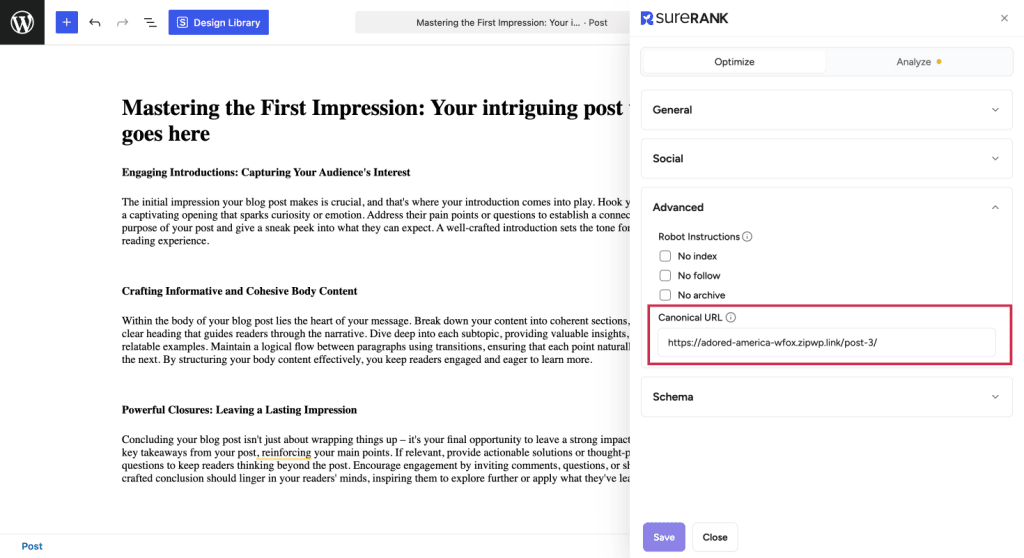
- In Canonical URL, either:
- Leave it blank to let the page self-reference (recommended for almost all normal content), or
- Enter a specific URL if this page duplicates another page and search engines should credit that other page instead.
- Save or update.
- Verify by viewing the page source (right-click → View Page Source, or Ctrl/Cmd+U) and searching for rel=”canonical” to confirm what was actually output.
Troubleshooting
Canonical tag in page source doesn’t match what’s expected:
Check whether a multilingual plugin like WPML is active on the site. These can rewrite the canonical URL after SureRank generates it.
Canonical looks wrong or old on an Elementor/Bricks/Divi-built page
This isn’t page-builder-specific behavior in SureRank, and it can happen due to stale permalinks or cache issues. Try clearing the cache once; if it does not work, escalate to the support team.
We don't respond to the article feedback, we use it to improve our support content.