
- How to Migrate from Rank Math to SureRank
- How to Migrate from Yoast to SureRank
- How to Migrate from SEOPress to SureRank SEO
- How to Migrate from Squirrly SEO to SureRank
- How to Migrate from All in One SEO (AIOSEO) to SureRank
- How to Migrate from Slim SEO to SureRank
- How to Migrate from The SEO Framework to SureRank
- Migration Failed: How to Diagnose
- After You Migrate: Verification and Cleanup Checklist
- Sitemaps in SureRank
- How to Enable Video Sitemap in SureRank Pro
- How to Enable the News Sitemap in SureRank
- How to Show the HTML Sitemap on Your Site in SureRank Pro
- How to Regenerate the Sitemap After Excluding a Post Type in SureRank
- Change the Sitemap URL in SureRank
- How to Enable Author Sitemap in SureRank
- How to Exclude Post Types from the Sitemap
- How to Enable the Author Sitemap and Why Authors Are Excluded (Pro)
- Editing Meta Box
- SureRank – Page SEO Checks
- Enabling Page SEO Checks in WordPress
- Image Alt Text – Automatic Optimization
- Link Manager
- Using the SureRank Front-End Meta Box
- How to Edit the Meta Title and Description for a Single Page or Post
- Controlling Indexing with Robot Instructions
- How to Set Global Title and Description Templates with Variables
- How to Set a Canonical URL and How the Canonical Field Works
- How to Fix WWW and Non-WWW Version Redirects to Improve Your SEO
- How to Fix: No H1 Heading Found on Your Homepage
- How to Fix Missing H2 Headings on Your Homepage
- Re-run Checks Button in SureRank
- Fix Critical Error: Another SEO Plugin Detected in SureRank
- Fix Warning: Site Tagline Is Not Set in SureRank
- How to Fix: Robots.txt Contains Invalid Rules in SureRank
- How to Fix Multiple SEO Plugins Detected on Your Site
- How to Fix: Homepage is Not Indexable by Search Engines
- Warning: Homepage Does Not Contain Internal Links
- How to Fix: Search Engine Title is Missing on the Page
- Page Level SEO: Broken Links Detected
- How to Fix Missing Alt Text on Images
- How to Fix Page URLs That Are Too Long
- Page Level SEO Warning: No Links Found on This Page
- Page Level SEO Warning: No Images or Videos Found
- Page Level SEO Warning: Missing Search Engine Description
- Page Level SEO Warning: No Subheadings Found on This Page
- Page Level SEO Warning: Canonical Tag is Missing
- Page Level SEO Warning: Open Graph Tags Missing
- What is Google Search Console and how does SureRank use it?
- Recommended Image Sizes
- SureRank – SEO Check Severity Guide
- Using SureRank with Other SEO Plugins – Best Practices
- Import/Export Feature – SureRank Plugin
- What is llms.txt and Does SureRank Support It?
- Does SureRank offer a keyword rank-tracking feature?
- Does SureRank Come With Google Analytics Integration?
- Email Summary in SureRank
- SureRank Role Manager
- Fixing a Fatal Error After Updating SureRank
- SureRank Server Requirements
- Search Engines Not Indexing Your WordPress Site?
- Sitemap Not Showing in SureRank
- Fixing robots.txt Issues in SureRank
- Why a Working Link Is Flagged as Broken (404)
- Which Pages Are Included in Your SureRank Sitemap
- Fixing False SEO Audit Warnings Caused by Caching
- Fixing “Couldn’t Fetch” for Your Sitemap in Google Search Console
- Troubleshooting: Favicon and Logo in Google Search Results (Supported Formats and CDN Gotchas)
- Customize XML Sitemap Top Bar with surerank_sitemap_top_bar_data
- Analyze ACF Field Content with SureRank
- Preserve Modified Date During Updates surerank_freeze_modified_date
- Customize Final Title Tag surerank_final_title
- Customize Post Type Archive Title Output surerank_post_type_archive_title
- Customize Archive Page Title with surerank_archive_title
- CustomizeModify the Search Results Page Title surerank_search_title
- Customizing the 404 Page Title surerank_not_found_title
- Customizing the Title Separator surerank_title_separator
- How to Remove Archive Prefixes from Titles Using SureRank
How to Set Up and Use OG Image Generation in SureRank Premium
OG Image Generation creates a branded social share image for a page. It combines a background, AI-suggested text, a color palette, and your logo into a single image, so you don’t need a separate design tool.
Note: This is different from SureRank’s free automatic image fallback, which simply pulls the first image already in a page’s content when no other social image is set. OG Image Generation actively creates a new branded image from a template.
Setting Up Brand Defaults
- Go to WordPress Dashboard → SureRank → Advanced → Image Generation.
- Choose a default template.
- Upload a brand logo.
- Choose a color palette to apply to generated images.
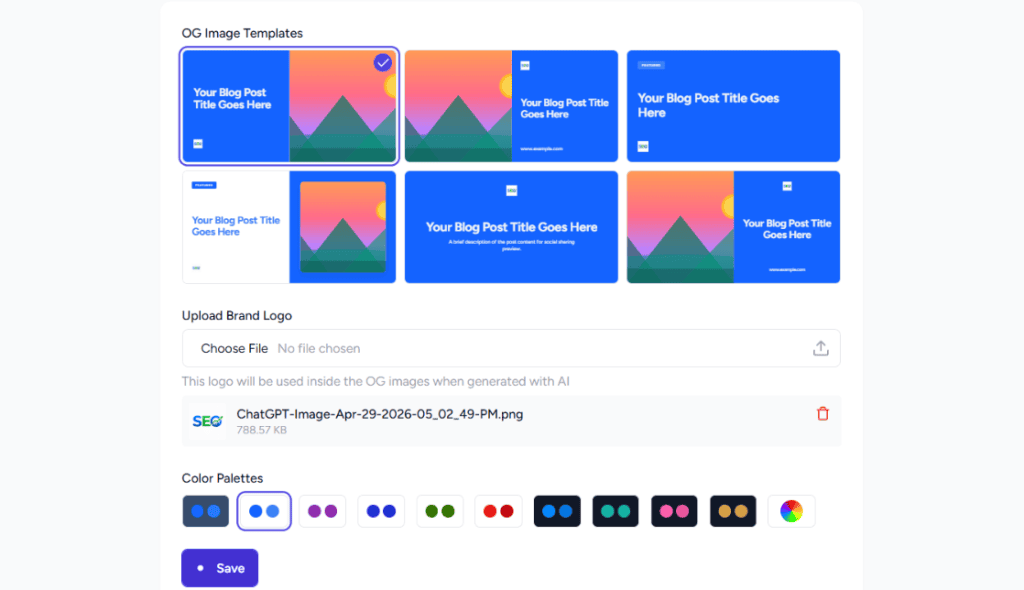
These defaults are applied automatically whenever a new image is generated, but you can adjust them per image during generation.
Generating an Image for a Page
- Open the page or post in the editor and open the SureRank panel’s Social tab.
- Next to the Social Image field (Facebook or X sub-tab), click the Magic Icon
- Pick or upload a background image.
- Choose a template card. Each one renders the page’s AI-suggested (or manually edited) title and description text over the background, styled with your brand palette and logo.
- Select Use this Image.
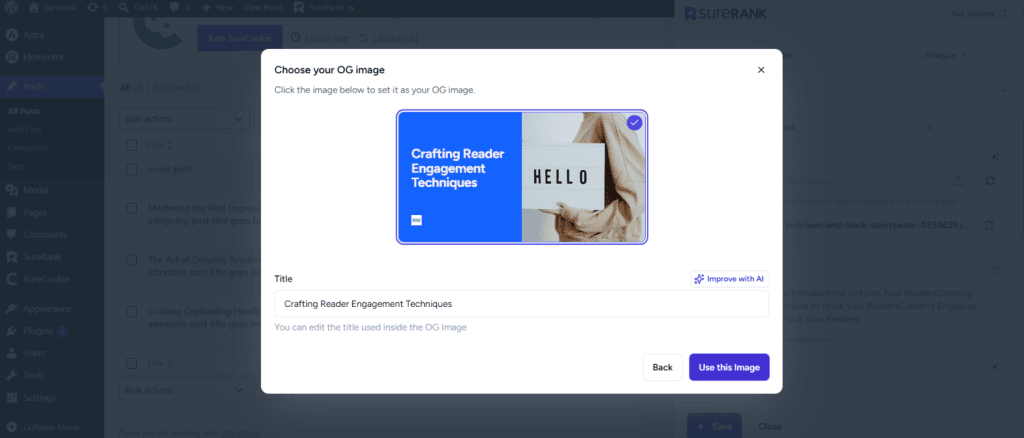
The generated image is uploaded to the Media Library and set as that page’s social image. It replaces whatever was previously in that field.
Editing, Regenerating, or Removing
- Select Generate Image again at any time to create a new version.
- Edit the suggested title and description text directly on a template card before finalizing.
- Use Use Data from Facebook Tab to reuse the same image for X instead of generating one separately.
- Switch to a custom image URL instead of the generated image using the mode toggle, or remove the image entirely.
Expected Outcome
The page’s Facebook/X Social Image field shows the newly generated image, and sharing the page displays it as the social preview image.
Notes and Limitations
- Image generation runs on a shared usage quota tied to the license. See SureRank AI Credits and Limits Explained (to be published).
- Generating an image overwrites the current Social Image for that tab (Facebook or X). It doesn’t create a second, separate field.
- This only affects individual pages one at a time. There’s no bulk or site-wide auto-generation.
FAQ
Does OG Image Generation replace my featured image? No, it only sets the page’s social (Open Graph/Twitter) image field. The featured image used elsewhere on the site is untouched.
I generated an image but a different one still shows when I share the page. Why? Clear any caching plugin or CDN cache for that page, then check the Social tab to confirm the generated image is still set. Social platforms also cache preview images and may need their own cache cleared (for example, via Facebook’s Sharing Debugger).
What happens if my AI credits run out mid-generation? Generation stops and an inline message prompts you to upgrade the plan or wait for the credit reset. See SureRank AI Credits and Limits Explained (to be published) for the reset schedule.
We don't respond to the article feedback, we use it to improve our support content.