
- Installing SureRank
- SureRank Onboarding Guide
- How to Activate Your SureRank Pro License
- SureRank Dashboard Overview
- General Settings
- Advanced Settings
- Search Console – SureRank
- Managing URL Redirection in SureRank
- SureRank Feature Management – Quick Guide
- Robots.txt Feature in SureRank
- Instant Indexing in SureRank Pro
- Using the Focus Keyword Feature in SureRank
- Image SEO – SureRank
- Google Indexing in SureRank
- How to Configure Custom Fields with SureRank
- Breadcrumbs Feature in SureRank Pro
- Extended Meta Templates in SureRank Pro
- SureRank Pro – Link Suggestions
- Sitemaps in SureRank
- How to Enable Video Sitemap in SureRank Pro
- How to Enable the News Sitemap in SureRank
- How to Show the HTML Sitemap on Your Site in SureRank Pro
- How to Regenerate the Sitemap After Excluding a Post Type in SureRank
- Change the Sitemap URL in SureRank
- How to Enable Author Sitemap in SureRank
- How to Fix WWW and Non-WWW Version Redirects to Improve Your SEO
- How to Fix: No H1 Heading Found on Your Homepage
- How to Fix Missing H2 Headings on Your Homepage
- Re-run Checks Button in SureRank
- Fix Critical Error: Another SEO Plugin Detected in SureRank
- Fix Warning: Site Tagline Is Not Set in SureRank
- How to Fix Multiple SEO Plugins Detected on Your Site
- How to Fix: Homepage is Not Indexable by Search Engines
- Warning: Homepage Does Not Contain Internal Links
- How to Fix Missing Alt Text on Homepage Images
- How to Fix: Search Engine Title is Missing on the Page
- Page Level SEO: Broken Links Detected
- How to Fix Missing Alt Text on Images
- How to Fix Page URLs That Are Too Long
- Page Level SEO Warning: No Links Found on This Page
- Page Level SEO Warning: No Images or Videos Found
- Page Level SEO Warning: Missing Search Engine Description
- Page Level SEO Warning: No Subheadings Found on This Page
- Page Level SEO Warning: Canonical Tag is Missing
- Page Level SEO Warning: Open Graph Tags Missing
- What is Google Search Console and how does SureRank use it?
- Recommended Image Sizes
- SureRank – SEO Check Severity Guide
- Using SureRank with Other SEO Plugins – Best Practices
- Import/Export Feature – SureRank Plugin
- What is llms.txt and Does SureRank Support It?
- Does SureRank offer a keyword rank-tracking feature?
- Does SureRank Come With Google Analytics Integration?
- Email Summary in SureRank
- SureRank Role Manager
- Customize XML Sitemap Top Bar with surerank_sitemap_top_bar_data
- Analyze ACF Field Content with SureRank
- Preserve Modified Date During Updates surerank_freeze_modified_date
- Customize Final Title Tag surerank_final_title
- Customize Post Type Archive Title Output surerank_post_type_archive_title
- Customize Archive Page Title with surerank_archive_title
- CustomizeModify the Search Results Page Title surerank_search_title
- Customizing the 404 Page Title surerank_not_found_title
- Customizing the Title Separator surerank_title_separator
- How to Remove Archive Prefixes from Titles Using SureRank
How to Activate Your SureRank Pro License
This guide explains how to install the free SureRank plugin, add the SureRank Pro add-on, and activate your Pro license key in WordPress.
Prerequisites
- WordPress admin access (wp-admin).
- The free SureRank plugin is installed and active.
- Access to your SureRank customer account: https://my.surerank.com/
Overview
To unlock premium features, automatic updates, and professional support, complete these steps:
- Install and activate the free SureRank plugin.
- Install and activate the SureRank Pro add-on.
- Activate your SureRank Pro license key in WordPress.
Step 1: Install and Activate the Free SureRank Plugin
- Go to WordPress Dashboard > Plugins > Add New.
- Search for “SureRank”.
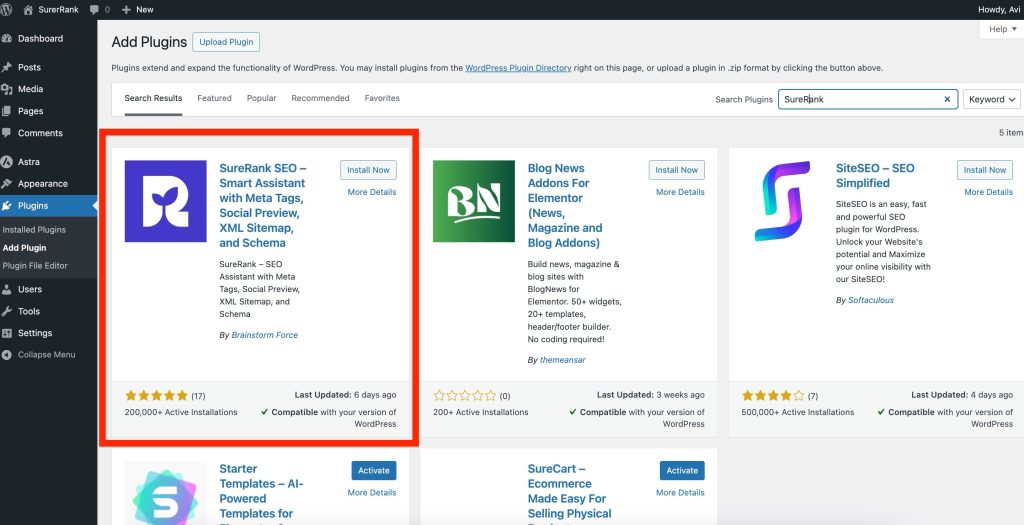
- Click Install, then Activate.
Step 2: Download SureRank Pro and Copy Your License Key
- Log in to your SureRank customer dashboard: https://my.surerank.com/
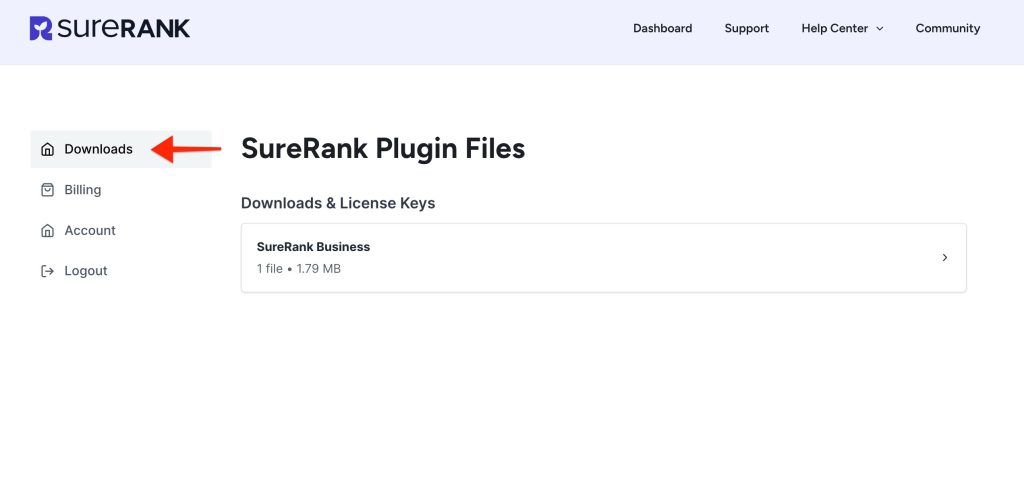
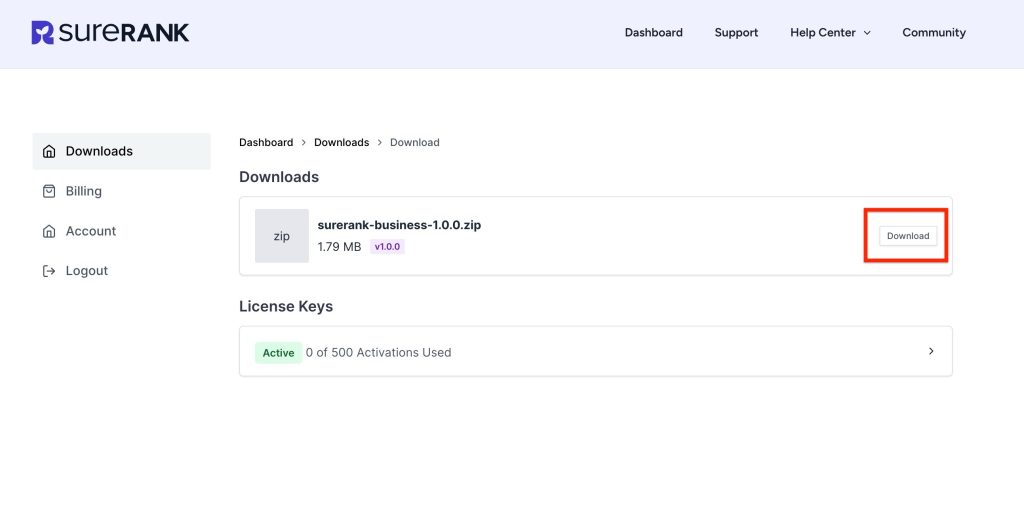
- Open the Downloads section and click Download to get the SureRank Pro ZIP file.
- Open the License Keys tab.
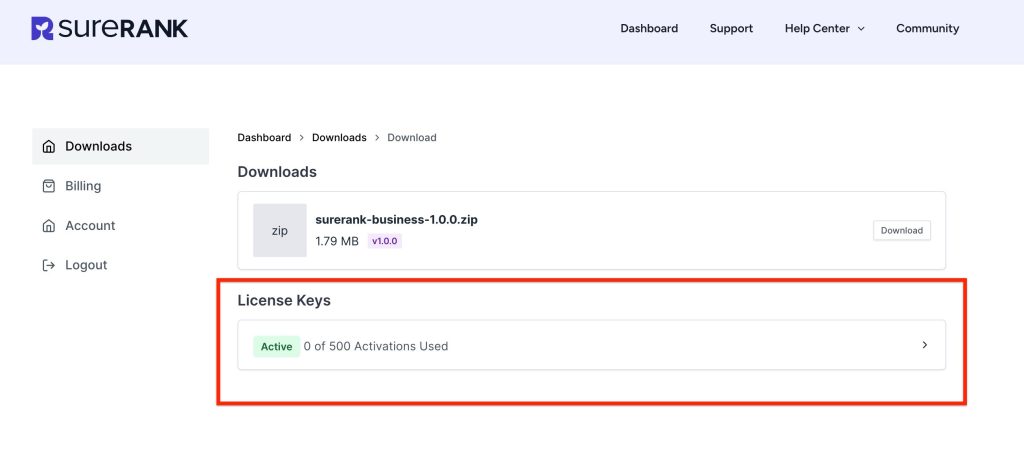
- Copy your SureRank Pro license key.
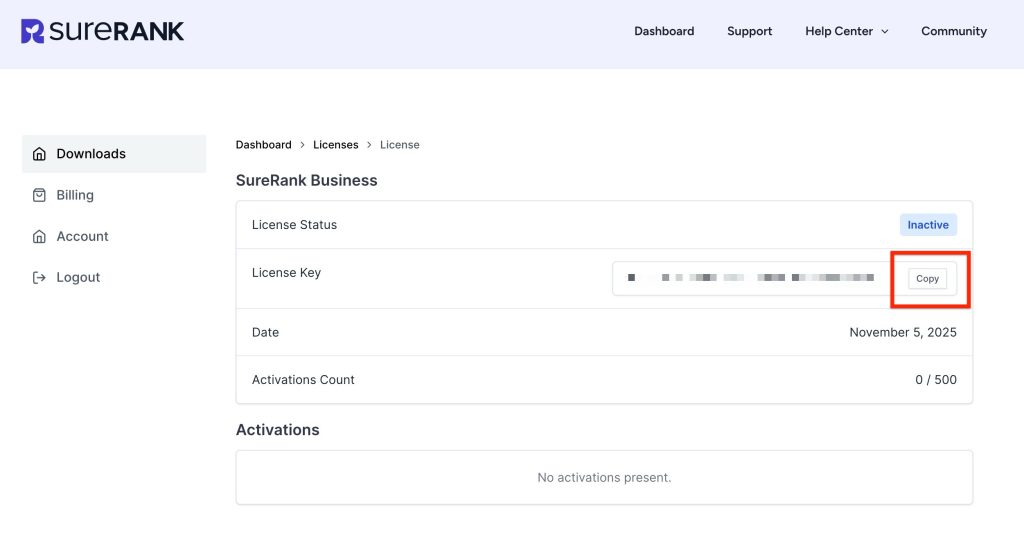
Step 3: Install and Activate the SureRank Pro Add-on
- In WordPress, go to Plugins > Add New > Upload Plugin.
- Select the SureRank Pro ZIP file.
- Click Install Now, then Activate.
- Confirm both “SureRank” (free) and “SureRank Pro” are Active under Plugins.
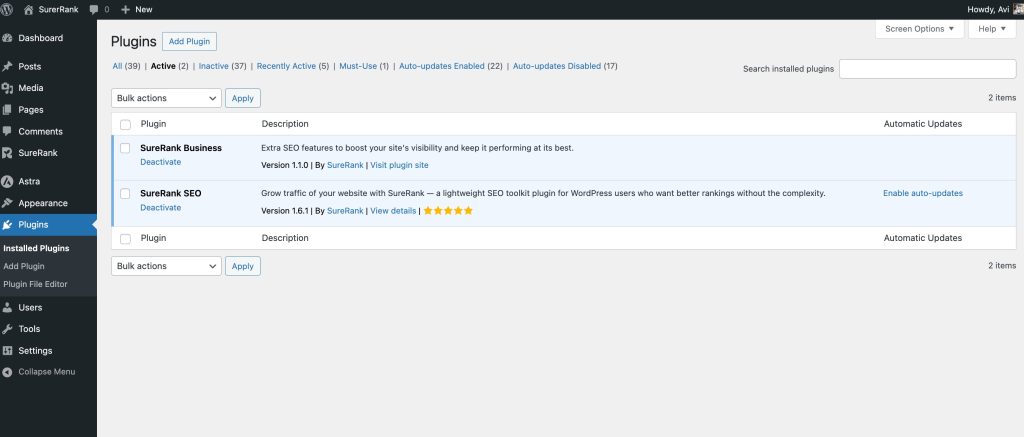
Step 4: Activate Your Pro License in WordPress
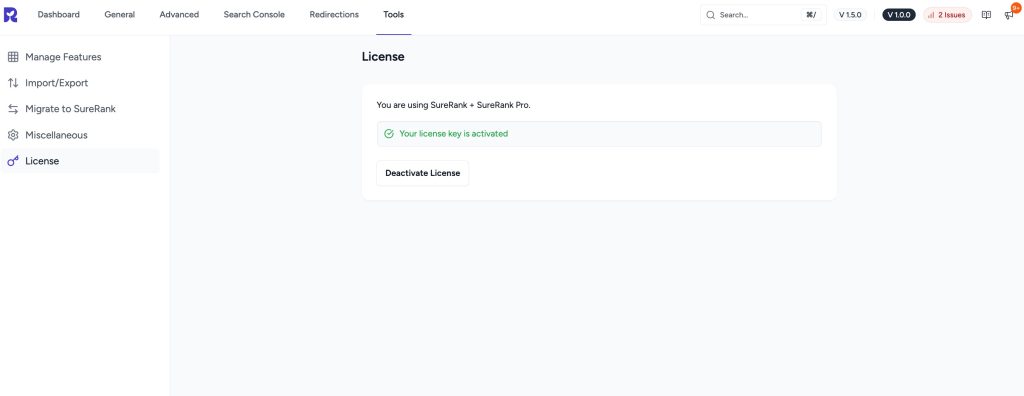
- In the WordPress admin sidebar, go to SureRank > Tools> License.
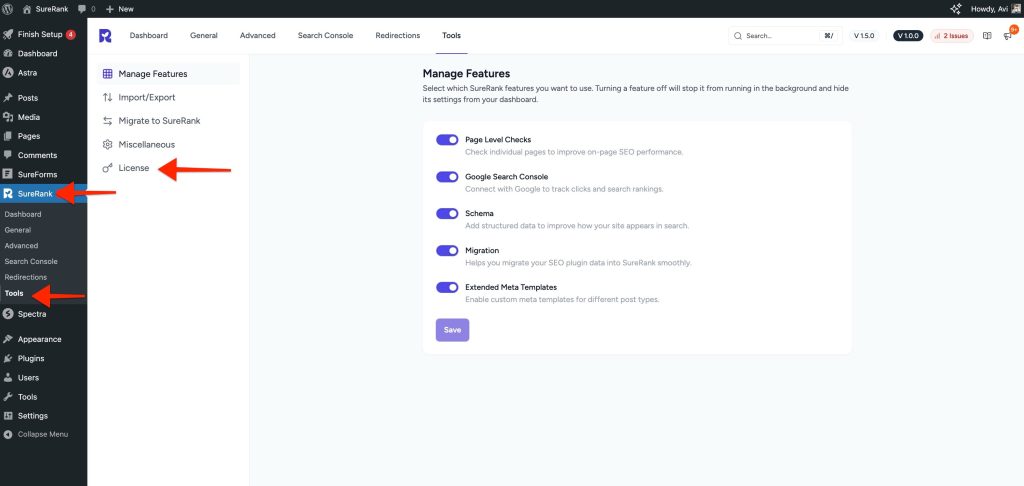
- Find the field labeled “Paste your license key here”.
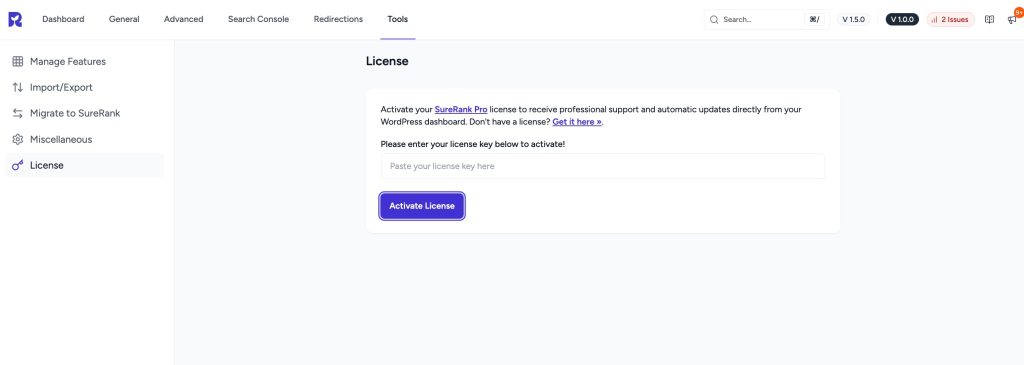
- Paste your SureRank Pro license key.
- Click the purple Activate License button.
- Wait for the confirmation message that your license is active.
Need a License?
If you haven’t purchased a license yet, you can get one from the SureRank Pro website.
Troubleshooting Tips
- Double-check the license key for typos or extra spaces.
- Make sure your website is connected to the internet.
- If activation fails, try refreshing the page and entering the key again.
Was this doc helpful?
What went wrong?
We don't respond to the article feedback, we use it to improve our support content.
Table of Contents