
- Sitemaps in SureRank
- How to Enable Video Sitemap in SureRank Pro
- How to Enable the News Sitemap in SureRank
- How to Show the HTML Sitemap on Your Site in SureRank Pro
- How to Regenerate the Sitemap After Excluding a Post Type in SureRank
- Change the Sitemap URL in SureRank
- How to Enable Author Sitemap in SureRank
- How to Fix WWW and Non-WWW Version Redirects to Improve Your SEO
- How to Fix: No H1 Heading Found on Your Homepage
- How to Fix Missing H2 Headings on Your Homepage
- Re-run Checks Button in SureRank
- Fix Critical Error: Another SEO Plugin Detected in SureRank
- Fix Warning: Site Tagline Is Not Set in SureRank
- How to Fix: Robots.txt Contains Invalid Rules in SureRank
- How to Fix Multiple SEO Plugins Detected on Your Site
- How to Fix: Homepage is Not Indexable by Search Engines
- Warning: Homepage Does Not Contain Internal Links
- How to Fix Missing Alt Text on Homepage Images
- How to Fix Missing Canonical Tag on Your Homepage
- How to Fix Missing Open Graph Tags on Your Homepage
- How to Fix Missing Structured Data (Schema) on Your Homepage
- How to Fix XML Sitemap is Not Accessible in SureRank
- How to Fix Search Engine Visibility Blocked in WordPress
- Connect Google Search Console
- How to Fix Site Not Served Over HTTPS in SureRank
- How to Fix Robots.txt File Accessibility Issues in SureRank
- How to Fix Missing Search Engine Title on Your Home Page
- How to Fix Home Page is Not Loading Correctly
- How to Fix No Images Found on the Homepage Warning
- SureRank – Internal Link Suggestions
- How to Fix: Search Engine Title is Missing on the Page
- Page Level SEO: Broken Links Detected
- How to Fix Missing Alt Text on Images
- How to Fix Page URLs That Are Too Long
- Page Level SEO Warning: No Links Found on This Page
- Page Level SEO Warning: No Images or Videos Found
- Page Level SEO Warning: Missing Search Engine Description
- Page Level SEO Warning: No Subheadings Found on This Page
- Page Level SEO Warning: Canonical Tag is Missing
- Page Level SEO Warning: Open Graph Tags Missing
- What is Google Search Console and how does SureRank use it?
- Recommended Image Sizes
- SureRank – SEO Check Severity Guide
- Using SureRank with Other SEO Plugins – Best Practices
- Import/Export Feature – SureRank Plugin
- What is llms.txt and Does SureRank Support It?
- Does SureRank offer a keyword rank-tracking feature?
- Does SureRank Come With Google Analytics Integration?
- Email Summary in SureRank
- SureRank Role Manager
- Customize XML Sitemap Top Bar with surerank_sitemap_top_bar_data
- Analyze ACF Field Content with SureRank
- Preserve Modified Date During Updates surerank_freeze_modified_date
- Customize Final Title Tag surerank_final_title
- Customize Post Type Archive Title Output surerank_post_type_archive_title
- Customize Archive Page Title with surerank_archive_title
- CustomizeModify the Search Results Page Title surerank_search_title
- Customizing the 404 Page Title surerank_not_found_title
- Customizing the Title Separator surerank_title_separator
- How to Remove Archive Prefixes from Titles Using SureRank
SureRank – Internal Link Suggestions
Internal linking is an important part of SEO, and SureRank makes it easy by suggesting the best internal links for your content automatically. This helps you improve your website structure and boosts search rankings without any manual effort.
What Are Internal Links?
Internal links are hyperlinks that connect one page of your website to another page on the same website. They guide readers to related content and help search engines understand your site better. Example: If you are writing a blog about SEO tips, you can add a link to a related article like “How to research keywords”.
Benefits of Internal Links
- Improves SEO ranking
- Helps Google understand page relationships and index pages faster.
- Enhances user experience
- Visitors can explore more relevant content easily.
- Increases page views and reduces bounce rate
- Users stay longer on your site.
- Boosts authority distribution
- Helps pass link power from high-performing pages to other important pages.
How Internal Link Suggestions Work in SureRank
SureRank automatically scans your content and suggests suitable internal links based on context, keywords, and related topics in your site.
Steps to Use Internal Link Suggestions
- Open any post or page in the WordPress editor.
- In the Block Toolbar, click the SureRank Internal Link Suggestion icon.

- If no text is selected, you will see the message: “Please select some text first.”
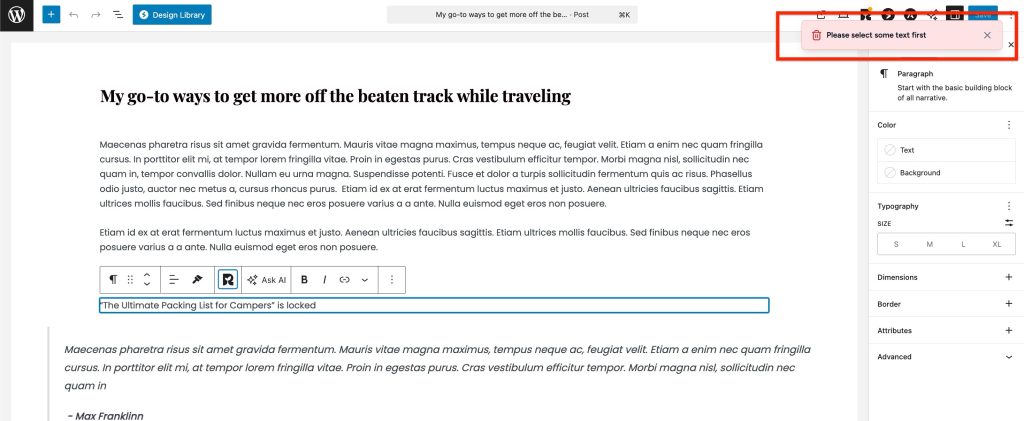
- Select a word or phrase that you want to link.
- Click on the Internal Link Suggestion option again.
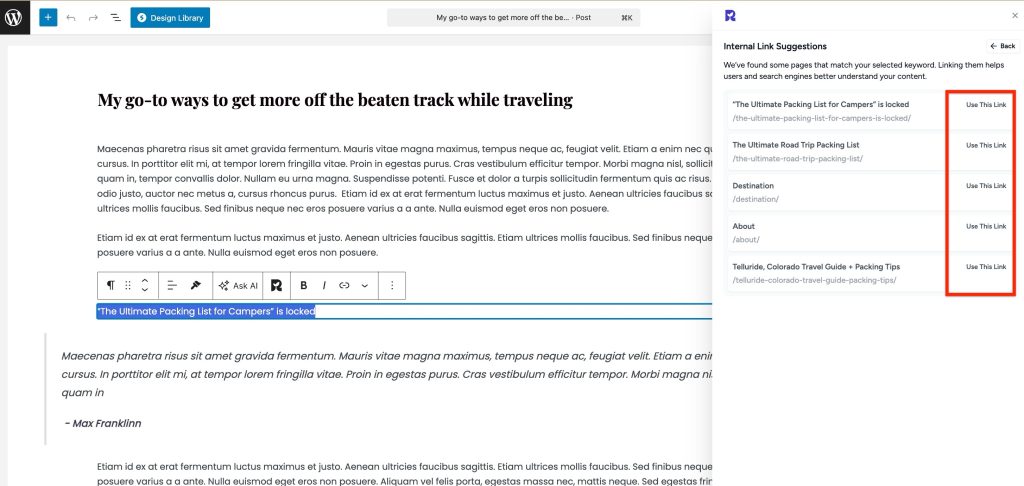
- SureRank will scan your content and show the best-matching internal links.
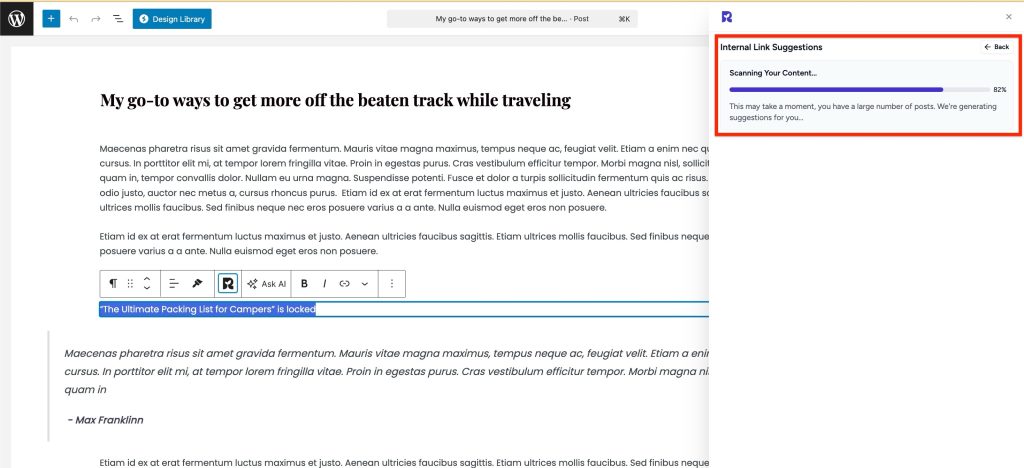
- Choose a link from the suggestions and insert it directly into your content.
Why Use Internal Link Suggestions?
| Traditional Way | With SureRank |
| Shows all relevant pages based on the topic | Automatic smart suggestions |
| Consumes time and effort | Saves time and improves SEO easily |
| Risk of missing important pages | Shows all relevant pages based on topic |
| Not beginner-friendly | Simple click-based workflow |
Final Outcome
With SureRank Internal Link Suggestions, you can optimize internal linking quickly and efficiently, improve your website ranking, and offer a smooth browsing experience to your users.
We don't respond to the article feedback, we use it to improve our support content.