
- Sitemaps in SureRank
- How to Enable Video Sitemap in SureRank Pro
- How to Enable the News Sitemap in SureRank
- How to Show the HTML Sitemap on Your Site in SureRank Pro
- How to Regenerate the Sitemap After Excluding a Post Type in SureRank
- Change the Sitemap URL in SureRank
- How to Enable Author Sitemap in SureRank
- How to Fix WWW and Non-WWW Version Redirects to Improve Your SEO
- How to Fix: No H1 Heading Found on Your Homepage
- How to Fix Missing H2 Headings on Your Homepage
- Re-run Checks Button in SureRank
- Fix Critical Error: Another SEO Plugin Detected in SureRank
- Fix Warning: Site Tagline Is Not Set in SureRank
- How to Fix Multiple SEO Plugins Detected on Your Site
- How to Fix: Homepage is Not Indexable by Search Engines
- Warning: Homepage Does Not Contain Internal Links
- How to Fix Missing Alt Text on Homepage Images
- How to Fix: Search Engine Title is Missing on the Page
- Page Level SEO: Broken Links Detected
- How to Fix Missing Alt Text on Images
- How to Fix Page URLs That Are Too Long
- Page Level SEO Warning: No Links Found on This Page
- Page Level SEO Warning: No Images or Videos Found
- Page Level SEO Warning: Missing Search Engine Description
- Page Level SEO Warning: No Subheadings Found on This Page
- Page Level SEO Warning: Canonical Tag is Missing
- Page Level SEO Warning: Open Graph Tags Missing
- What is Google Search Console and how does SureRank use it?
- Recommended Image Sizes
- SureRank – SEO Check Severity Guide
- Using SureRank with Other SEO Plugins – Best Practices
- Import/Export Feature – SureRank Plugin
- What is llms.txt and Does SureRank Support It?
- Does SureRank offer a keyword rank-tracking feature?
- Does SureRank Come With Google Analytics Integration?
- Customize Final Title Tag surerank_final_title
- Customize Post Type Archive Title Output surerank_post_type_archive_title
- Customize Archive Page Title with surerank_archive_title
- CustomizeModify the Search Results Page Title surerank_search_title
- Customizing the 404 Page Title surerank_not_found_title
- Customizing the Title Separator surerank_title_separator
- How to Remove Archive Prefixes from Titles Using SureRank
- Customize Homepage Pagination Format surerank_homepage_pagination_format
- Customize Maximum SEO Title Length surerank_title_length
- Enable/Disable Pagination in SureRank Archives surerank_show_pagination
Image Alt Text – Automatic Optimization
Adding alt text (alternative text) to images is a crucial SEO practice. It helps search engines understand what your images represent, which can boost your visibility in image searches. Alt text also improves accessibility for users who rely on screen readers.
However, it’s easy to forget to add alt text during the image upload process. That’s where SureRank steps in.
How SureRank Helps
SureRank checks for images that are missing alt text. If an image does not have alt text, SureRank will automatically insert it using the image’s attachment title, which is typically the file name or the image title set during upload.
This functionality applies to:
- Post Thumbnails (Featured Images) – Ensures the main visual representation of your content is properly optimized.
- Images in Post Content – Any image inserted into your post or page body will also be scanned and updated if missing alt text during upload.
This automation saves you time while ensuring your site remains SEO-friendly and accessible.
Why This Matters
- SEO Boost – Search engines index image content more effectively when descriptive alt text is available.
- Accessibility – Users with visual impairments rely on alt text to understand the context of images.
- Better User Experience – If an image fails to load, alt text provides a fallback description.
Alt Text Auto-Generation
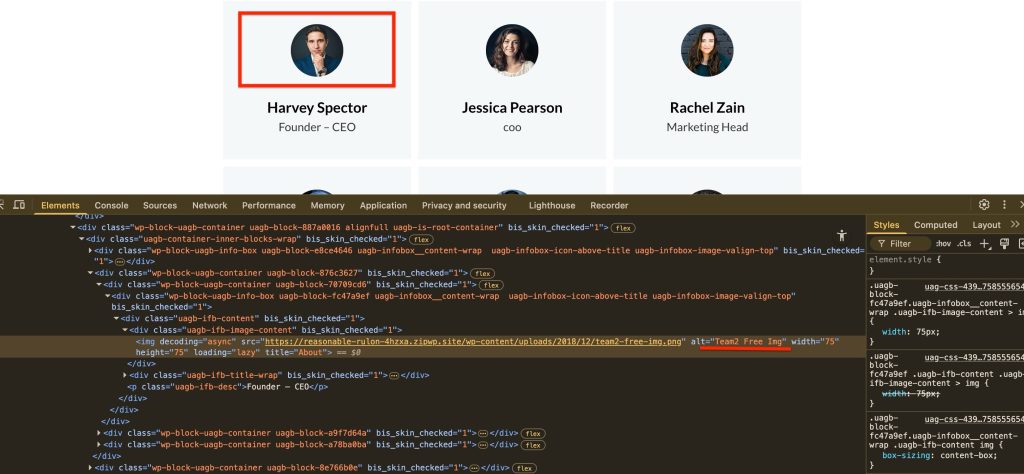
If an image on your website is missing the alt attribute, SureRank will automatically add an alt text to the markup. The plugin uses the file name of the image to generate the alt text, ensuring that your images always follow SEO best practices.
Disabling Automatic Alt Text
If you prefer to manually manage your image alt text and do not want SureRank to automatically set it, you can disable this feature using a WordPress filter.
Add the following code to your child theme’s functions.php file or a custom plugin:
/ surerank disable image seo
add_filter( 'surerank_image_seo_enable_alt', '__return_false' );
// surerank disable image seo title
add_filter( 'surerank_image_seo_enable_title', '__return_false' );SureRank’s automated approach ensures no image is left behind, so you can focus on creating content, not managing alt text.
We don't respond to the article feedback, we use it to improve our support content.