
- Sitemaps in SureRank
- How to Enable Video Sitemap in SureRank Pro
- How to Enable the News Sitemap in SureRank
- How to Show the HTML Sitemap on Your Site in SureRank Pro
- How to Regenerate the Sitemap After Excluding a Post Type in SureRank
- Change the Sitemap URL in SureRank
- How to Enable Author Sitemap in SureRank
- How to Fix WWW and Non-WWW Version Redirects to Improve Your SEO
- How to Fix: No H1 Heading Found on Your Homepage
- How to Fix Missing H2 Headings on Your Homepage
- Re-run Checks Button in SureRank
- Fix Critical Error: Another SEO Plugin Detected in SureRank
- Fix Warning: Site Tagline Is Not Set in SureRank
- How to Fix Multiple SEO Plugins Detected on Your Site
- How to Fix: Homepage is Not Indexable by Search Engines
- Warning: Homepage Does Not Contain Internal Links
- How to Fix Missing Alt Text on Homepage Images
- How to Fix Missing Canonical Tag on Your Homepage
- How to Fix Missing Open Graph Tags on Your Homepage
- How to Fix Missing Structured Data (Schema) on Your Homepage
- How to Fix XML Sitemap is Not Accessible in SureRank
- How to Fix Search Engine Visibility Blocked in WordPress
- Connect Google Search Console
- How to Fix Site Not Served Over HTTPS in SureRank
- How to Fix Robots.txt File Accessibility Issues in SureRank
- How to Fix Missing Search Engine Title on Your Home Page
- How to Fix Home Page is Not Loading Correctly
- How to Fix No Images Found on the Homepage Warning
- SureRank – Internal Link Suggestions
- How to Fix: Search Engine Title is Missing on the Page
- Page Level SEO: Broken Links Detected
- How to Fix Missing Alt Text on Images
- How to Fix Page URLs That Are Too Long
- Page Level SEO Warning: No Links Found on This Page
- Page Level SEO Warning: No Images or Videos Found
- Page Level SEO Warning: Missing Search Engine Description
- Page Level SEO Warning: No Subheadings Found on This Page
- Page Level SEO Warning: Canonical Tag is Missing
- Page Level SEO Warning: Open Graph Tags Missing
- What is Google Search Console and how does SureRank use it?
- Recommended Image Sizes
- SureRank – SEO Check Severity Guide
- Using SureRank with Other SEO Plugins – Best Practices
- Import/Export Feature – SureRank Plugin
- What is llms.txt and Does SureRank Support It?
- Does SureRank offer a keyword rank-tracking feature?
- Does SureRank Come With Google Analytics Integration?
- Customize Final Title Tag surerank_final_title
- Customize Post Type Archive Title Output surerank_post_type_archive_title
- Customize Archive Page Title with surerank_archive_title
- CustomizeModify the Search Results Page Title surerank_search_title
- Customizing the 404 Page Title surerank_not_found_title
- Customizing the Title Separator surerank_title_separator
- How to Remove Archive Prefixes from Titles Using SureRank
- Customize Homepage Pagination Format surerank_homepage_pagination_format
- Customize Maximum SEO Title Length surerank_title_length
- Enable/Disable Pagination in SureRank Archives surerank_show_pagination
Fix Warning: Site Tagline Is Not Set in SureRank
SureRank checks your WordPress site settings to ensure they are SEO-friendly. One of the checks is for the Site Tagline.
If the tagline is not set, you will see this warning: “Warning: Site tagline is not set in WordPress settings.”
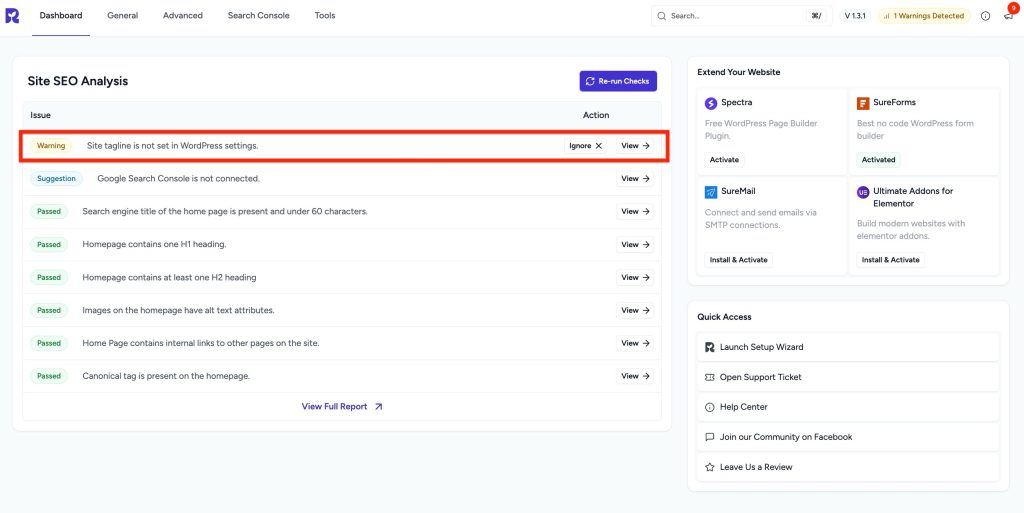
The site tagline is an important element because:
- Search engines may use it as a snippet if no other meta description is available.
- It provides a short, clear description of your website’s purpose.
How to Fix
To resolve this warning, follow these steps:
- Log in to your WordPress dashboard.
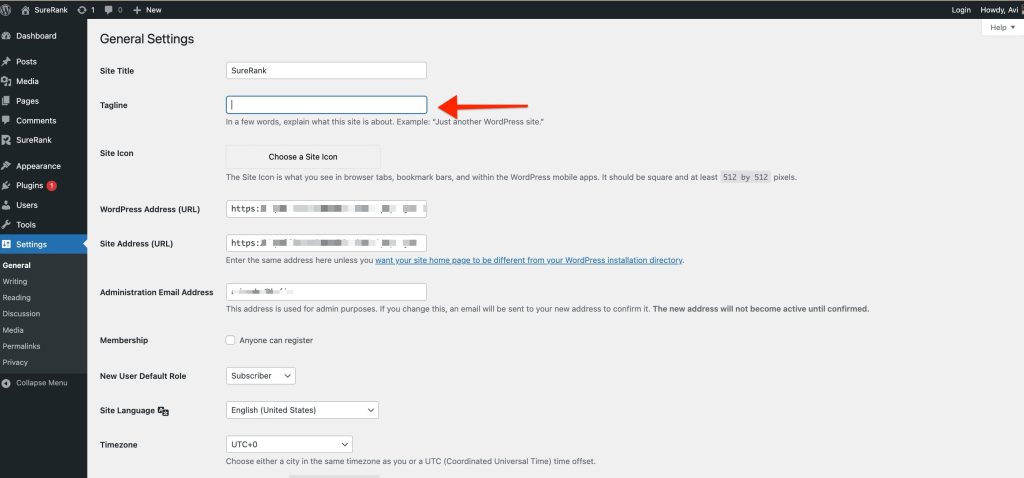
- Go to Settings → General.
- Look for the Tagline field.
- Enter a short, descriptive tagline about your site.
- Example: “Your trusted source for WordPress tips and tutorials”
- Scroll down and click Save Changes.
- Re-run Site SEO Analysis
- Run the Site SEO Analysis again in SureRank.
- The warning should no longer appear.
Recommended Best Practices
- Keep the tagline concise (under 60 characters).
- Make it descriptive and relevant to your website’s content.
- Avoid leaving it as the WordPress default: “Just another WordPress site”.
- Do not stuff it with keywords- focus on clarity and branding.
Was this doc helpful?
What went wrong?
We don't respond to the article feedback, we use it to improve our support content.
On this page