
WordPress powers more than 40% of all websites on the internet. That fact leads a lot of people to assume that being on WordPress gives you a built-in SEO advantage.
It doesn’t.
The platform is SEO-friendly in the sense that it’s flexible and extensible, but it doesn’t do the work for you.
Most WordPress sites get very little organic traffic, not because the platform is the problem, but because the SEO was never set up properly.
This guide covers everything you need to know about WordPress SEO in 2026.
It’s structured around the three areas that drive rankings, technical SEO, on-page SEO and off-page SEO.
Each section covers what matters, why it matters and exactly what to do about it.
Whether you’re setting up SEO for the first time or auditing a site that’s been live for years, this is the reference you’ll come back to.
Let’s get into it!
What Is WordPress SEO?
WordPress SEO is the process of configuring your site, writing your content and building your authority in a way that earns higher positions in search results.
The goal is to show up when people search for topics your site covers and to show up ahead of the competition.
SEOisn’t a one-time setup.
Installing an SEO plugin and running through a configuration wizard is a necessary first step, but it’s not the finish line.
SEO is an ongoing discipline that combines technical configuration, content quality and earned authority.
All three need to be maintained as your site grows and as Google’s expectations evolve.
WordPress does have genuine advantages as a platform for SEO.
- It gives you full control over your URL structure, page titles, meta data, headings and internal linking.
- It has a rich ecosystem of plugins like SureRank that handle technical SEO requirements automatically.
- It’s fast to update, which matters when Google rewards fresh, accurate content.
But none of those advantages mean anything if you don’t use them.
That’s what this guide is for.
Part 1: Technical SEO for WordPress
Technical SEO is the foundation. It’s everything that affects how search engines find, crawl, index and understand your site.
If the technical layer is broken, even exceptional content won’t rank. Get this right first, then build everything else on top of it.
SEO-Friendly Hosting
Your hosting provider directly affects two ranking factors, page speed and uptime.
A slow server makes your site slow regardless of how well everything else is optimized.
A server that goes down frequently signals unreliability to both users and search engines.
When evaluating hosting for SEO, look for the following:
• Server response time (TTFB) under 200ms: This is the time it takes the server to start sending data after a browser makes a request. Most hosting providers publish benchmark data, look for it before committing.
• Data centers close to your primary audience: If most of your visitors are in the US, a US-based server reduces latency. CDN (content delivery network) integration can compensate for geographic distance, but proximity still helps.
• 99.9% uptime guarantee as a minimum: Extended downtime means Googlebot can’t crawl your pages. Managed WordPress hosting is well worth the extra cost for serious sites.
• PHP 8.x support: Running an older PHP version slows WordPress down and introduces security vulnerabilities. Most quality hosts handle this automatically, but it’s worth confirming.
Installing an SEO Plugin
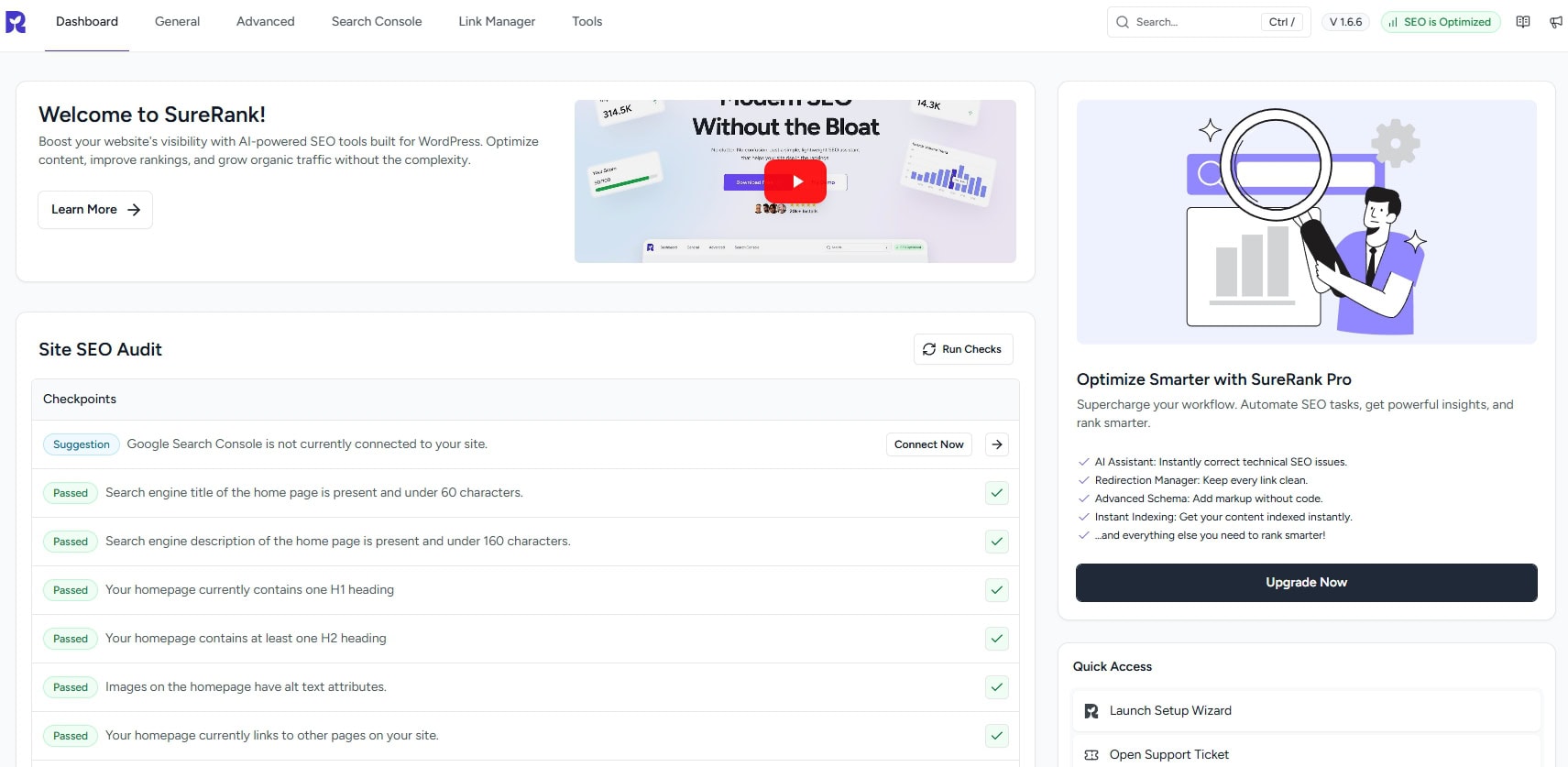
An SEO plugin like SureRank is non-negotiable, as WordPress has no native SEO tools.
You can’t set a custom meta description, generate a sitemap, add schema markup, or manage canonical tags without a plugin.
The plugin you choose matters.
- Some are resource-heavy and will slow your site down.
- Some have steep learning curves that lead to misconfiguration.
- Some lock essential features behind paid tiers that make the free version close to useless.
SureRank is built specifically to avoid all three of those problems.
It’s lightweight by design, with a focused feature set that covers everything you need without adding bloat.
The setup wizard handles the most critical configuration automatically and the on-page analysis gives you clear, actionable feedback as you write.
For a full comparison of all the major options, see our WordPress SEO plugin comparison.
Tip: Only ever run one SEO plugin at a time. Two active SEO plugins will conflict with each other and produce duplicate metadata in your pages, which confuses search engines.
Configure Your XML Sitemap and Submitting to Google Search Console
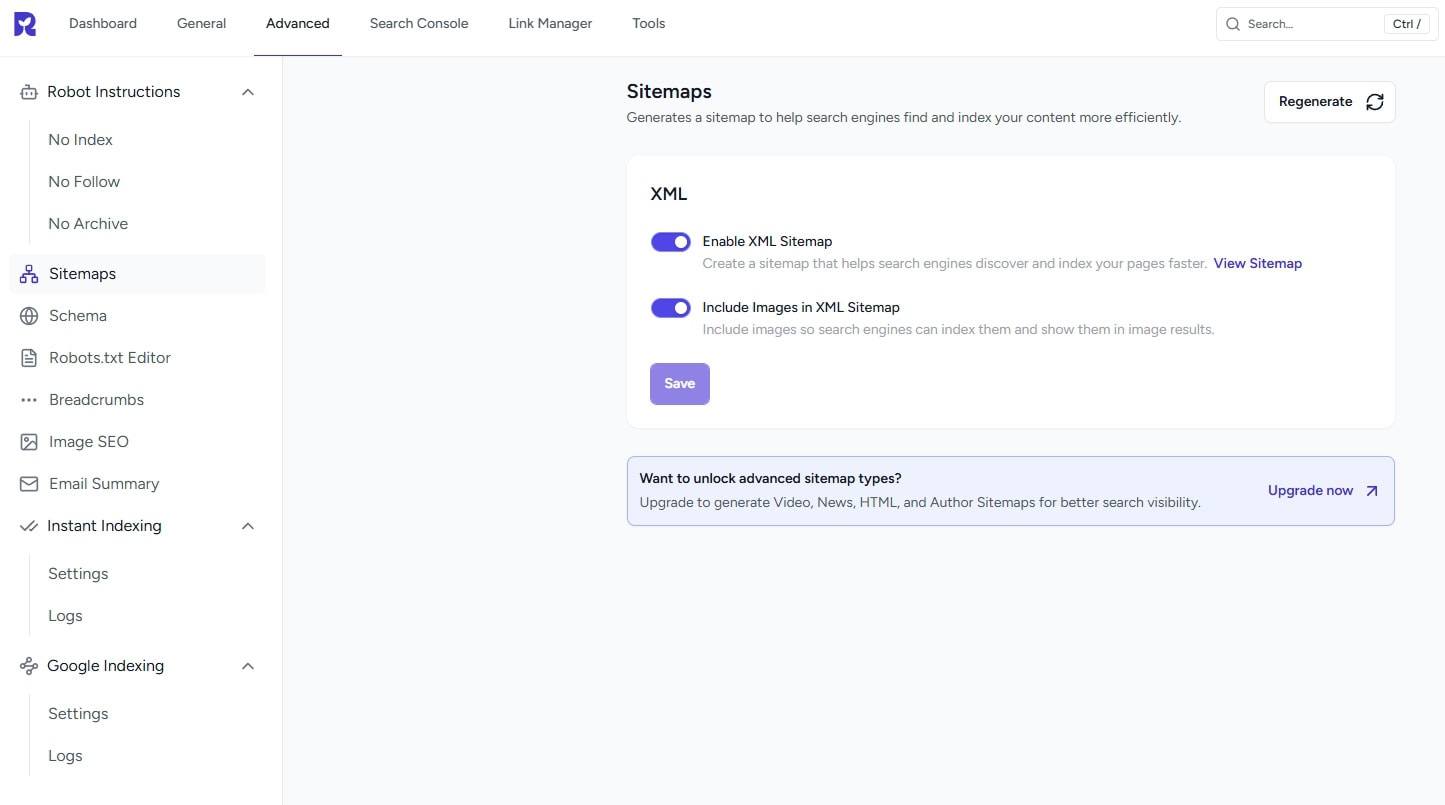
An XML sitemap is a file that lists all the pages on your site and tells search engines how they’re structured.
It’s not something visitors see, it’s a communication tool for crawlers.
Submitting your sitemap to Search Console tells Google exactly what you want indexed and gives it a reliable map to follow.
SureRank generates your sitemap automatically and keeps it updated as you add new content.
Your sitemap URL will be something like yoursite.com/sitemap.xml. Once it’s generated:
- Go to Google Search Console (search.google.com/search-console).
- Select your property, navigate to Sitemaps in the left menu.
- Paste your sitemap URL and click Submit.
Google will begin crawling based on the sitemap. New sites can take a few days to a couple of weeks to appear in search results after submission.
For a detailed walkthrough of Google Search Console, see our complete WordPress SEO setup guide.
Setting Up robots.txt Correctly
The robots.txt file is a plain text file at the root of your domain (yoursite.com/robots.txt) that tells search engine crawlers which parts of your site they can and can’t access.
Misconfiguring it is one of the most common ways to accidentally tank your own rankings.
The default WordPress robots.txt is fine for most sites. The key rules to know:
- Disallow: /wp-admin/ this is correct. Your admin panel has no business being indexed.
- Never disallow your entire site (Disallow: /) unless you’re intentionally blocking all crawlers, for example on a staging site.
- Don’t block CSS and JavaScript files. Google needs to render your pages to understand them. Blocking assets prevents that.
Check your current robots.txt by visiting yoursite.com/robots.txt in a browser. If something looks wrong, SureRank’s site-wide SEO audit will flag it.
Fixing Canonical URLs and Duplicate Content
A canonical URL is the version of a page you want search engines to treat as the authoritative one.
Duplicate content, the same or very similar content appearing at multiple URLs, confuses search engines about which version to rank.
It can dilute your ranking signals across multiple URLs instead of concentrating them on one.
Common sources of duplicate content on WordPress sites:
- HTTP and HTTPS versions of the same page both accessible
- www and non-www versions both accessible (e.g. example.com and www.example.com)
- Paginated archive pages (page 1, page 2, etc.) with overlapping content
- Tag and category pages that largely duplicate post content
SureRank sets canonical tags automatically on every page and post, pointing to the correct version.
Make sure your site redirects HTTP to HTTPS and www to non-www (or vice versa) at the server level.
Your web host can assist with this if it’s not already in place.
Improving Core Web Vitals
Core Web Vitals are a set of performance metrics that Google uses as a direct ranking signal.
They measure three things:
- LCP (Largest Contentful Paint): How long it takes for the main content of a page to load.
Target: under 2.5 seconds.
- FID (First Input Delay) / INP (Interaction to Next Paint): How quickly the page responds when a user first interacts with it.
Target: under 100ms for FID, under 200ms for INP.
- CLS (Cumulative Layout Shift): How much the page layout shifts unexpectedly while loading.
Target: under 0.1. A layout that jumps around as it loads is both a bad user experience and a signal Google penalizes.
Run your site through PageSpeed Insights to see your current scores. The tool breaks down exactly what’s causing each issue and suggests fixes.
The most common culprits on WordPress sites are uncompressed images, unoptimized JavaScript, and slow server response times.
Quick wins:
- Compress images before uploading (more on this in Part 2)
- Install a caching plugin such as WP Super Cache or W3 Total Cache
- Use a CDN to serve static assets faster to visitors in different locations.
Making Your Site Mobile-Friendly
Google uses mobile-first indexing for all sites. That means Google primarily uses the mobile version of your content to determine rankings, even for searches performed on desktop.
A site that works well on desktop but poorly on mobile will underperform in search regardless of how good the content is.
Check your site on multiple real mobile devices, not just a browser’s developer tools resize function.
Look for text that’s too small to read without zooming, buttons that are too close together to tap accurately and content that extends beyond the screen edge.
If you’re using the Astra theme, mobile responsiveness is handled out of the box. Whatever theme you’re using, run it through Google’s Mobile-Friendly Test tool to confirm there are no issues.
Enabling HTTPS
HTTPS encrypts the connection between your server and your visitors’ browsers.
It’s a confirmed (if minor) ranking factor and more importantly, browsers now flag HTTP sites as “Not Secure,” which visibly damages visitor trust and increases bounce rates.
Most quality hosting providers include a free SSL certificate via Let’s Encrypt. If yours doesn’t, it’s worth either requesting one or switching providers.
Once HTTPS is enabled, make sure all internal links, images, and embeds use HTTPS URLs, mixed content (HTTP resources on an HTTPS page) causes browser warnings and partially undermines the security benefits.
Part 2: On-Page SEO for WordPress
On-page SEO is everything you control directly within each piece of content.
It includes:
- The keywords you target
- How you structure the page
- The title and description that appear in search results
- How you use images and links.
Getting it right for every page you publish is how you compound your SEO gains over time.
How To Perform Keyword Research
Keyword research is the process of finding out what your target audience actually types into Google and choosing which of those searches to write content for.
It’s the starting point for every piece of content you create.
The core process:
- Start with a seed topic: The broad subject area your site covers.
- Use a keyword research tool to find related search terms, their monthly search volumes and their keyword difficulty (KD) scores: Tools include Google’s own Keyword Planner (free), Ahrefs, Semrush and Ubersuggest.
- Filter by search intent: Informational queries (“how to do X”) need educational content. Commercial investigation queries (“best X for Y”) need comparison or review content. Transactional queries (“buy X”) need product or landing pages. Matching your content type to the intent behind the query is essential as Google is very good at detecting mismatches.
- Prioritize lower-difficulty keywords for a new or low-authority site: Ranking for “keyword research” (578,000 searches/month) is not realistic for a new site. Ranking for “keyword research for small business blogs” (lower volume, much lower competition) is. Build authority on specific topics first.
Tip: Look at the “People Also Ask” boxes and related searches at the bottom of Google results pages for a keyword you’re considering. These show you how Google clusters related topics and can surface great subtopics to cover within the same article.
Optimizing Your Page Title and Meta Description
Your page title and meta description are what appear in Google search results.
They’re your content’s first impression, the two lines of text that determine whether someone clicks your link or the one next to it.
- Page title: Include your primary keyword naturally, keep it between 55 and 60 characters, and make it descriptive of what the page actually covers. Avoid clickbait — Google rewrites titles it considers misleading.
- Meta description: Write 150 to 160 characters that summarize the page clearly and give the reader a reason to click. Include your primary keyword. Google sometimes rewrites meta descriptions, but writing a good one increases the chance it uses yours.
In SureRank, you can set global title and description templates that apply across your whole site and override them on individual pages and posts from within the editor sidebar.
The live search result preview shows you exactly how your snippet will appear before you publish.
Writing SEO-Friendly URLs
Your URL slug, the part of the URL after your domain name, should be short, readable and include your primary keyword.
It’s a minor ranking signal but it also affects click-through rates: a clean URL looks more trustworthy in search results.
- Good: yoursite.com/wordpress-seo-guide
- Bad: yoursite.com/?p=4821 or yoursite.com/category/uncategorized/post-title-that-is-way-too-long
WordPress lets you set your URL structure under Settings > Permalinks.
Use the “Post name” option.
For existing pages, changing the URL requires setting up a redirect from the old URL to the new one, the SureRank redirect manager handles this.
Using Headings Correctly
Headings (H1 through H6) help readers scan your content and understand its structure.
They also tell search engines how your content is organized and what the key topics are.
- H1: One per page, always. This is your main page title. Most WordPress themes set this automatically from your post title.
- H2: Main sections of the page. Each H2 should represent a distinct subtopic.
- H3: Subsections within an H2. Use them to break down complex points or list out related items.
- Don’t skip levels: Going from H2 directly to H4 makes the structure harder for both readers and crawlers to follow.
Include your primary keyword in at least one H2 where it fits naturally.
Don’t force it into headings where it doesn’t make sense as contextual relevance matters more than mechanical keyword placement.
Optimizing Images
Images are one of the most overlooked parts of on-page SEO, and one of the easiest to get right once you know what to do.
- Alt text: Every image needs a descriptive alt attribute. Alt text tells search engines what an image shows and is used by screen readers for accessibility. Write it as a plain description: “WordPress dashboard showing SEO settings panel” is good. “best wordpress seo plugin cheap” is keyword stuffing.
- File size: Large images are the single most common cause of slow page loads on WordPress sites. Compress images before uploading using a tool like Squoosh (squoosh.app) or ShortPixel. Aim for under 100KB for most images.
- File format: Use WebP where possible. It produces smaller file sizes than JPEG or PNG at equivalent quality. WordPress has supported WebP since version 5.8. Most modern image compression tools convert to WebP automatically.
- File names: Use descriptive, hyphenated file names before uploading. “wordpress-seo-checklist.webp” is better than “IMG_20241203.jpg.”
SureRank’s AI-powered image SEO feature can generate accurate alt text for your images automatically, including bulk processing your existing media library
That’s a significant time saver on established sites.
Internal Linking Strategy
Internal links are links from one page on your site to another and are important for three reasons:
- They help visitors navigate to related content
- They help search engines discover pages they might not have crawled yet
- They pass authority (sometimes called “link equity”) from well-established pages to newer ones.
A practical approach for most WordPress sites:
- When you publish a new post, look for two to four existing pages on your site that are relevant and link to the new post from them.
- Within the new post, link out to three to five relevant pages already on your site.
- Prioritize your most important pages, the ones you most want to rank, as link destinations. More internal links pointing to a page signals that it’s important.
- Use descriptive anchor text. “Click here” is wasted. “WordPress SEO setup guide” tells both readers and search engines what the linked page is about.
SureRank’s link manager gives you a site-wide view of all your internal links, making it easy to identify pages that have no incoming links (often called “orphan pages”) and need attention.
The AI-powered internal linking feature in SureRank Pro suggests relevant link targets as you write.
For a practical checklist approach to internal linking, see our WordPress SEO checklist.
Using Schema Markup
Schema markup is structured data that you add to your pages to help search engines understand exactly what type of content they contain.
It’s written in a format called JSON-LD and added to the page’s HTML. You don’t need to write it by hand as a good SEO plugin handles it for you.
Schema enables rich results in Google search.
- FAQ schema can produce expandable question-and-answer boxes beneath your listing.
- The HowTo schema can show numbered steps directly in the results.
- Article schema helps Google categorize editorial content correctly.
These rich results take up more space on the page and often produce meaningfully higher click-through rates.
SureRank’s schema builder supports all the major schema types, FAQ, Article, HowTo, Product, Review, Local Business, and more, and applies them through a simple interface in the post editor.
This article uses Article schema and FAQ schema, both applied automatically.
Writing Content That Satisfies Search Intent
Search intent is the underlying reason someone conducts a particular search.
Google has become very good at identifying intent and matching results to it. If your content doesn’t match the intent behind the query you’re targeting, it won’t rank well regardless of how technically optimized it is.
The four main intent categories:
- Informational: The user wants to learn something (“how does schema markup work”). Content should be educational and comprehensive.
- Navigational: The user is trying to find a specific site or page (“SureRank login”). These are usually branded searches — don’t try to rank for someone else’s brand.
- Commercial investigation: The user is researching before making a decision (“best WordPress SEO plugin”). Content should compare options honestly and help the reader choose.
- Transactional: The user is ready to take an action (“download SureRank”). Content should make that action easy.
The simplest way to check intent is to search your target keyword in Google and look at what’s ranking on page one.
If the top results are all comparison articles and yours is a product page, Google is telling you the intent is commercial investigation, not transactional.
Match the format.
Part 3: Off-Page SEO for WordPress
Off-page SEO covers everything that affects your rankings from outside your own site. The most important factor is backlinks, links from other websites pointing to yours.
But authority, trust and how your brand is perceived across the web also play a significant role.
What Backlinks Are and Why They Matter
A backlink is a link from another website to yours. In Google’s original model, links were treated as votes of confidence. If a credible site links to your page, it’s a signal that your page is worth reading.
That model has been refined significantly over the years, but the core principle still holds.
Not all backlinks are equal. A link from a high-authority, relevant website in your niche carries significantly more weight than a link from a low-quality directory or an unrelated site.
One strong backlink from a respected industry publication is worth more than a hundred links from low-quality sources.
Quantity without quality can actively hurt you. Google’s Penguin algorithm update specifically targets manipulative link-building tactics.
Focus on earning links that make sense, links from sites whose readers would genuinely benefit from visiting your content.
How To Earn Backlinks
The most reliable backlink strategies are also the most straightforward:
- Guest posting: Write original, high-quality articles for other sites in your niche in exchange for a link back to your site. Focus on sites with genuine audiences, not content farms that exist purely to sell guest post placements.
- Resource page link building: Find pages on other sites that list useful resources for their audience, and pitch your content as a resource worth adding. Search for “[your topic] + useful resources” or “[your topic] + links” to find these pages.
- Digital PR: Create genuinely interesting data, research, or tools that journalists and bloggers will want to reference and link to. Original research, surveys, and interactive tools tend to earn links naturally over time.
- Broken link building: Find links on other sites that go to pages that no longer exist (404 errors), and reach out to suggest your content as a replacement. Tools like Ahrefs can find broken links at scale.
- HARO (Help a Reporter Out) and similar journalist sourcing platforms: Respond to journalist queries in your area of expertise. If your response is used in an article, you typically receive a link.
E-E-A-T: Experience, Expertise, Authoritativeness, Trustworthiness
E-E-A-T is a framework from Google’s Search Quality Evaluator Guidelines, the document Google uses to train the human raters who assess search quality.
It stands for Experience, Expertise, Authoritativeness, and Trustworthiness.
It’s not a direct algorithm signal, but it reflects what Google is trying to assess algorithmically.
- Experience: Does the content demonstrate first-hand experience with the topic? A product review written by someone who has actually used the product carries more credibility than one compiled from other reviews.
- Expertise: Does the author have demonstrable knowledge of the subject? Author bios, credentials, and a consistent body of work on a topic all contribute.
- Authoritativeness: Is the site and author recognized as a credible source by others in the field? Backlinks, mentions, and citations from respected sources build this over time.
- Trustworthiness: Does the site operate transparently? Clear authorship, accurate information, privacy policies, contact information, and honest handling of corrections all contribute to trust signals.
For WordPress sites, practical steps to strengthen E-E-A-T include:
- Adding detailed author bios with credentials and social profiles.
- Citing sources when you make factual claims.
- Keeping content updated.
- Building a consistent topical focus rather than publishing across unrelated subjects.
Local SEO for WordPress
If your business serves a specific geographic area, a restaurant, law firm, dental practice, local service business, local SEO should be a significant part of your strategy.
Local SEO determines whether you appear in Google’s “local pack” (the map results that appear for location-specific searches) and in locally-relevant organic results.
The fundamentals of local SEO for WordPress:
- Google Business Profile: Claim and fully complete your Google Business Profile listing. This is the primary data source for local pack rankings. Keep your name, address, phone number (NAP) and business hours accurate and consistent with your website.
- Local schema markup: Add LocalBusiness schema to your site. SureRank’s schema builder includes local business schema types. This helps Google associate your site with a specific location and business type.
- NAP consistency: Make sure your business name, address, and phone number are identical everywhere they appear online, your website, Google Business Profile, Yelp, industry directories and social profiles.
- Location-specific content: If you serve multiple areas, consider creating individual location pages optimized for each area, rather than one generic page covering everywhere you serve.
Part 4: WordPress SEO Tools You Need
You don’t need a large toolkit to do WordPress SEO well. You need a small number of reliable tools that cover different parts of the job.
Here’s what’s worth using.
SureRank
SureRank handles the on-page and technical SEO layers directly within WordPress.
It covers meta data management, schema markup, sitemap generation, site-wide SEO audits, internal link management and rank tracking, all from the WordPress dashboard.
The built-in AI features generate meta tags, alt text and internal link suggestions without requiring a separate subscription or API key.
For WordPress sites, SureRank is the tool that ties everything in this guide together at the implementation level.
Google Search Console
Google Search Console (GSC) is free and essential.
It’s the only tool that shows you data directly from Google:
- Which queries are driving impressions and clicks to your pages.
- Which pages are indexed.
- What technical issues Google has flagged.
Check it at least once a month.
The specific reports to pay attention to: the Performance report for keyword and click data, the Coverage report for indexing issues, and the Core Web Vitals report for page experience problems.
SureRank integrates with GSC so you can view key performance data without leaving WordPress.
Google Analytics 4
Where Google Search Console shows you search performance, Google Analytics 4 (GA4) shows you what happens after someone arrives on your site.
Traffic sources, session duration, page engagement, conversion events, GA4 is your behavioral data layer.
For SEO specifically, GA4 helps you understand which pages are retaining visitors and which are seeing immediate exits (high bounce rates), which often indicates a mismatch between what the search result promised and what the page delivered.
PageSpeed Insights
PageSpeed Insights (pagespeed.web.dev) is Google’s own performance testing tool. Run your homepage and a sample of your key pages through it regularly.
It gives you a performance score for both mobile and desktop, breaks down your Core Web Vitals and provides specific, prioritized recommendations for improvement.
Make it part of your routine every time you make significant changes to your theme, add new plugins, or update your page design.
Ahrefs or Semrush
For keyword research and competitive analysis at any meaningful scale, you’ll eventually need a paid tool.
Ahrefs and Semrush are the two market leaders.
Both show you keyword search volumes and difficulty scores, let you analyze which keywords competitors rank for, and track backlink profiles.
Neither is cheap, but both offer trial periods.
For a site in its early stages, starting with Google’s free Keyword Planner and upgrading to a paid tool once you’re ready to invest more in content strategy is a reasonable approach.
Part 5: WordPress SEO Mistakes to Avoid
Most WordPress SEO problems aren’t complex. They’re simple oversights that compound over time. Here are the most common ones, and how to avoid them.
Not setting up Google Search Console before publishing
GSC needs time to collect data. If you set it up after your site has been live for months, you’ve lost that historical data permanently.
Set it up the day your site goes live, even if there’s only one page to index.
Indexing tag and category pages
WordPress automatically creates archive pages for every tag and category you use.
These pages often contain thin content, just a list of post titles and excerpts and can be near-duplicates of each other if your tagging isn’t disciplined.
Indexing them creates a large number of low-quality pages that dilute your site’s authority.
Set tag and category archives to no-index in SureRank’s settings unless they genuinely serve a purpose for your audience.
Ignoring site speed
Speed is a ranking and conversion factor. Every second of load time increases bounce rates.
The most common culprit on WordPress sites is uncompressed images. A single 5MB hero image can add several seconds to load time on mobile.
Compress images, install a caching plugin and check PageSpeed Insights regularly.
Writing for keywords, not for humans
Keyword optimization is about helping Google understand your topic, not about repeating your target phrase as many times as possible.
Content that reads like it was written for a search engine rather than a person tends to have high bounce rates, low engagement, and poor conversion.
All signals that tell Google the content isn’t satisfying users.
Never updating old content
A post you wrote in 2022 with outdated statistics and a title that says “2022” is actively working against you as Google favors fresh, accurate content.
Set a quarterly reminder to review your top-performing pages and update anything that’s stale.
Think outdated figures, broken links, products or tools that no longer exist and any advice that no longer reflects current best practice.
Skipping internal links
Internal links are one of the highest-leverage, lowest-effort things you can do for SEO.
They help search engines understand your site structure, pass authority between pages and keep visitors on your site longer.
Many WordPress site owners never build a deliberate internal linking strategy, leaving significant ranking potential on the table.
Part 6: Measuring Your WordPress SEO Results
SEO without measurement is guesswork. You need to track what’s working, what isn’t, and how your results are changing over time so you can make informed decisions about where to invest your effort next.
What To Track
- Keyword rankings: Which positions are your target pages holding for their primary and secondary keywords? Are they moving up, holding steady, or slipping?
- Organic traffic: How many sessions per month are arriving from organic search? Is it growing over time? Google Analytics 4 breaks this down by page.
- Click-through rate (CTR): What percentage of people who see your listing in search actually click it? A low CTR often means your title or meta description needs work. Google Search Console shows CTR by page and query.
- Core Web Vitals: Are your performance scores improving or degrading as you add new content and features? Check the Core Web Vitals report in GSC monthly.
- Index coverage: How many of your pages are indexed? Are there indexing errors or pages flagged as excluded? Review the Coverage report in GSC.
How To Use GSC and SureRank’s Rank Tracker Together
Google Search Console is excellent for broad performance data and technical diagnostics.
SureRank’s rank tracking gives you a focused view of specific keyword positions, updated regularly, directly from your WordPress dashboard.
Use SureRank to track positions for the keywords you’re actively targeting for each key page.
Use GSC’s Performance report to find queries you’re appearing for that you hadn’t specifically targeted, these often reveal content opportunities worth pursuing.
When a page’s ranking drops, use GSC’s URL Inspection tool to check that the page is properly indexed and hasn’t picked up any crawl errors.
How Often To Review
- Weekly: Check for any new GSC errors or warnings. New indexing issues are much easier to fix when caught early.
- Monthly: Review ranking changes for your target keywords in SureRank, check organic traffic trends in GA4, and look at CTR data in GSC for your top pages.
- Quarterly: Conduct a content audit. Review your top 20 pages by organic traffic. Update anything outdated, improve pages that are ranking on page two (positions 11–20) with additional depth or better optimization, and identify any pages that are declining and investigate why.
Track your WordPress rankings free with SureRank → surerank.com
Conclusion
WordPress SEO isn’t a single task you complete and move on from.
It’s a system with three interconnected layers, technical, on-page and off-page. Each of which requires ongoing attention as your site grows.
- The technical layer ensures search engines can find, crawl, and understand your site.
- The on-page layer ensures each piece of content is relevant, well-structured and genuinely useful to the people searching for it.
- The off-page layer builds the authority that tells Google your site deserves to be trusted and ranked.
SureRank handles the technical and on-page layers automatically, sitemap generation, schema markup, canonical tags, meta data management, site audits and rank tracking all work from within your WordPress dashboard without requiring manual configuration.
That frees you to focus on the two things that compound over time and can’t be automated, like creating content that’s genuinely better than what’s already ranking and building relationships that earn links from credible sources.
If you’re starting from scratch, work through the steps in this order:
- Set up your plugin and technical foundation.
- Optimize your existing pages.
- Start building content and authority.
If you’re auditing an established site, run SureRank’s site-wide SEO audit to highlight technical issues, then work through on-page optimization on your highest-priority pages.
For a step-by-step walkthrough of the initial setup process, see our complete WordPress SEO setup guide.
Start your WordPress SEO with SureRank. Free to install, no credit card required


Recommended Articles
Where’s the Focus Keyword Field in SureRank?
Where Is the Redirection Feature in SureRank?
Is SEO Dead? Or Is It Evolving Again?