
A lot of people build a WordPress site, spend hours getting it to look exactly right, then hit publish and wait.
If no traffic arrives, the cause is SEO almost every time.
More specifically, the fact that nobody set it up.
SEO helps Google understand what your site is about so it can show your pages to people who are searching for them.
WordPress doesn’t do this automatically. You have to configure it, and the best way to do that is with a dedicated SEO plugin.
This how to set up SEO on WordPress guide is written for complete beginners, small business owners and bloggers new to WordPress SEO.
By the end, your site will be properly configured and visible to search engines!
Step 1: Choose and Install an SEO Plugin
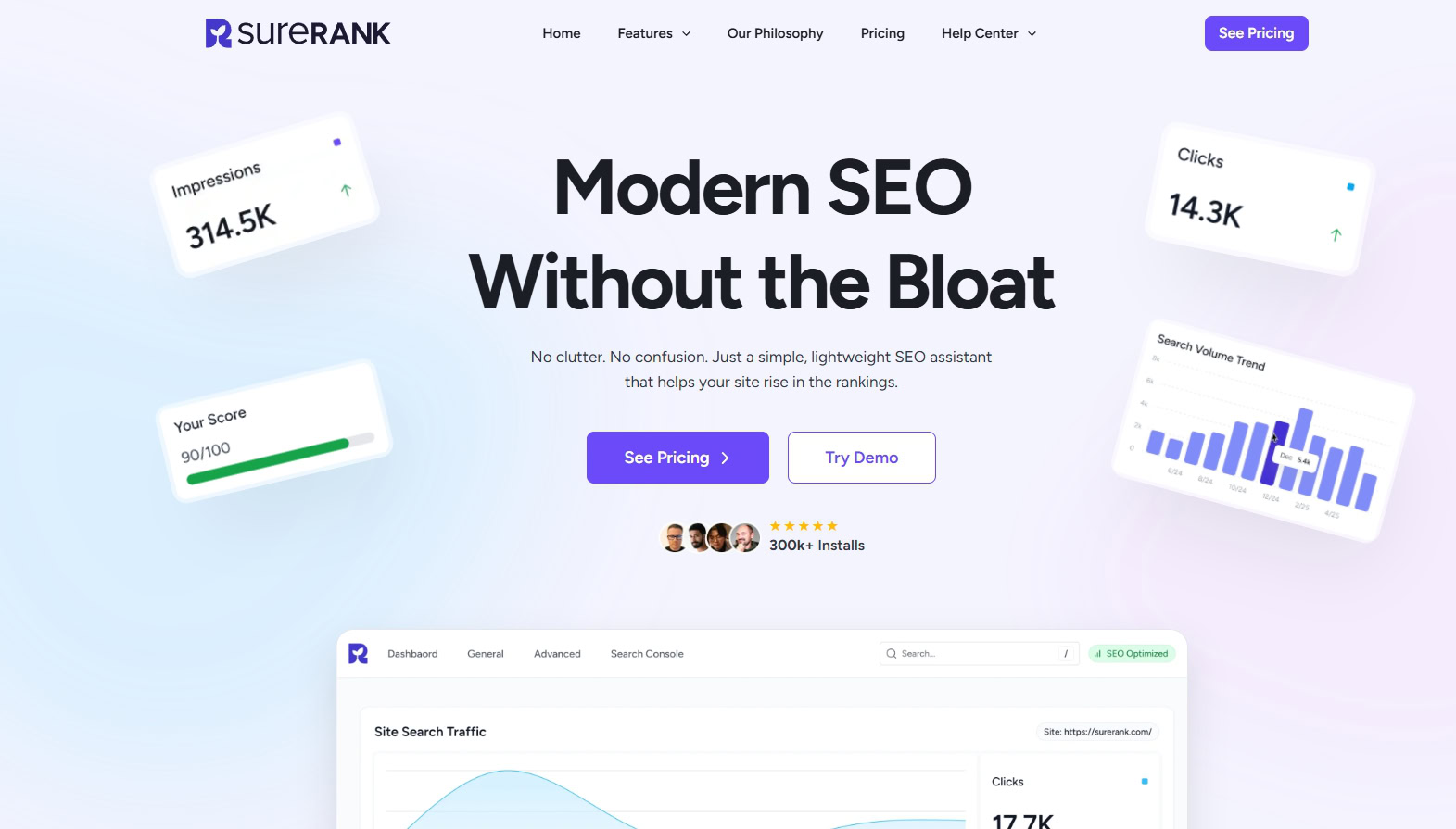
WordPress is a great platform, but it doesn’t come with built-in SEO tools.
There’s no place to set your page titles for search results, no sitemap generator and no schema markup.
An SEO plugin adds all of that in one install.
There are several solid options available. If you’re not sure which one to go with, our full SEO plugin comparison covers all the major choices.
For this guide, we’re using SureRank.
It’s the best fit for beginners because it’s lightweight, straightforward to set up, and doesn’t bury you in settings you’ll never need.
It also walks you through initial configuration with a step-by-step wizard, which makes the whole process considerably easier.
How To Install SureRank
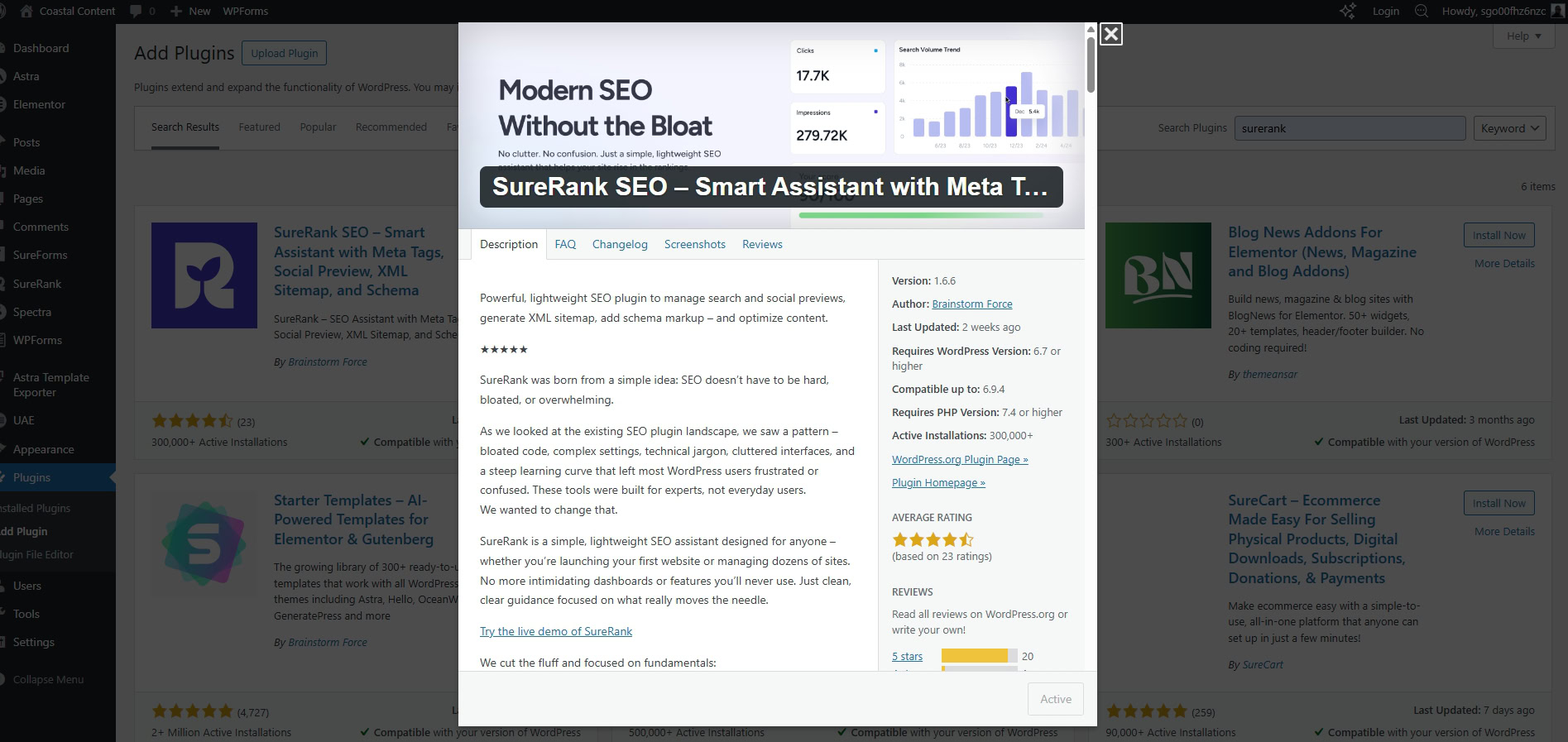
- Log in to your WordPress dashboard.
- Go to Plugins > Add New Plugin.
- Type “SureRank” in the search bar.
- Click Install Now next to the SureRank result, then click Activate.
Once activated, SureRank will prompt you to run its setup wizard. Go ahead and start it.
Tip: Only install one SEO plugin at a time. Running two simultaneously can cause conflicts and duplicate metadata in your pages.
Step 2: Run the Setup Wizard
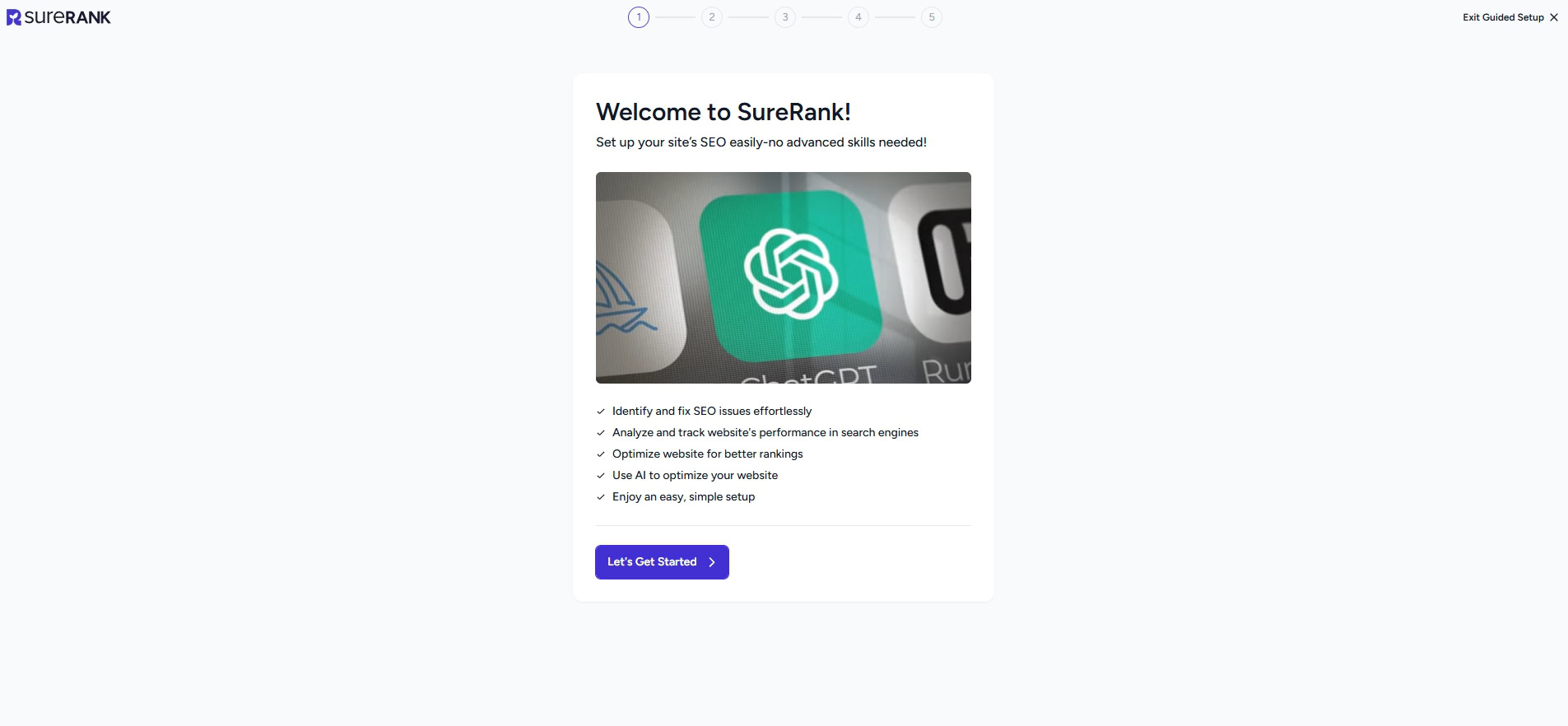
SureRank’s setup wizard handles the most important foundational settings in a single guided flow.
It takes about five minutes to complete.
During the wizard, you’ll be asked to:
- Enter your site name and describe what you do
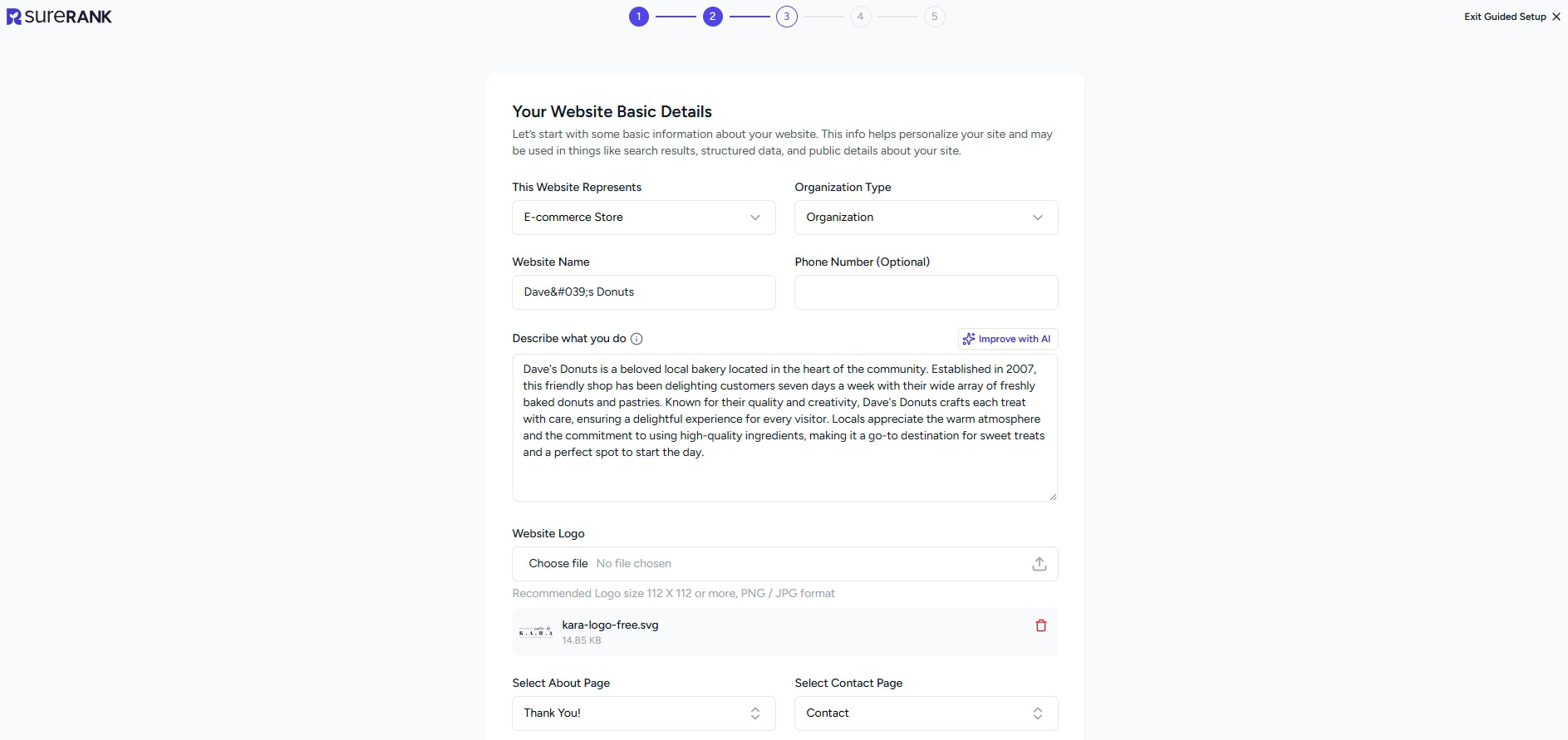
- Add your logo and set your about and contact pages
- Add links to your social media profiles (Facebook, X, LinkedIn, etc.)
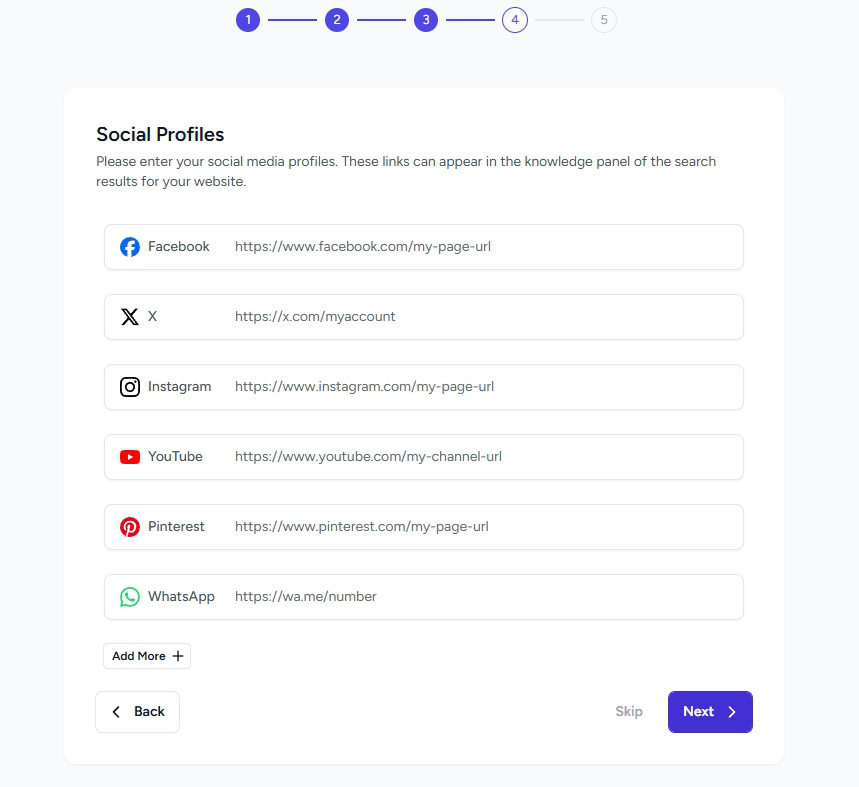
Take your time on these initial setup steps as they can save a lot of time later. You can relaunch the setup wizard from the dashboard any time you like.
Once the wizard is complete, SureRank applies sensible defaults across the rest of your site so you don’t start from zero on every page.
Step 3: Set Your Site’s SEO Title and Meta Description
Your SEO title is the heading that appears in Google search results. Your meta description is the brief paragraph beneath it.
Together, they’re your site’s first impression in search and directly affect whether someone clicks your link or the one below it.
Neither of these is the same as your page’s visible headline. They exist specifically for search engines and the people using them.
How To Set Them in SureRank
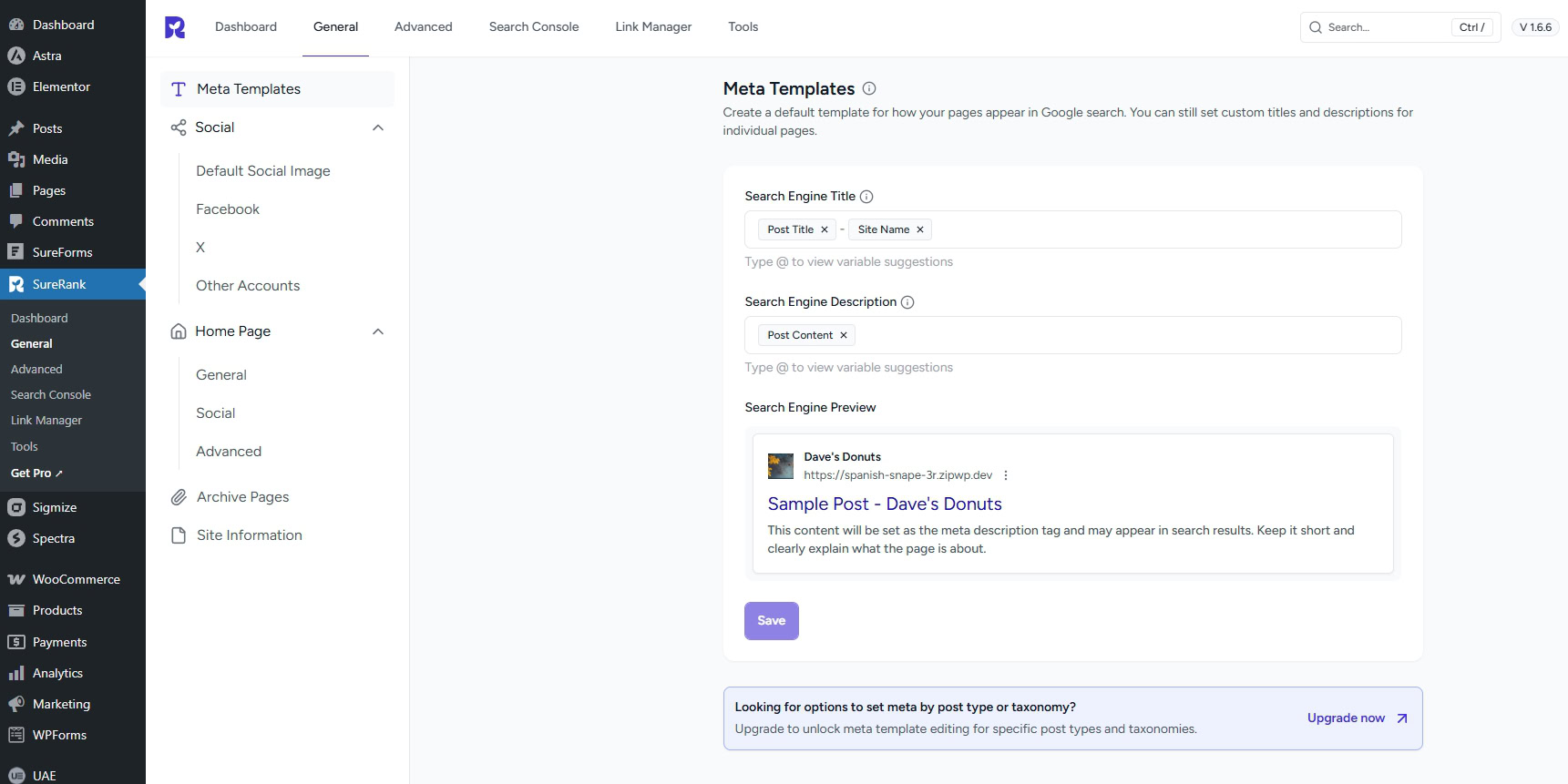
Go to SureRank in your WordPress dashboard and open the General tab.
From there you can set default title and description templates that apply across your whole site, and you can also override them on individual pages and posts.
For individual pages, open any post or page in the WordPress editor.
You’ll find the SureRank panel in the right-hand sidebar. Set a custom title and description for that specific page there.
Character Limits to Follow
- SEO title: Aim for 55 to 60 characters. Longer titles get cut off in search results.
- Meta description: Aim for 150 to 160 characters. Google sometimes rewrites them, but having a good one increases the chance it uses yours.
Tip: Write your meta description like a brief, honest summary of what the page offers. Avoid keyword stuffing, just write something that would make you want to click the link.
Step 4: Configure Your XML Sitemap
An XML sitemap is a file that lists all the pages on your website. It’s not something your visitors ever see, it’s specifically for search engine crawlers.
By submitting a sitemap, you’re telling Google “here’s everything on my site, please index it.”
Without a sitemap, Google will still find most of your content eventually, but it takes longer and some pages may be missed entirely, especially on newer sites with fewer links pointing to them.
How SureRank Handles Your Sitemap
SureRank generates your XML sitemap automatically so you don’t need to build or maintain it manually.
As you add new pages and posts, the sitemap updates on its own.
To configure or regenerate your sitemaps, go to SureRank > Advanced > Sitemaps in your dashboard.
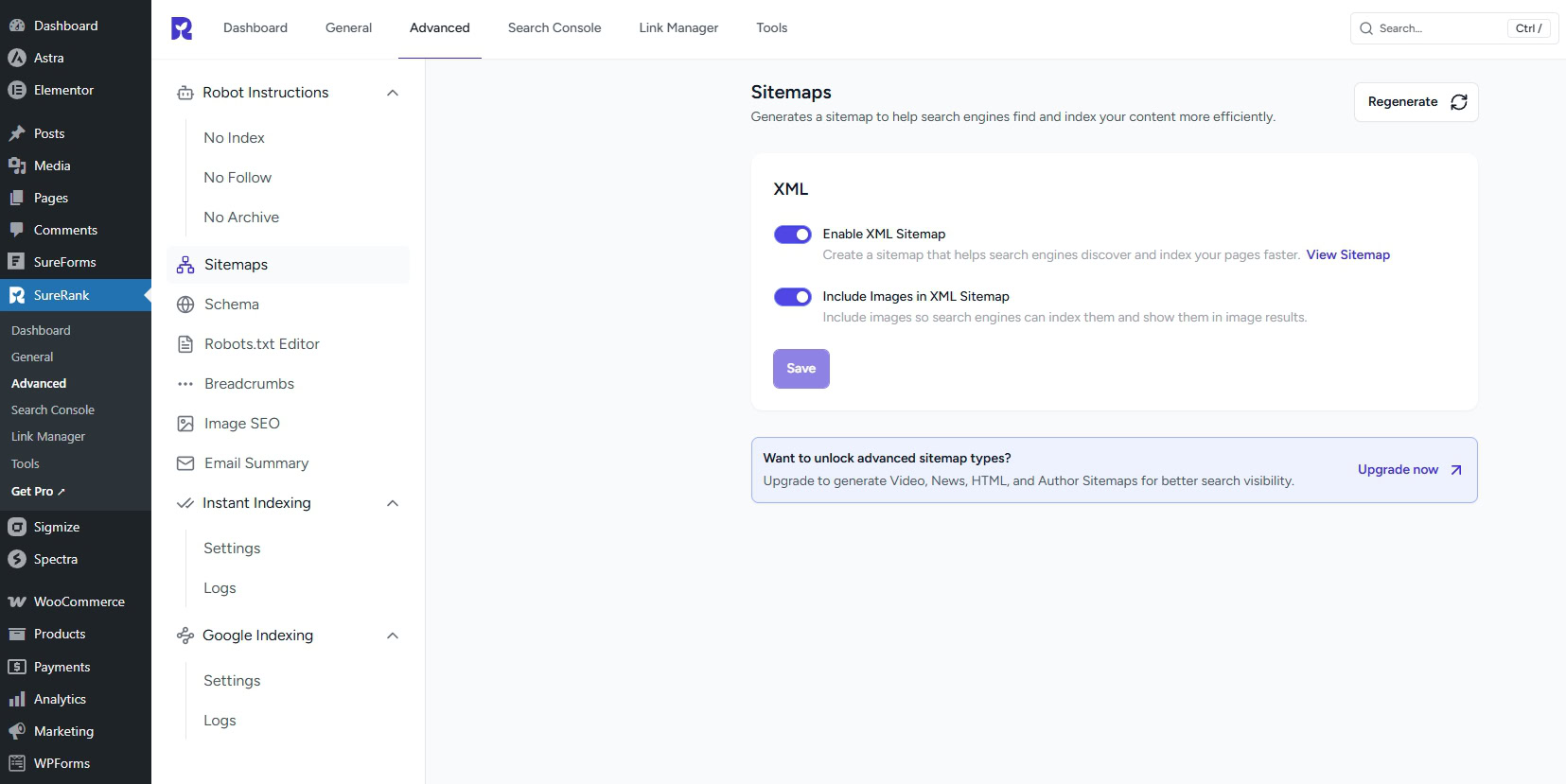
The default sitemap URL will be something like yoursite.com/sitemap.xml. Copy this URL as you’ll need it for the next step.
Step 5: Set Up Google Search Console
Google Search Console (GSC) is a free tool from Google that shows you how your site is performing in search.
You can see which keywords are bringing people to your site, which pages are being indexed, and whether there are any technical issues Google has flagged.
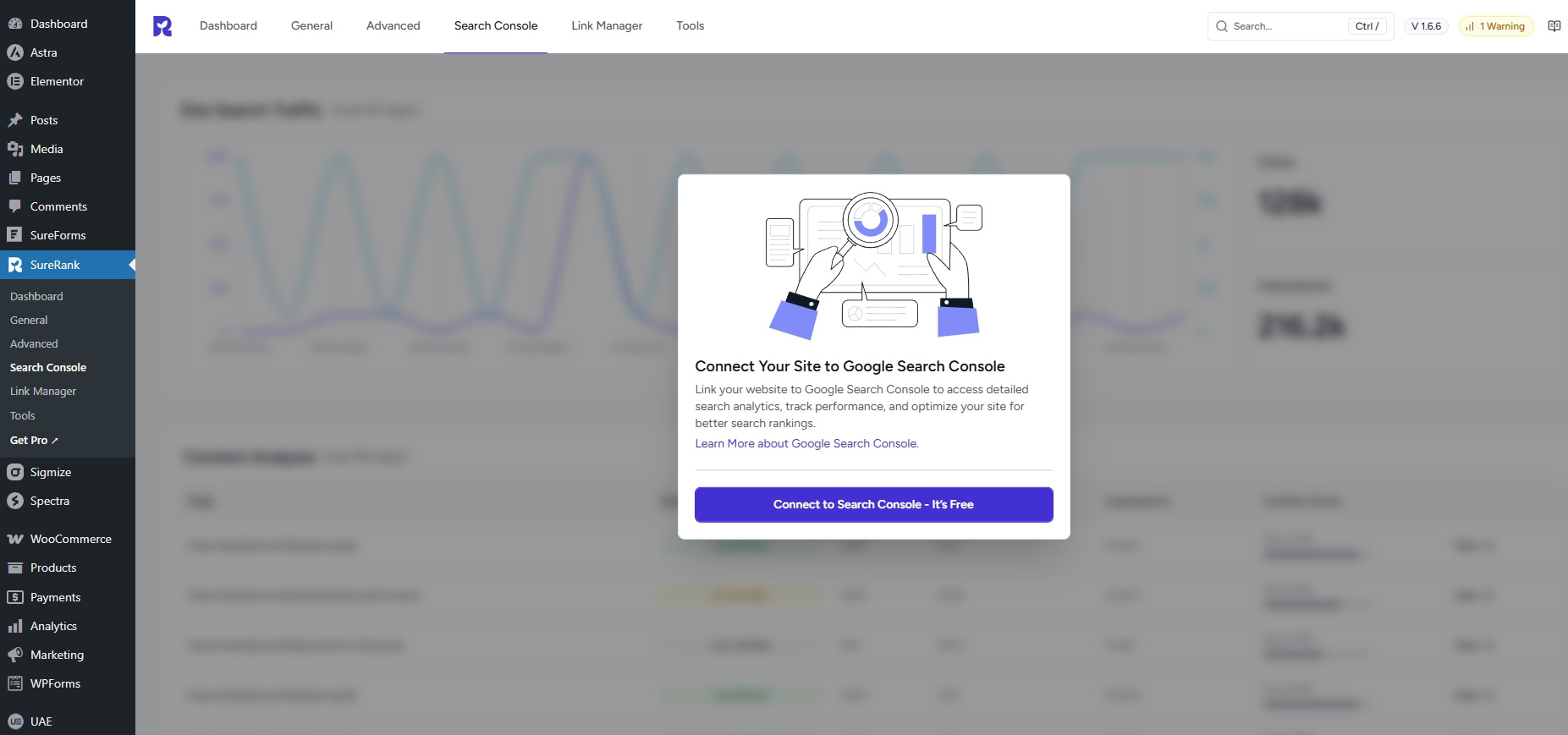
Setting it up is non-negotiable. It’s the only direct line of communication between you and Google and it’s where you submit your sitemap.
How to Verify Your Site and Submit Your Sitemap
Select the Search Console tab from the dashboard or the menu item on the left.
Follow the setup wizard to verify your account and link SureRank to Google Search Console.
- Verify your Google account and provide requested permissions
- Connect and create a new property when prompted
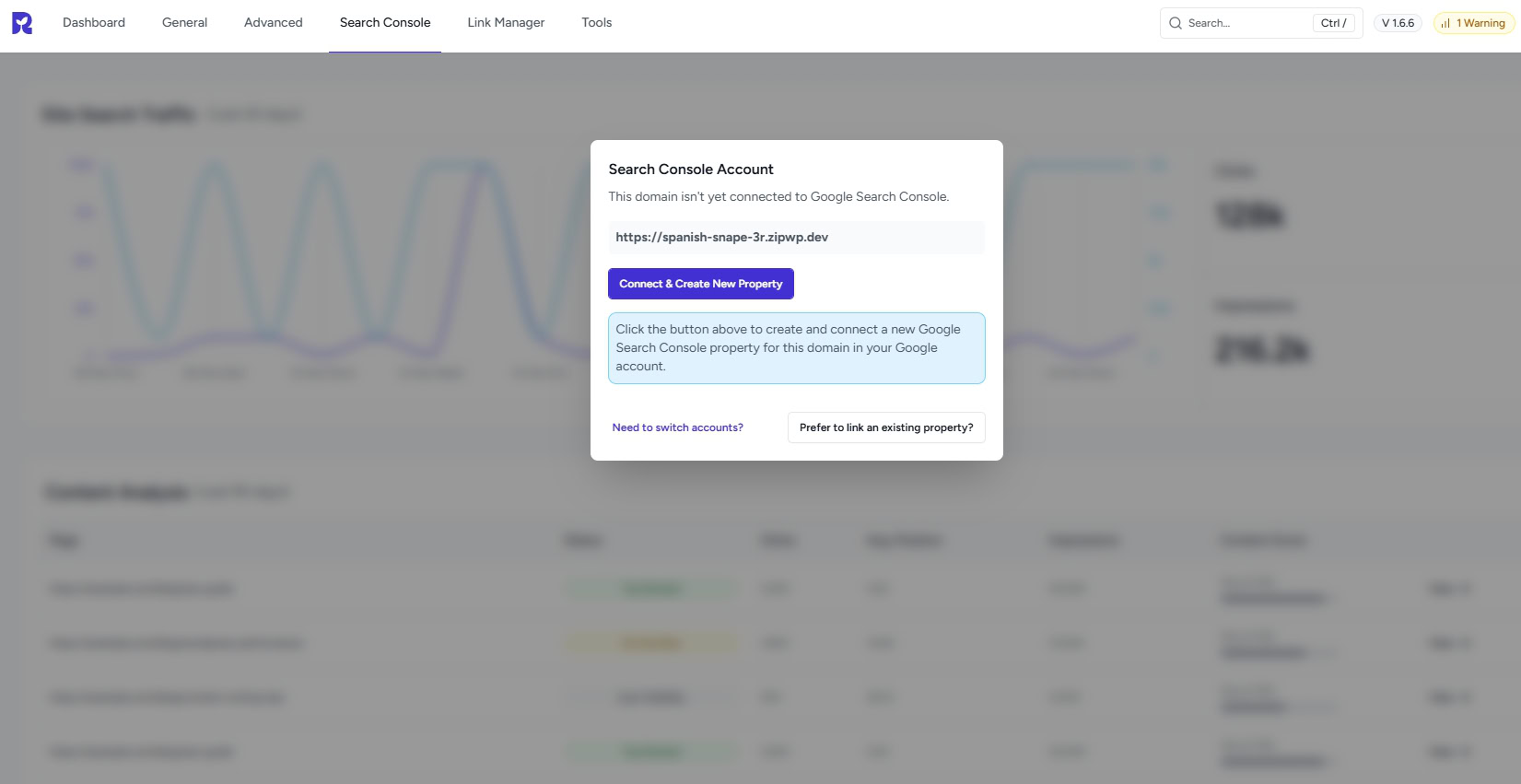
SureRank will handle the rest of the setup and load the traffic window.
If you’re linking a new site, there won’t yet be traffic to see. That will change soon enough now you’re using SureRank!
What To Check Once GSC Is Live
- Coverage report: Shows which pages have been indexed and which ones have errors
- Performance report: Shows clicks, impressions, and average ranking positions over time
- Core Web Vitals report: Flags any page experience issues that could affect rankings
Step 6: Optimize Your First Page or Post
With the site-level setup done, it’s time to look at individual pages.
This is where on-page SEO comes in, making sure each piece of content is optimized for the topic it’s covering.
Using SureRank’s On-Page Analysis
Open any post or page in the WordPress editor and select the R icon at the top right of the screen.
This opens the SureRank sidebar panel, where you can enter your focus keyword.
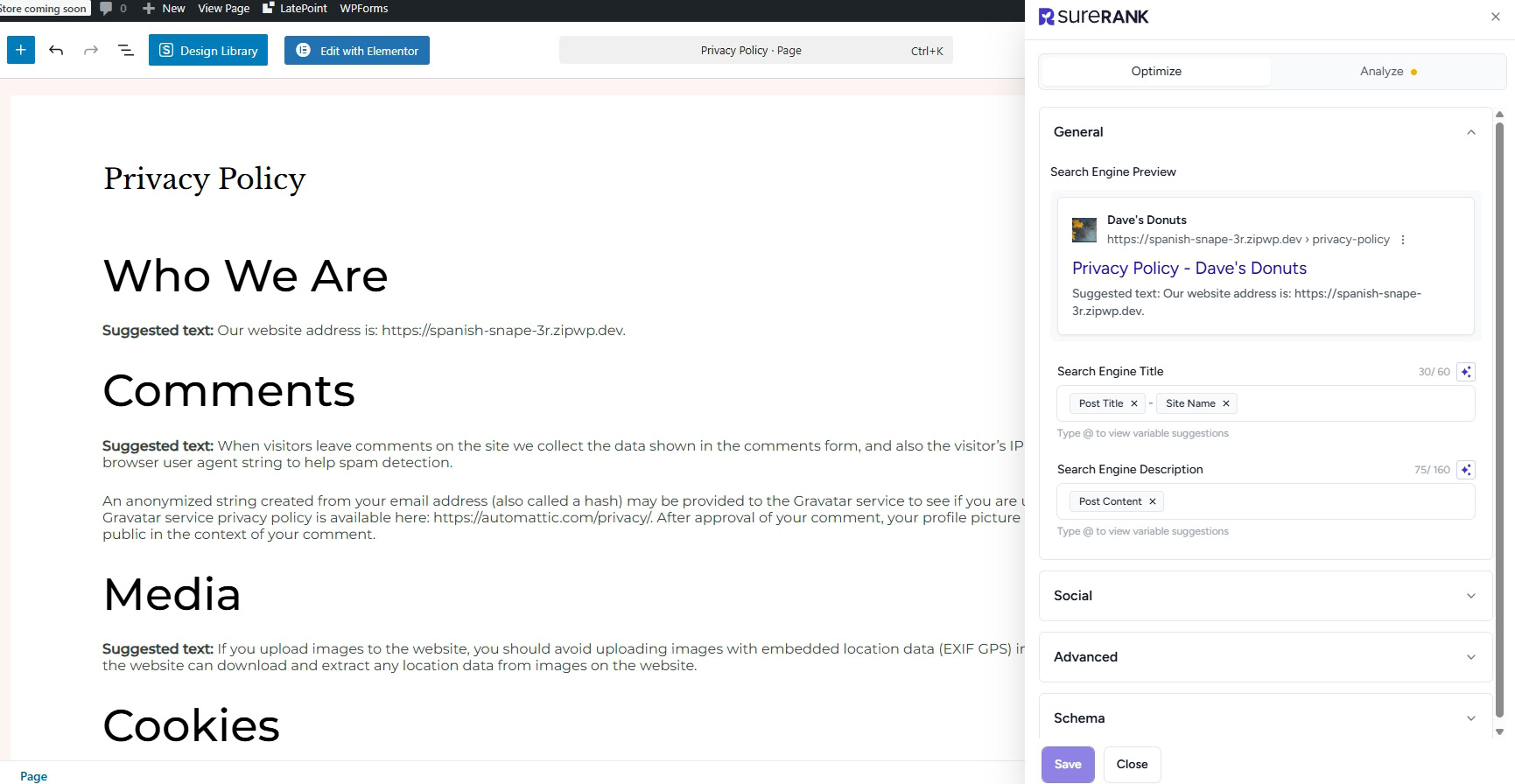
That’s the main search term you want this page to rank for.
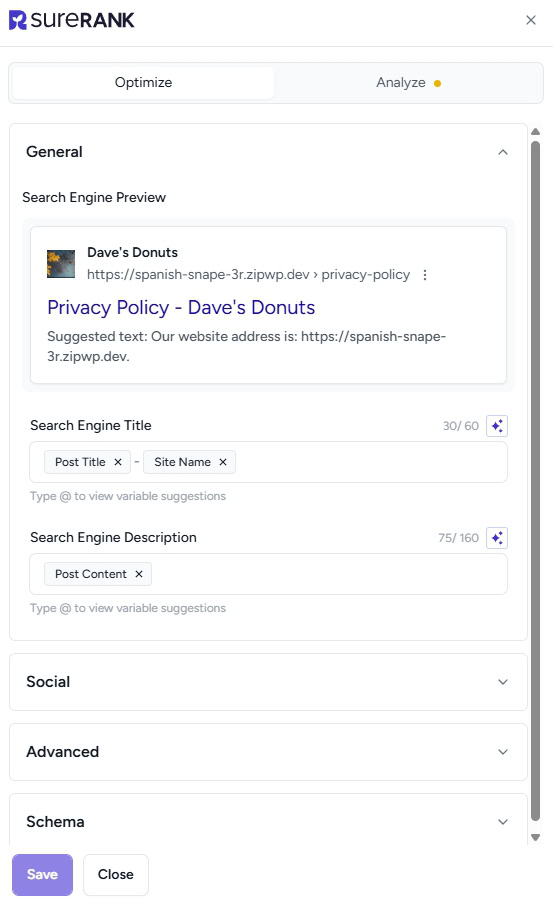
You’ll see two tabs in this panel, Optimize and Analyze.
The Optimize panel is where you can add the search engine title, description, set unique social media settings, schema and custom instructions.
The Analyze panel is where SureRank’s automatic systems check the page and suggestions improvements to maximize SEO performance.
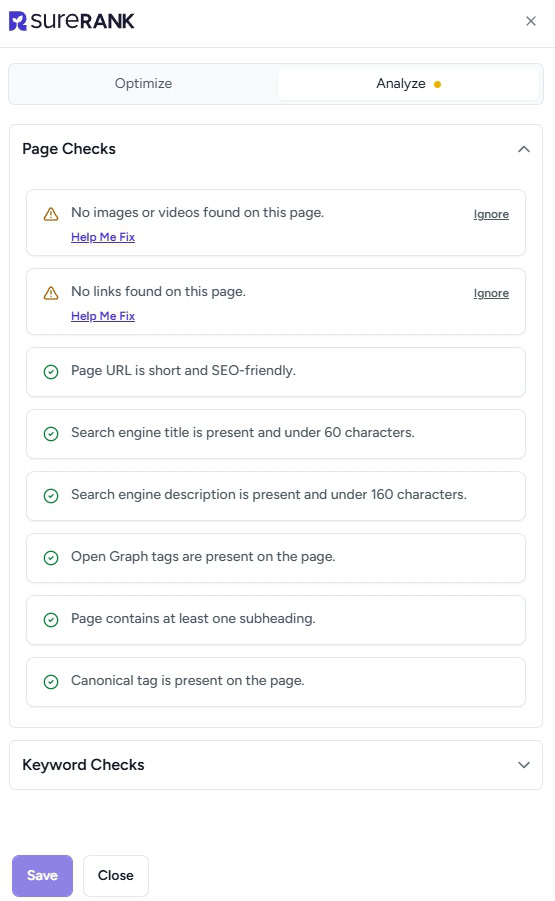
SureRank will analyze the page and give you a score based on how well it’s currently optimized.
The analysis checks the following:
- Whether your focus keyword appears in the SEO title
- Whether it appears in the meta description
- Whether it’s used in the main heading (H1) and at least one subheading
- Whether your content is long enough to cover the topic thoroughly
- Whether all images have alt text, descriptive labels that tell search engines what an image shows
Notice the plain English explanations and accessibility of the language. We wanted to ensure everyone can understand what’s required and can get the most out of the plugin.
What a Good Score Looks Like
SEO is not about traffic lights or gamification. But, using lights is a good, quick way to let you know how optimized your page or post is.
The score is a guide, not a target to game.
Tip: Alt text for images should describe what’s in the image clearly and naturally. “Blue running shoes on white background” is good. “running shoes buy now best price” is keyword stuffing and won’t help.
Step 7: Set Up Internal Linking
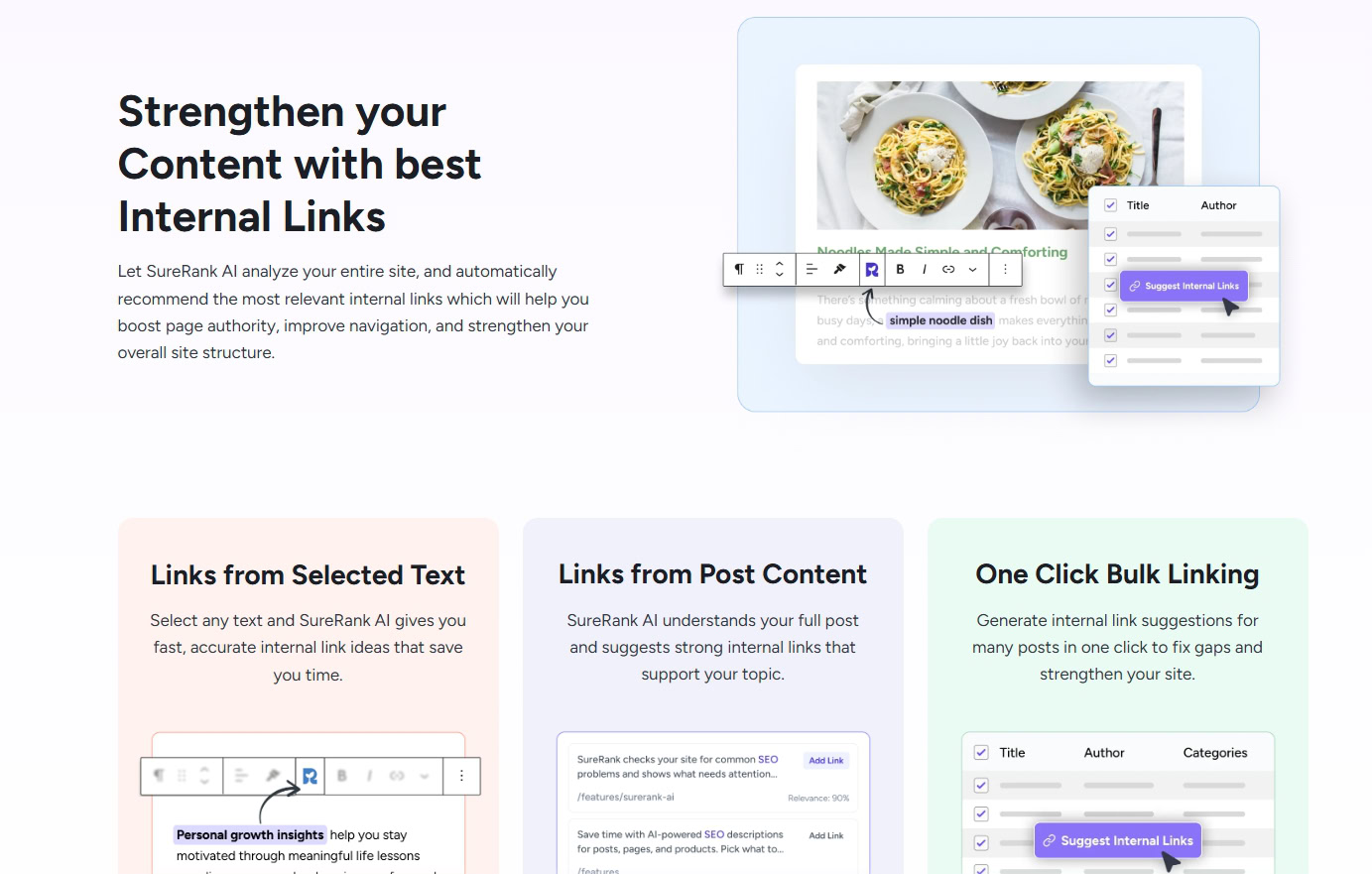
Internal links are links from one page on your site to another page on your site.
They matter for two reasons.
- They help visitors navigate your content and find related information.
- They help search engines understand how pages relate to each other and which ones are most important.
A new site with no internal links is harder for Google to crawl efficiently.
Adding them also passes authority from established pages to newer ones, which can help newer content rank faster.
How To Add Internal Links
As you write or edit a post, look for natural opportunities to link to other relevant pages on your site.
If you’re writing a post about email marketing and you have a separate post about writing subject lines, link to it where it’s relevant in the text.
SureRank’s link manager shows you all the internal links across your site in one place, making it easier to spot pages that have no incoming links and need attention.
In the Pro version, the AI-powered internal linking feature suggests relevant pages to link to as you write.
Step 8: Check Your Site Speed
Core Web Vitals are a set of performance metrics that Google uses as a ranking signal.
They measure how fast your pages load, how stable the layout is while it loads and how quickly the page responds to a user’s first interaction.
A slow site can actively hurt your rankings, even if your content is excellent.
Tools To Use
- PageSpeed Insights: Google’s own tool. Run your homepage and a sample post through it. Aim for a score of 70+ on mobile.
- GTmetrix: Gives a more detailed breakdown of what’s slowing your site down and specific recommendations for fixing it.
Quick Wins for a Faster Site
- Compress your images before uploading them. Large image files are the most common cause of slow load times on beginner sites.
- Install a caching plugin. WP Super Cache and W3 Total Cache are both free and straightforward to set up. Caching stores a static version of your pages so they load faster for repeat visitors.
- Use a reliable hosting provider. Shared hosting can be slow. If you’re on the cheapest possible plan and speed is a persistent issue, it may be worth upgrading.
Common Beginner SEO Mistakes to Avoid
Setting pages to no-index accidentally. WordPress has a setting under Settings > Reading called “Discourage search engines from indexing this site.”
It’s sometimes checked by default on new installs.
Make sure it’s unchecked as soon as your site is ready to go live. SureRank flags this issue in its site-wide SEO audit if it’s enabled.
Skipping the sitemap submission. Generating a sitemap isn’t enough on its own. you need to submit it to Google Search Console.
Many beginners set up the plugin and assume Google will find everything automatically. It will, eventually, but submitting the sitemap speeds the process up significantly.
Ignoring meta descriptions. If you don’t write a meta description, Google will pull a random excerpt from your page to display in search results.
That excerpt is rarely the best possible summary of your content. Writing your own takes two minutes and gives you control over how your page is presented.
Keyword stuffing. Keyword stuffing means overloading your content with your target search term in an unnatural way. It was a tactic that worked in the early 2000s but those days are past.
Today, Google’s algorithms are sophisticated enough to penalize it. Write naturally, use your keyword where it fits and focus on covering your topic thoroughly.
Next Step After Setup: Start Tracking Your Rankings
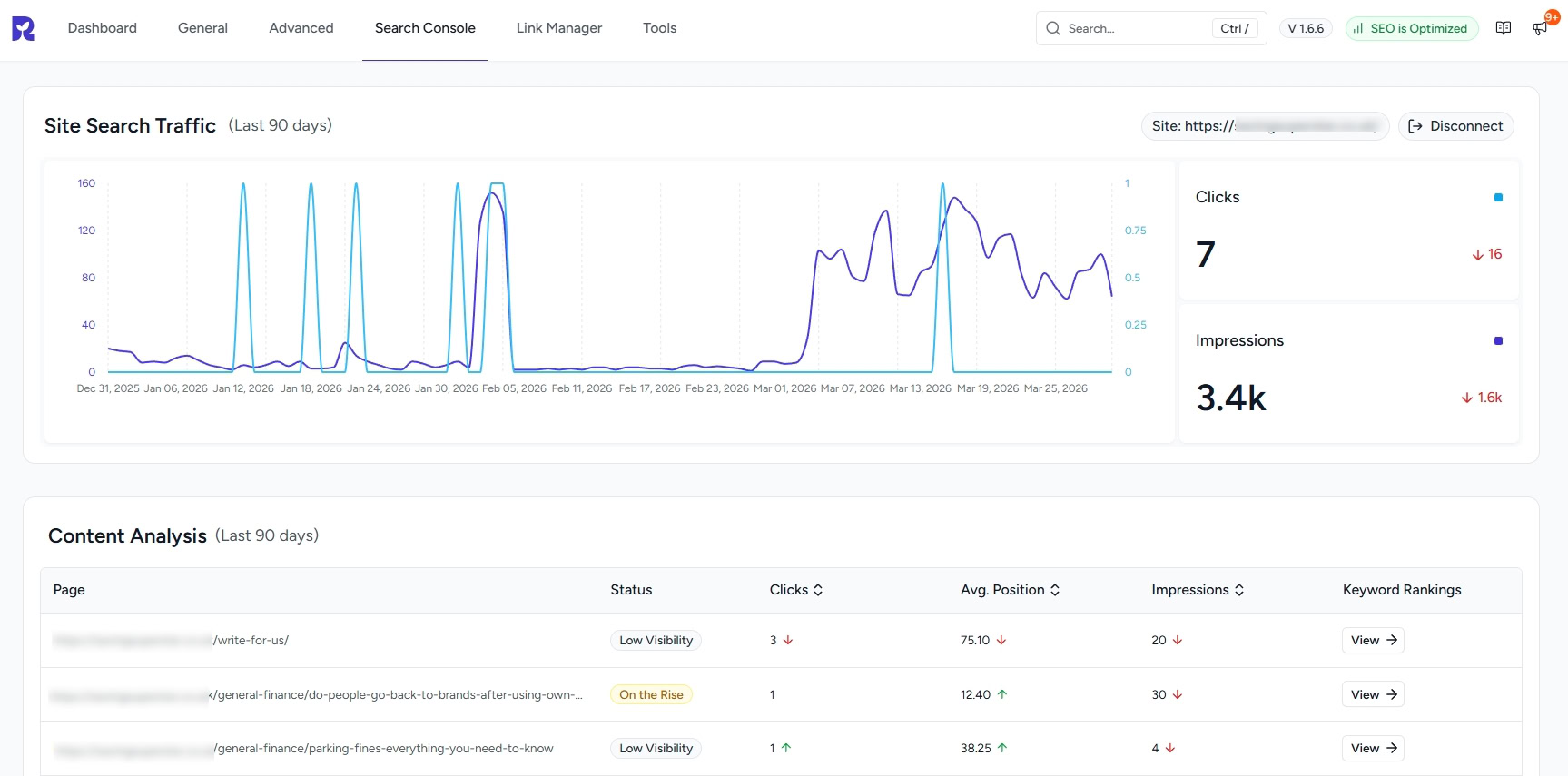
Once your SEO is configured, the work shifts to monitoring.
You need to know whether your pages are ranking, how those rankings change over time and which posts or pages are performingh best.
SureRank’s rank tracking feature lets you monitor positions directly from your WordPress dashboard.
SureRank checks your rankings regularly and highlights significant changes so you can see what’s working and what isn’t.
It integrates with your Google Search Console data so you get a complete picture without switching between tools.
Rank tracking is the natural next step because it tells you whether everything you’ve just set up is having the effect you want. Without it, you’re working blind.
Conclusion
SEO setup doesn’t need to be complicated.
With the right plugin guiding you, the full process, installing SureRank, running the wizard, setting up your sitemap, connecting Google Search Console, and optimizing your first few pages, takes under 30 minutes.
The steps in this guide cover everything a beginner needs to get their WordPress site properly indexed and visible to search engines.
From here, the focus shifts to creating good content consistently and monitoring how it performs.
Keep an eye on our blog as we’ll be publishing more in-depth WordPress SEO guides soon!


Recommended Articles
Where’s the Focus Keyword Field in SureRank?
Where Is the Redirection Feature in SureRank?
Is SEO Dead? Or Is It Evolving Again?