
If you’ve ever spent twenty minutes hunting through old blog posts trying to update a single broken link, this update is going to feel like a deep breath of fresh air.
SureRank Premium v1.6.0 is out, and it brings something users have been asking for since day one: a centralized Link Manager that lets you view, organize, and manage every link on your site from one place.
But that’s not the only thing in this release. AIOSEO and Slim SEO migrations are now supported, Divi 5 and Bricks builder compatibility has been improved, and there are performance upgrades across the board.
Let’s walk through everything that’s new.
Link Manager: Every Link on Your Site, in One Place
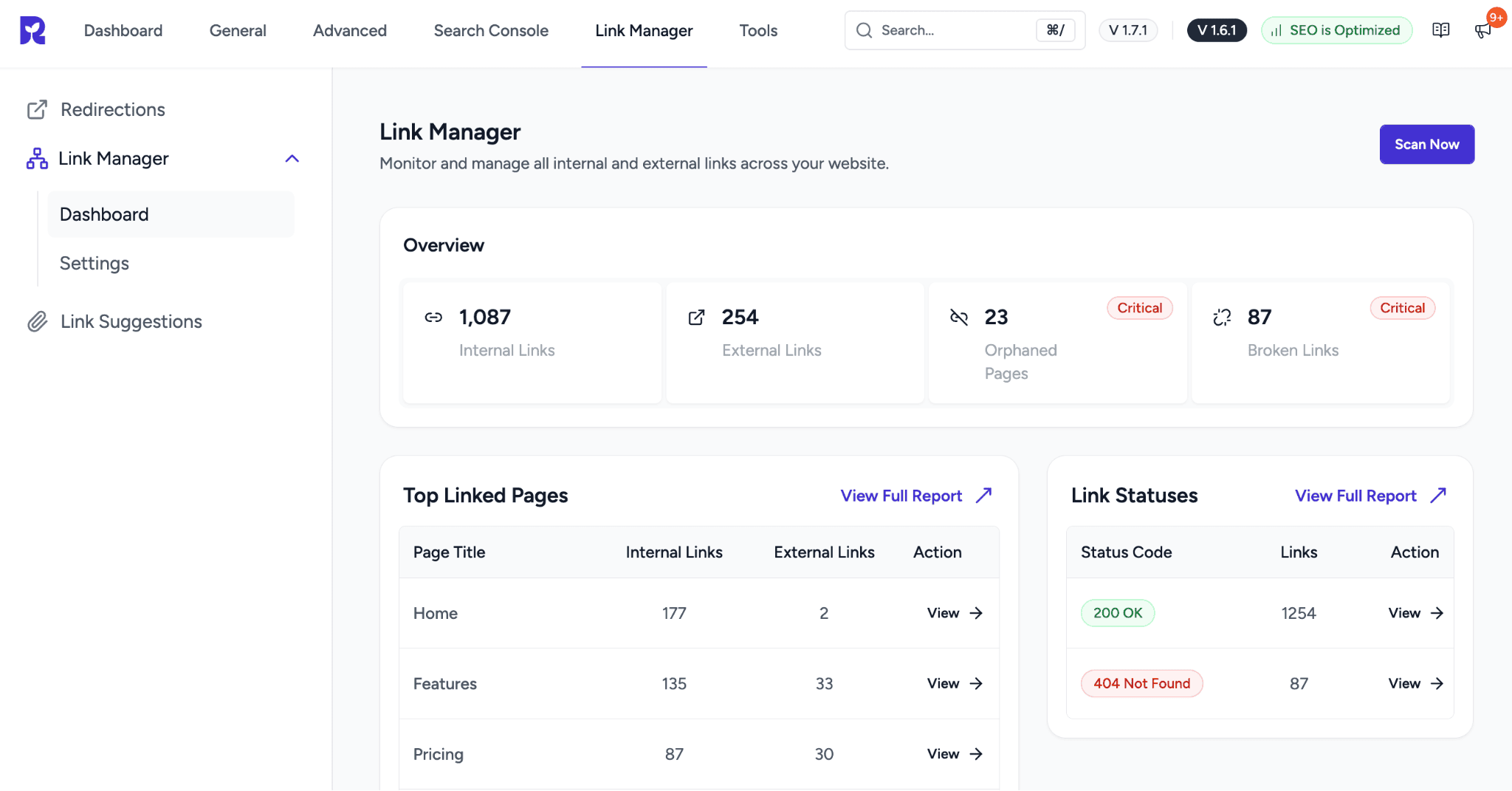
Internal linking is one of the highest-impact, lowest-effort SEO improvements you can make. When your pages link to each other thoughtfully, Google understands your site structure better, authority flows to your most important pages, and visitors stay longer.
The problem isn’t that people don’t know this. The problem is that doing it at scale is a mess.
The Real-World Problem
You’ve published 80 posts over two years. You renamed your /pricing page to /plans. Now 23 posts link to the old URL, three cornerstone articles have zero incoming internal links, and somewhere in your blog you have a post that links out to a competitor’s site you just don’t know which one.
Finding any of this means opening posts one by one. Most people don’t. So the links slowly rot, the orphaned content stops getting traffic, and the SEO opportunity quietly disappears.
That’s exactly what Link Manager is built to solve.
What Link Manager Shows You
Go to SureRank → Link Manager from your WordPress dashboard.
You’ll see a full, sortable table of every link on your site. For each link, you get:
-
Source page: Which post or page the link lives in
-
Anchor text: The exact text being linked
-
Destination URL: Where it points
-
Link type: Internal or external
-
HTTP status: Live, redirecting, or broken
From here, you can filter by link type, status, or source. You can search by URL or anchor text. No post editing needed.
Use Case 1: Finding and Fixing Broken Links
Before Link Manager, finding a broken link meant either waiting for Google Search Console to flag it (which can take weeks) or running a third-party crawler that doesn’t live inside WordPress.
Now it’s a filter.
Before: Open a crawler tool, wait for a full site scan, export results, cross-reference with WordPress, open each post manually to fix.
After: Go to SureRank → Link Manager, filter by HTTP status → 404. Every broken link is listed with its exact source page and anchor text. Fix directly.
Time saved: what used to take 45–60 minutes on a medium-sized site now takes under 10.
Use Case 2: Finding Orphaned Content
An orphaned post is a page with no internal links pointing to it. Google can still find it via your sitemap, but it gets almost no PageRank passed to it and ranks poorly as a result.
On a site with lots of content, orphaned posts are incredibly common. You write something, publish it, forget to link to it from anything.
Before: No way to know without manually checking every post or using an external audit tool.
After: Filter the Link Manager by Incoming Links → 0. Every orphaned post shows up immediately. Pick two or three related articles, add a link to the orphaned post from each, done.
This is the kind of fix that can move a stagnant post from page 4 to page 1 without touching the content.
Use Case 3: Auditing Anchor Text
Generic anchor text, “click here,” “read more,” “this post” tells Google nothing about the destination page. Descriptive anchor text that includes the target page’s keyword is one of the simplest internal SEO improvements you can make.
With Link Manager, you can sort the entire table by anchor text, quickly identify generic anchors, and know exactly which posts to go update them in.
Before: No visibility without post-by-post manual review.
After: Sort by anchor text in Link Manager. Spot the generic ones. Click the source page. Update the anchor.
Use Case 4: Reviewing External Links
Not all external links are intentional. Over time, sites you link to get acquired, go dark, or change ownership. A link that pointed to a helpful resource three years ago might now point to something completely different.
Filter Link Manager by Link Type → External. You get a full list of every external destination your site links to, so you can review what you’re endorsing and clean up anything that no longer belongs.
Who This Is For
Link Manager is most useful if:
-
Your site has more than 30–40 published posts or pages
-
You’ve restructured URLs, renamed pages, or run a migration at any point
-
You’ve never done a formal internal link audit
-
You publish content regularly and don’t have a system for linking new content to older posts
If you’re just getting started and have 10 posts, you probably don’t need it yet. But build the habit of running a Link Manager audit every few months as your site grows, it compounds.
How to Use Link Manager in 2 Minutes
-
Go to SureRank → Link Manager in your WordPress dashboard
-
Start with the filter by HTTP Status: Fix anything showing 404
-
Next, filter by Incoming Links → 0 to find orphaned content
-
Then sort by Anchor Text and update any generic anchors
-
Finally, filter by Link Type → External and do a quick review
That’s your full link audit. Most sites can get through it in under 20 minutes.
Migrating From AIOSEO or Slim SEO
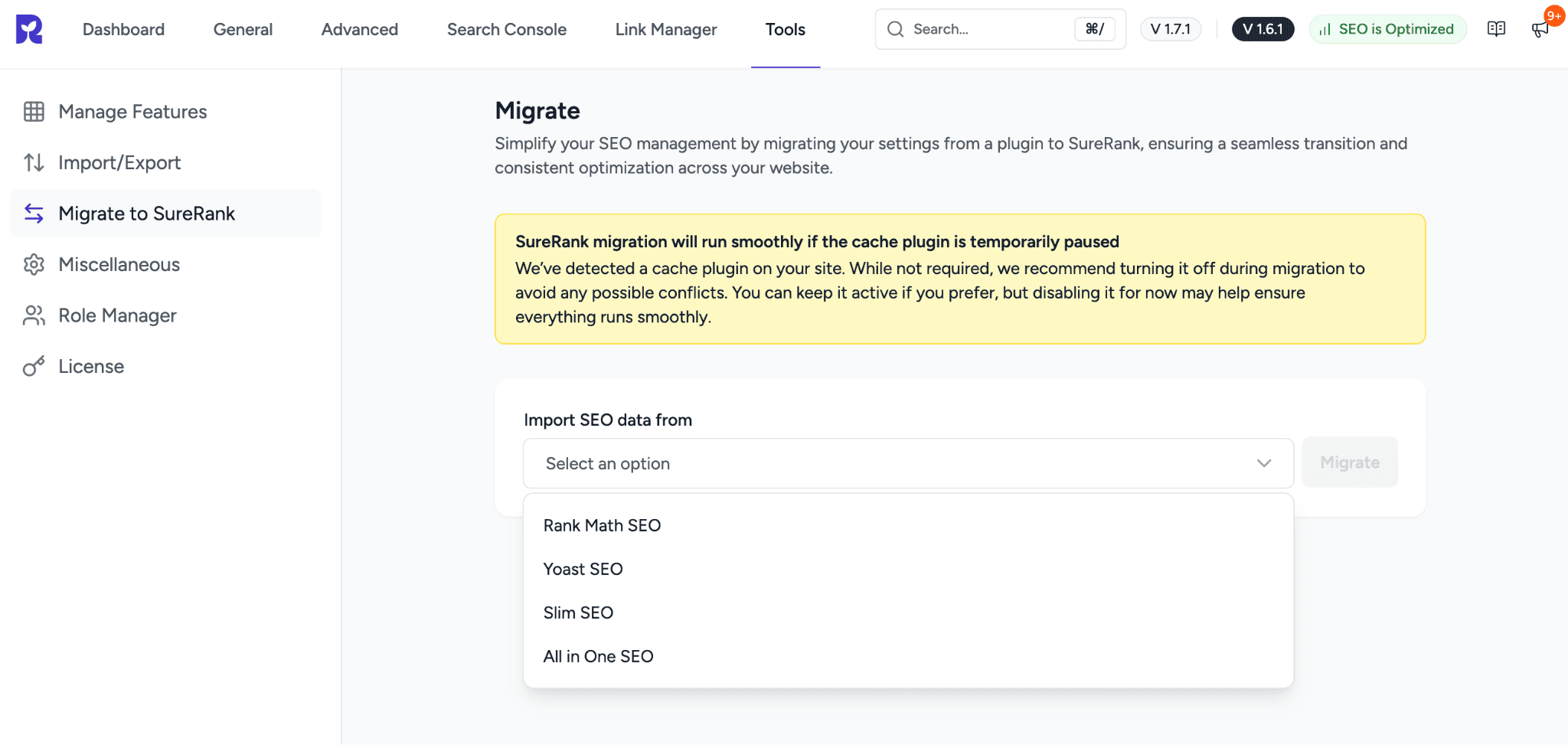
SureRank now supports one-click migration from All in One SEO (AIOSEO) and Slim SEO, joining existing support for Yoast SEO and Rank Math.
What gets migrated:
-
Page and post SEO titles
-
Meta descriptions
-
Essential SEO settings
What the process looks like:
-
Install and activate SureRank Premium
-
Go to SureRank → Tools → Migration
-
Select your current plugin (AIOSEO or Slim SEO)
-
Click Start Migration
Your data transfers over. No manual re-entry, no copying and pasting titles one by one.
If you’ve been using AIOSEO or Slim SEO and have been looking for a reason to switch, this removes the last practical barrier. The settings you spent time configuring don’t disappear; they come with you.
One thing to know: breadcrumb settings from Slim SEO now also carry over correctly in this release. This was a bug in the previous migration flow that’s been resolved.
Builder Compatibility Updates
Divi 5
The new Divi 5 is a substantial rebuild of different architecture, different editor experience from the Divi most people have used for years.
SureRank’s SEO Metabox now works seamlessly inside it. While you’re building a page in Divi 5, the SureRank panel is right there title, meta description, SEO analysis, everything without needing to toggle to a separate screen.
Bricks Builder
SureRank now supports Page SEO Checks and Link Suggestions inside Brick’s builder.
If you build in Bricks, you can now run your SEO analysis and get internal link suggestions without leaving the editor. Previously, Bricks users had to check SEO separately after building. That extra step is gone.
Performance and Bug Fixes
Performance: Overall plugin performance has been improved. SureRank loads faster and places less demand on your server. No configuration needed; it’s automatic after updating.
Licensing fix: In some server configurations, SureRank’s license wasn’t loading correctly when accessed through the REST API. This caused certain features to appear inactive. Fixed in v1.6.0.
Keyword matching: Focus keyword detection is now diacritics-insensitive. If your keyword is “résumé” and your content writes it as “resume,” SureRank recognizes them as the same word. Useful for multilingual sites or any content using words with accented characters.
How to Update
If you’re on SureRank Premium, the update is waiting in your dashboard.
Go to Plugins → Installed Plugins, find SureRank Premium, and click Update Now.
After updating:
-
Link Manager is available at SureRank → Link Manager
-
Migration (AIOSEO / Slim SEO) is at SureRank → Tools → Migration
-
Divi 5 and Bricks compatibility is automatic open your builder and the SureRank panel will be there
A Note If You’re Still on Another SEO Plugin
If you’re currently using All in One SEO, Slim SEO, Yoast, or Rank Math and have been curious about SureRank, migration has never been easier.
SureRank is built to be fast, clean, and focused. No feature bloat, no settings you’ll never touch, no unnecessary complexity. Just the SEO tools you actually need, working quietly in the background.
And now, with full Link Manager capabilities and one-click migration from four major plugins, it’s easier than ever to make the move and hit the ground running.
→ Update to SureRank Premium v1.6.0
Summary of What’s in v1.6.0
| What’s New | What It Does and manage all links across your site from one centralized dashboard |
|---|---|
| AIOSEO Migration | Migrate titles, descriptions, and SEO data from All in One SEO in a few clicks |
| Slim SEO Migration | Same one-click migration support, now for Slim SEO users |
| Divi 5 Compatibility | SureRank SEO Metabox works seamlessly inside the Divi 5 builder |
| Bricks Builder Support | Page SEO Checks and Link Suggestions now available inside Bricks |
| Smarter Keyword Matching | Diacritics-insensitive matching for more accurate keyword detection |
| Performance Improvements | Faster plugin performance across the board |


Recommended Articles
Where’s the Focus Keyword Field in SureRank?
Where Is the Redirection Feature in SureRank?
Is SEO Dead? Or Is It Evolving Again?