
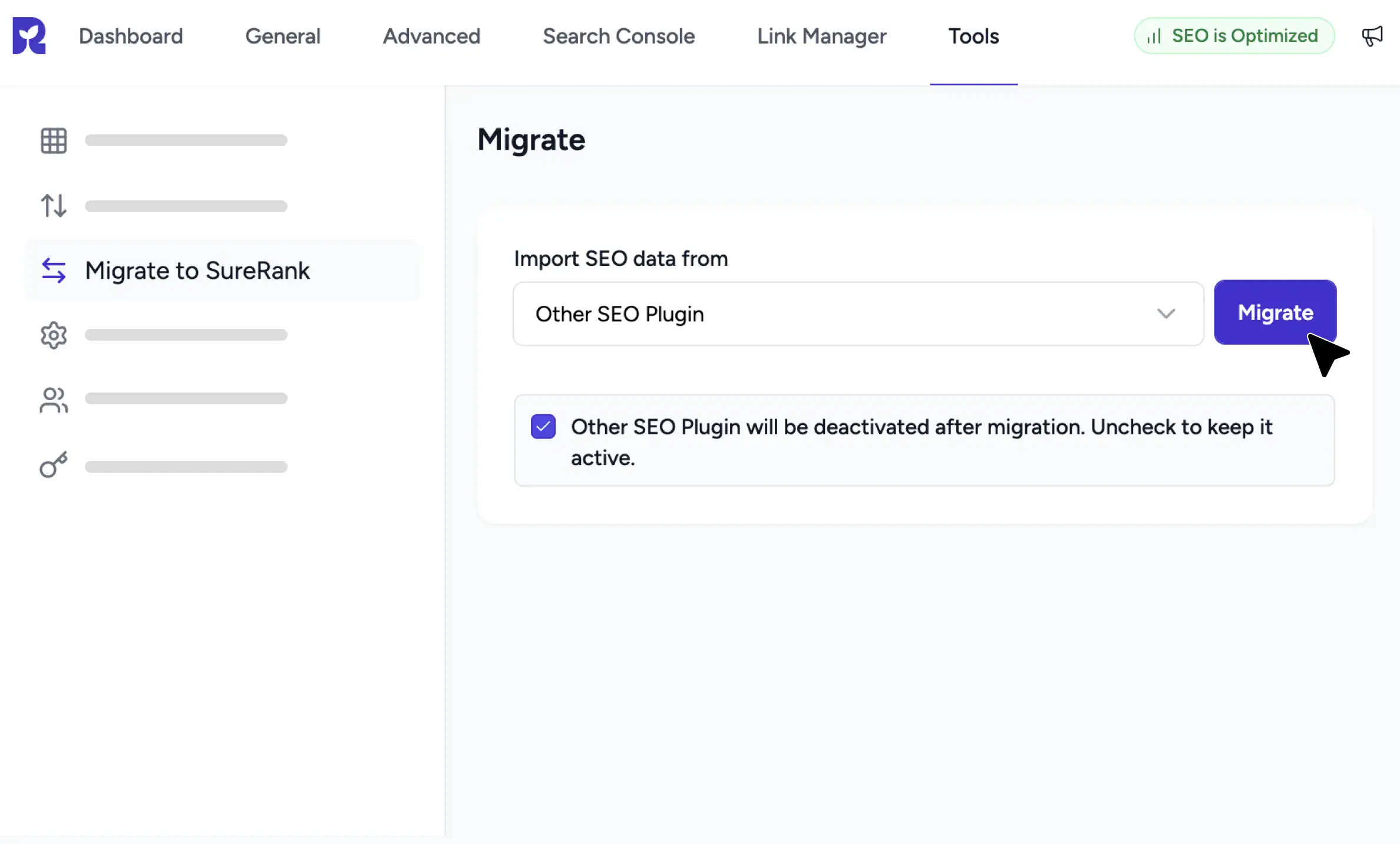
Move From Any Major SEO Plugin
One Migrate Screen
Pick your source. Click Migrate. Done in just a few minutes.
Images Included by Choice
Meta, social, archives, robots, keywords, and sitemap rules, all preserved.
Pause and Resume
Step away mid migration. Pick up exactly where you left off.
How Migration Works in SureRank
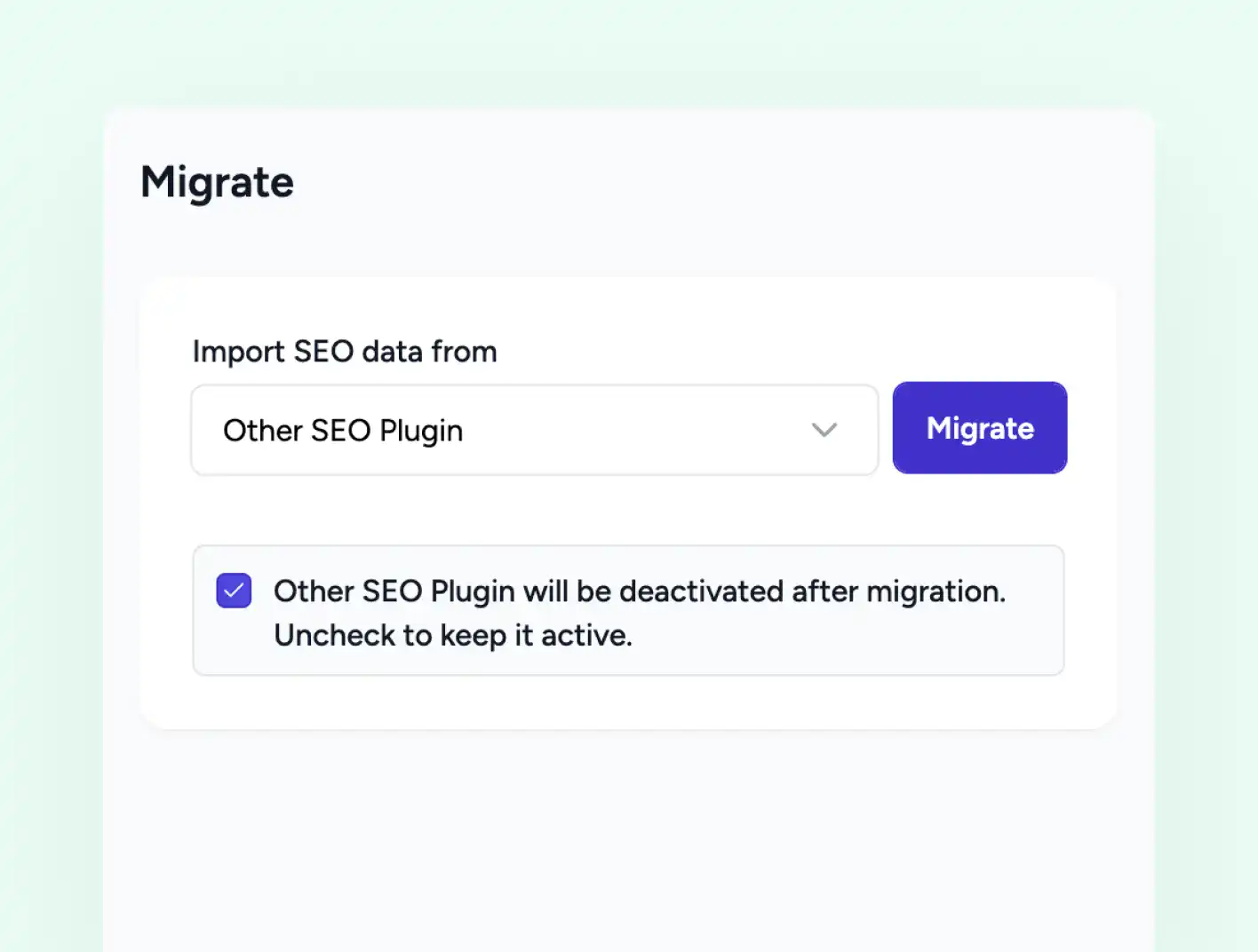
Pick and Migrate
A Clean Dropdown, Then One Click
Go to SureRank, Tools, Migrate. Pick your source plugin. Click Migrate. SureRank handles the rest.
-
Source plugin dropdown lists every supported option
-
One click starts the import
-
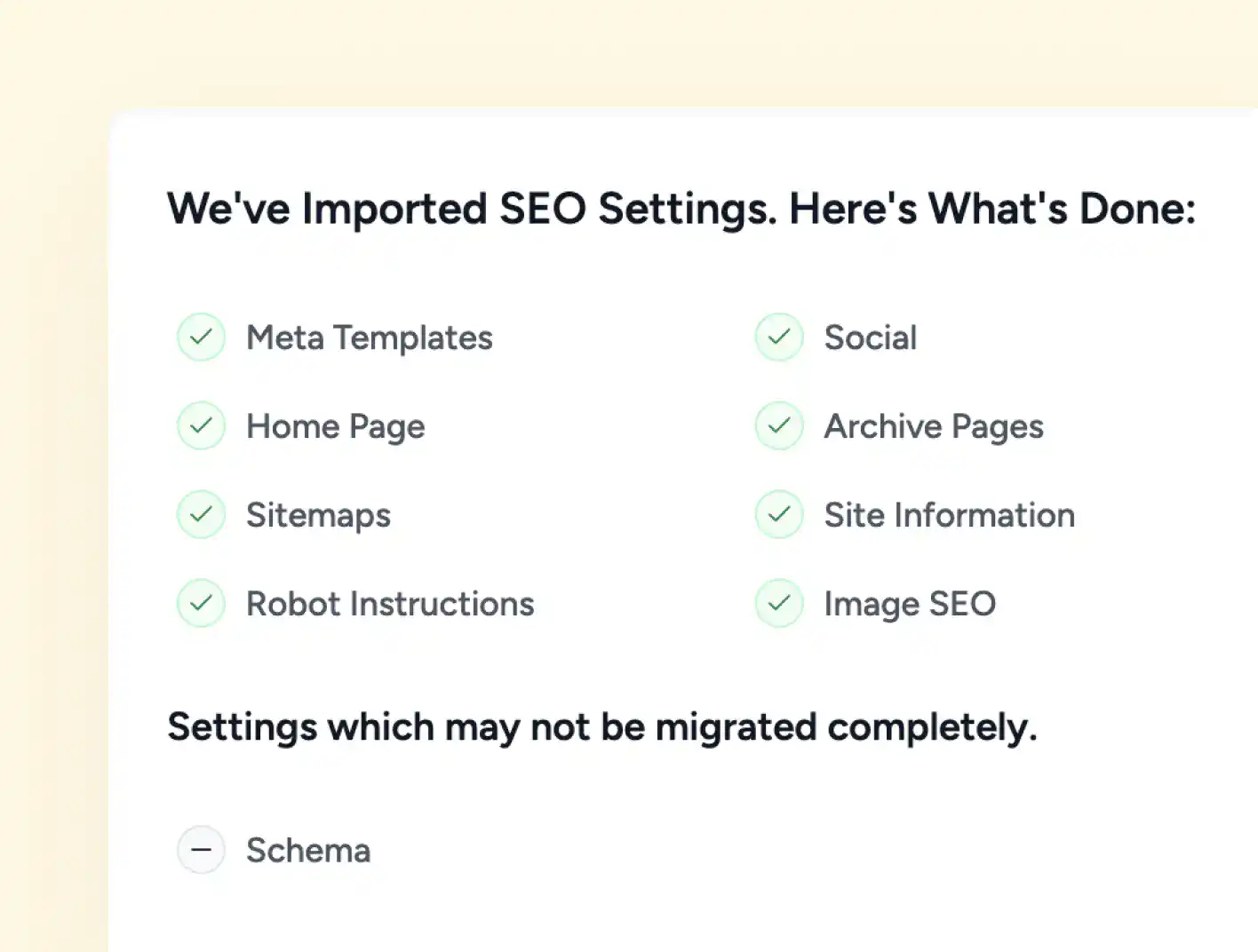
Imported settings sit ready in SureRank
What Travels Across
Your Setup Lands in SureRank, Intact
Your existing setup is read directly from the source plugin and placed into SureRank. No export, no rebuild, no gaps.
-
Meta titles, descriptions, and focus keywords
-
Social media settings
-
Robot, archive, and sitemap rules
Pause and Resume
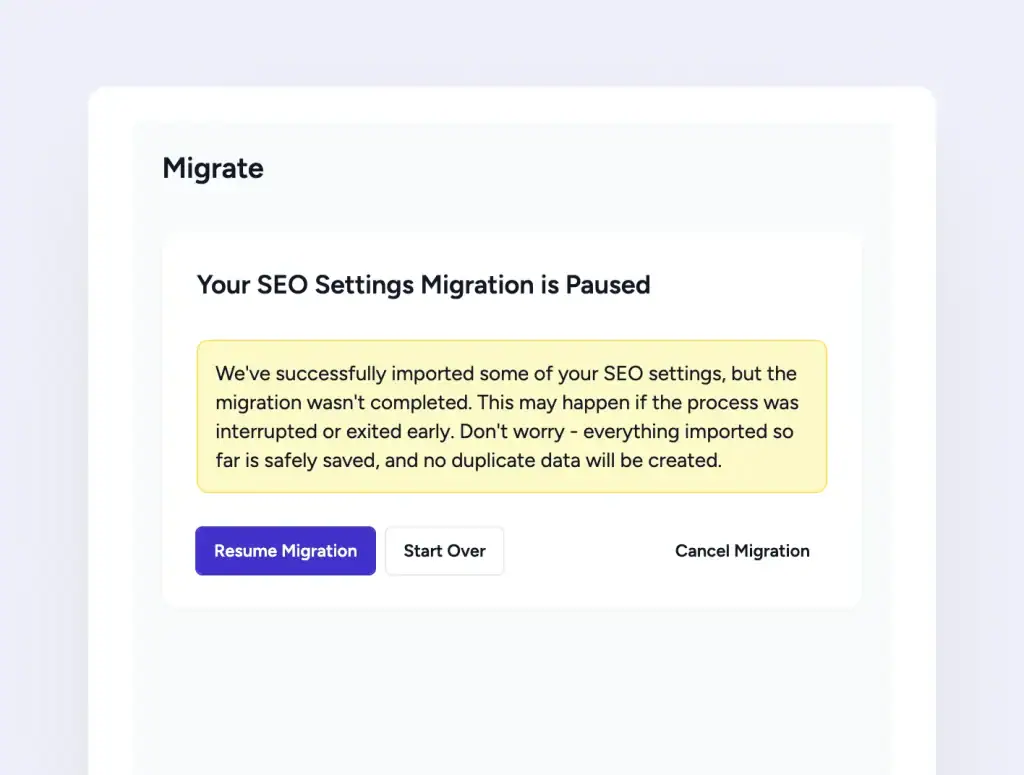
Never Lose Migration Progress
Switch tabs, lose connection, or close the browser. When you come back, the migration picks up from the exact point it stopped.
-
Progress is saved automatically on leave
-
Resume from the exact point
-
Start Over if you prefer a fresh attempt
A Quick Checklist Before You Migrate
1
Back up your site
A full backup gives you a clean rollback path if anything looks off after the switch.
2
Keep your current plugin active
Your existing SEO plugin must stay active so SureRank can read its data.
3
Install SureRank alongside
Both plugins can coexist during migration. SureRank deactivates the old one after
4
Open Tools > Migrate
Head to SureRank, Tools, then the Migrate tab. You are ready to click Switch Now.
Make the Switch in a Few Clicks
Free for standard SEO settings. Pro adds redirections and Extended Meta Templates.
Free vs Pro Migration at a Glance
| Feature | Free | Pro |
|---|---|---|
| Meta titles and descriptions | ✓ | ✓ |
| Focus keywords | ✓ | ✓ |
| Social media settings | ✓ | ✓ |
| Archive and home page settings | ✓ | ✓ |
| Robot instructions | ✓ | ✓ |
| Sitemap rules | ✓ | ✓ |
| Redirections | ✗ | ✓ |
| Extended Meta Templates | ✗ | ✓ |
Moved my whole client base over in one afternoon. Meta templates and redirects landed exactly where I expected, no manual rebuilds.
Davide Baraldi
SEO and WordPress Specialis
Who it suits
Migration That Fits Real WordPress Workflows
If any of these sound like your situation, SureRank’s Migration tool will fit right in.
Site Rebuilds & Redesigns
URL structures shift, but meta and redirects come along.
Plugin Consolidation
Replace a stack of single purpose plugins with one cleaner setup.
Agency Handoffs
Take over a client site? Move their SEO setup in one pass.
Performance Focused Teams
Trade plugin bloat for a lean setup, no manual rebuild.
WordPress Veterans
Years of templates, social settings, and redirects travel with you.
Multi site Teams
News Sitemap pushes fresh stories into Google News within 48 hours.
Got Questions? We’ve Got Answers
All you need to know about SureRank

Have other questions?
Just reach out—we’re here to help!
No, in most cases. Meta, descriptions, and indexing settings are preserved, so URLs keep rendering the same SEO data Google was already seeing.
Yes. It must stay active so SureRank can read its data. After migration, SureRank deactivates it automatically, unless you uncheck the box.
Recommended. The migration is safe, but a backup gives you a clean rollback path.
SureRank pauses safely. When you return, choose Resume, Start Over, or Cancel. No duplicates created.
Yes. Standard SEO settings migrate on the free plan. Redirections and Extended Meta Templates require Pro.
Schema setups vary widely between plugins. A clean rebuild in SureRank’s Schema Builder is faster and more reliable.


