
Changing a URL is common.
You may update a product name, clean up a blog post slug, fix a typo, or make a page easier to understand.
That part is simple.
The part many site owners miss is this: once a URL changes, the old link still exists in the real world.
It may still be in Google, shared in emails, saved in bookmarks, linked from other websites, or used inside your own content.
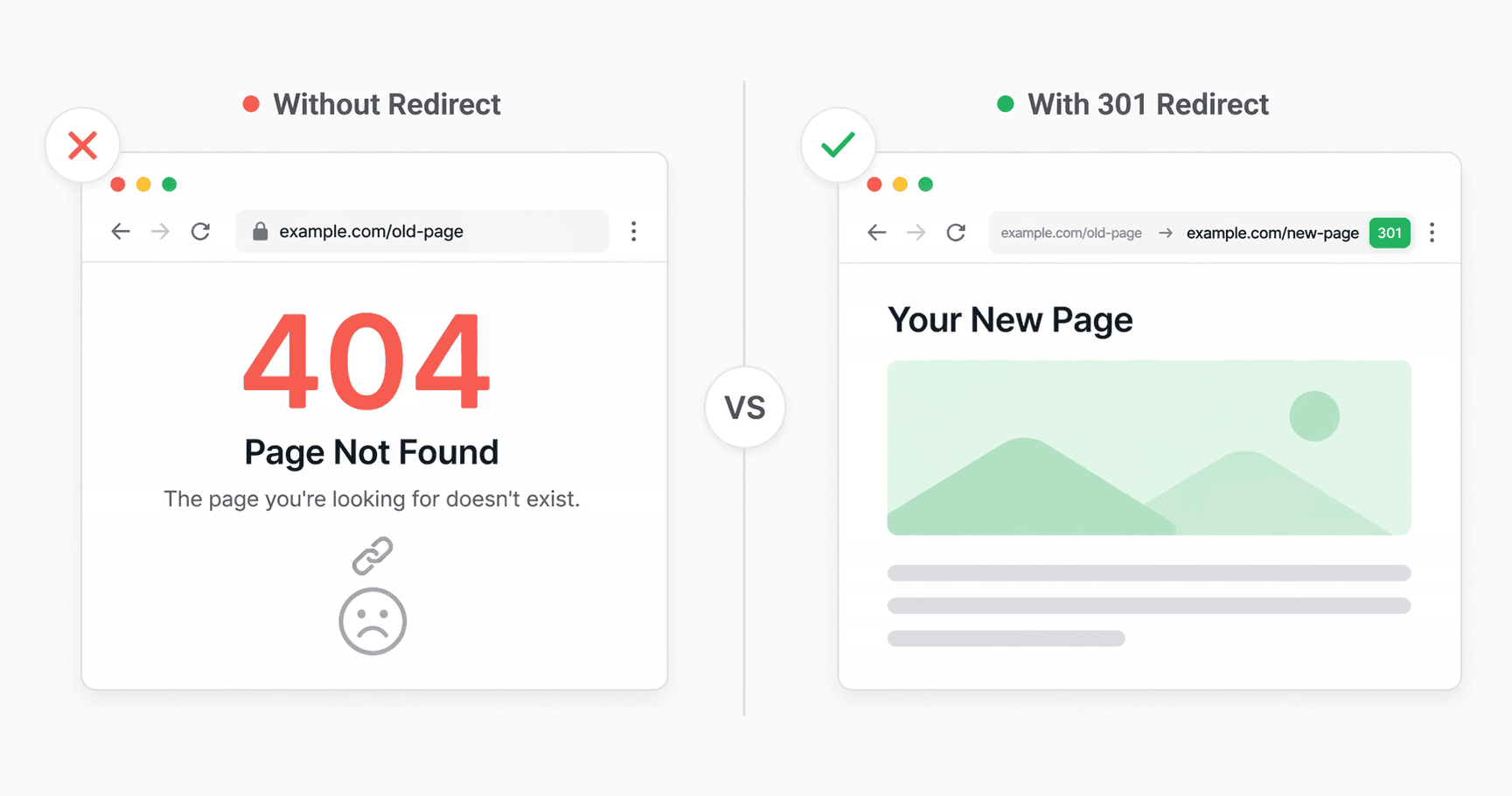
If someone visits that old URL and there is no redirect in place, they may land on a 404 page.
That creates a poor experience for visitors and can weaken the SEO value the old page had built over time.
This is why redirects matter.
In this guide, you’ll learn:
- what happens when you change a URL
- when you should add a redirect
- how to create redirects manually for free
- why the manual process is easy to miss
- how SureRank Pro makes it easier
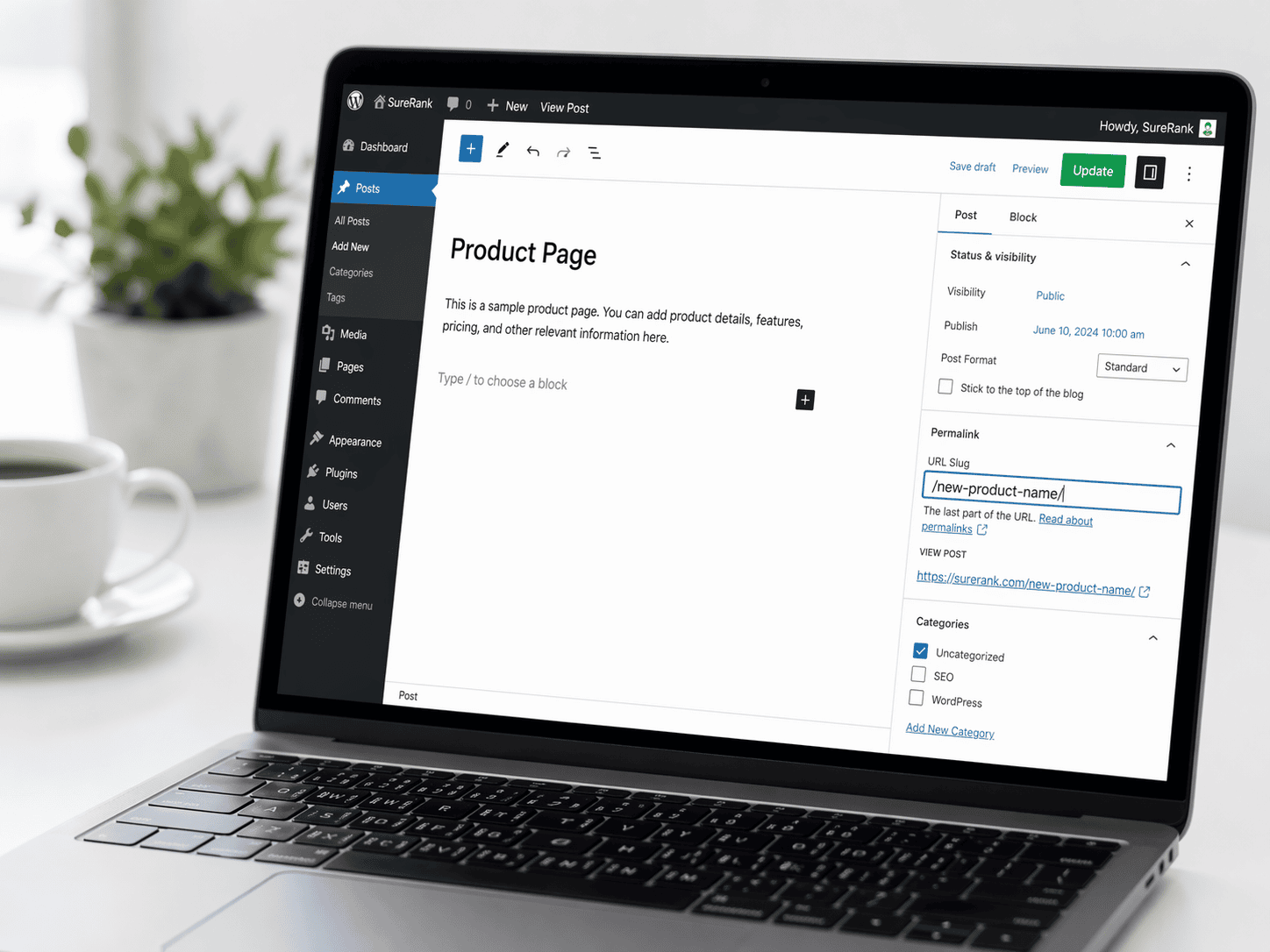
What Happens When You Change a URL?
Every page on your website has its own address.
When you change that address, WordPress updates the new URL, but the old one does not automatically know where to send visitors.
That means the old URL may stop working unless you set up a redirect.
Here’s what can happen if you do nothing:
Visitors can hit a broken page
Anyone clicking the old URL may see a 404 error instead of the page they expected.
Search engines can lose the connection
If Google already knows the old URL, it needs a clear signal that the page has moved.
Existing backlinks may lose value
If another site links to the old URL, that authority may not fully carry over unless the old URL redirects properly.
Internal links may become outdated
Some parts of your own website may still be pointing to the old version.
So while changing a URL is easy, preserving its value takes one extra step.
That step is a redirect.
What Is a Redirect?
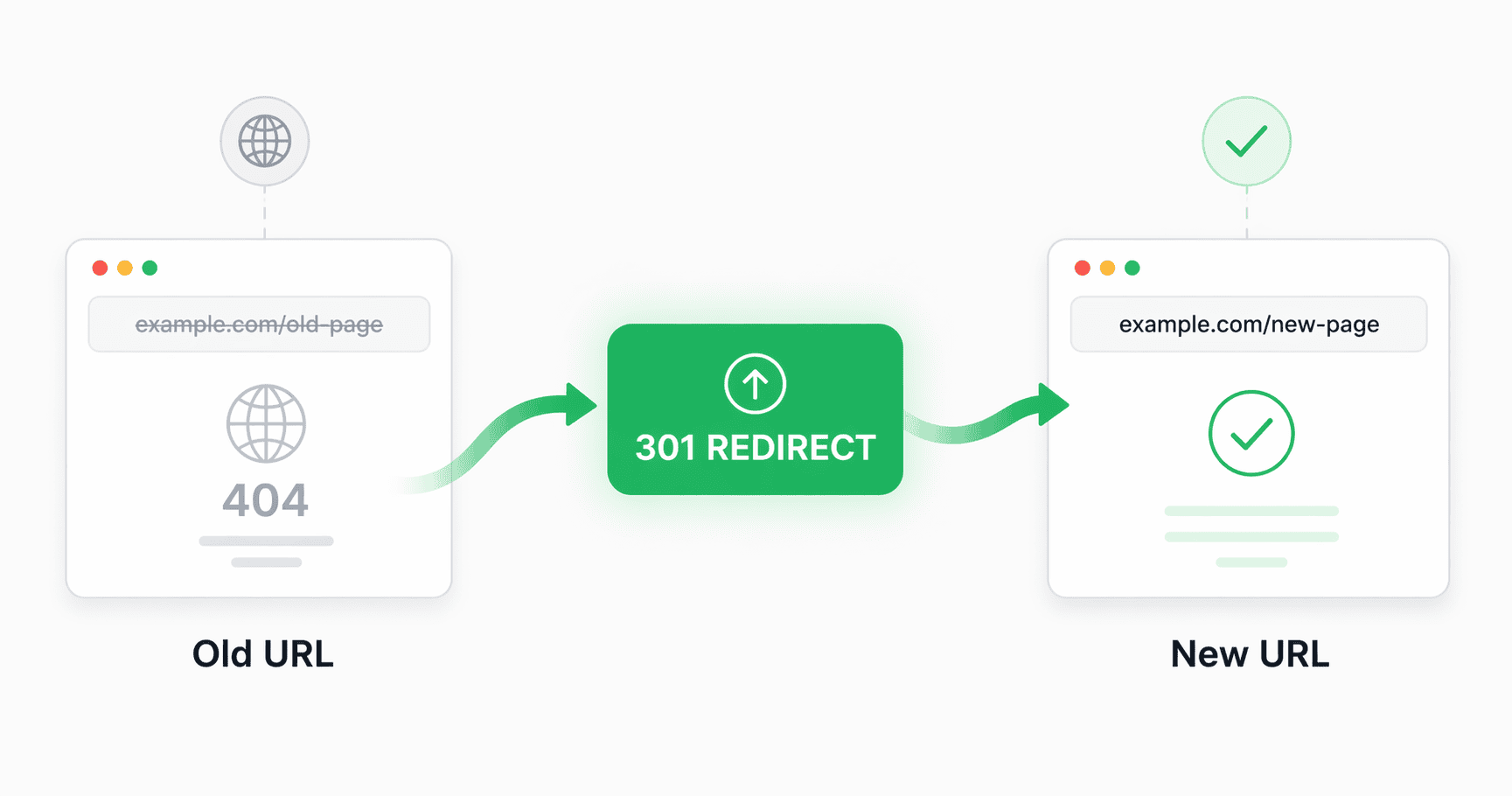
A redirect tells browsers and search engines that a page has moved from one URL to another.
Instead of showing an error, the old link automatically sends visitors to the correct new page.
In most cases, the right choice here is a 301 redirect.
A 301 redirect means the move is permanent. It helps search engines understand that:
- the old URL has been replaced
- the new URL is now the main version
- the SEO signals from the old page should be passed forward
That is what makes redirects so important when you change permalinks.
When Should You Add a Redirect?
A redirect should be added whenever an old URL may still be visited.
That includes situations like these:
- you changed a blog post slug
- you renamed a product page
- you moved a page into a new URL structure
- you replaced an older page with a newer one
- you cleaned up messy or unclear URLs
- you deleted content but want visitors to reach a relevant replacement page
A good rule to follow is simple:
If the old URL has any chance of being clicked again, redirect it.
That is especially true for pages that were:
- indexed by Google
- shared publicly
- linked from other websites
- used in campaigns, ads, or emails
- part of your store or blog structure
Why Redirects Matter for SEO
Redirects are not just for fixing broken links. They help protect the work you have already done.
Here’s why they matter:
1. They help preserve rankings
If a page already has visibility in search, a redirect helps search engines understand where that value should go.
2. They protect backlink value
Links from other sites still matter. Redirects help pass that value to the new destination.
3. They improve user experience
Visitors should reach useful content, not an error page.
4. They keep your website tidy
As your site grows, URL updates are normal. Redirects help those changes happen without creating unnecessary SEO damage.
A redirect is a small action, but it can prevent larger problems later.
What You Should Do Before Changing a URL
Before you edit any permalink, take a quick moment to check whether the page matters.
Ask yourself:
- Is this page already ranking in search?
- Has it been shared anywhere?
- Could other websites be linking to it?
- Is it part of an important user journey?
If the answer to even one of those is yes, plan the redirect before or immediately after changing the URL.
This one habit can save you from traffic loss and broken links later.
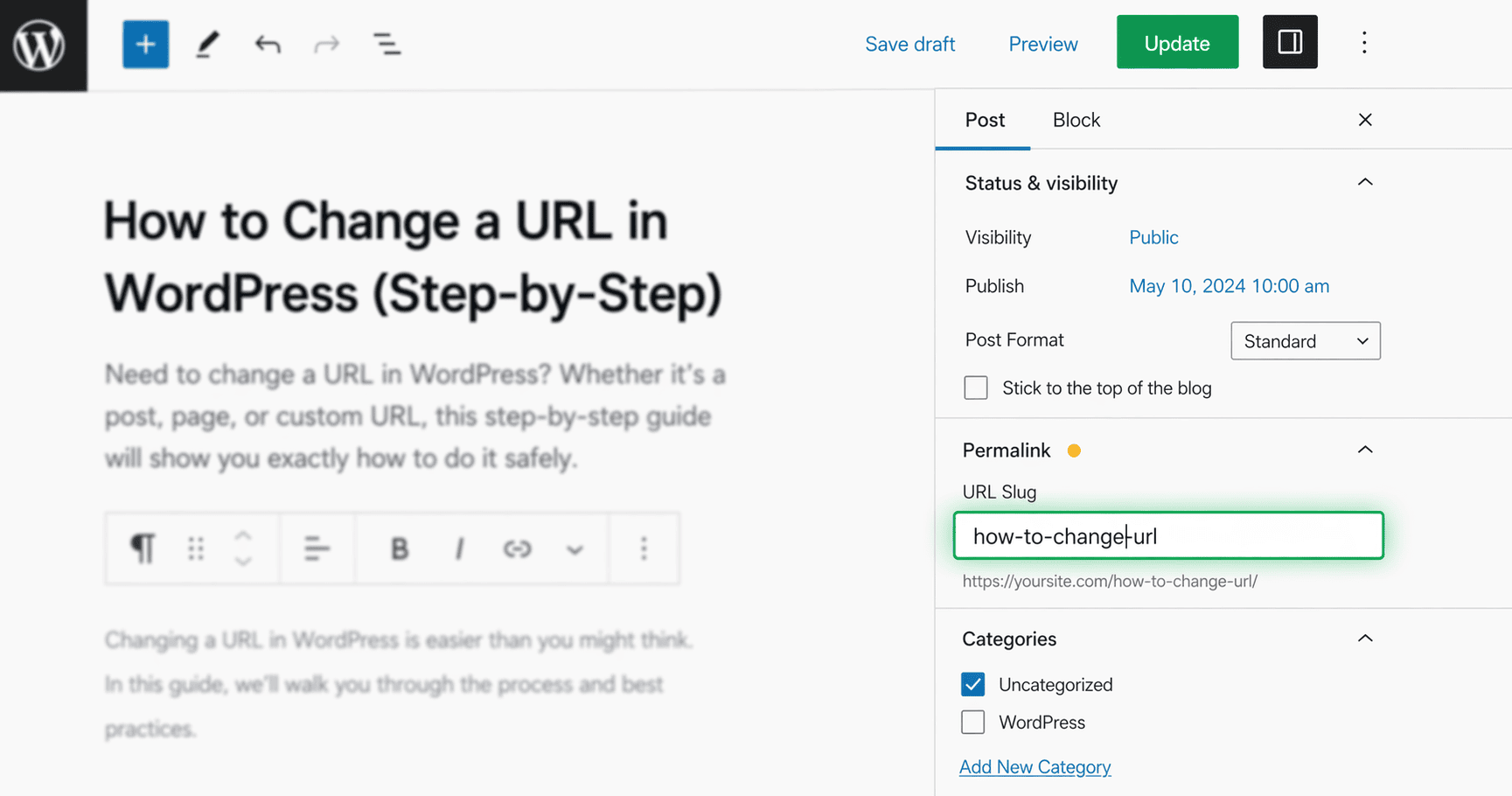
How to Create Redirects for Free
Yes, you can create redirects without paying for an SEO plugin.
There are a few ways to do it.
Option 1: Add redirects manually in .htaccess
This is one of the oldest methods and works on Apache-based hosting.
A simple redirect rule might look something like this:
Redirect 301 /old-page/ https://example.com/new-page/
This works, but it has limits:
- you need server access
- one typo can break the rule
- it is not beginner-friendly
- it becomes harder to manage as redirects grow
Option 2: Use server or hosting rules
Some hosting setups let you manage redirects from the dashboard or server config.
This can work well, but it depends on your host and still requires manual effort.
Option 3: Use a separate redirect plugin
This is easier for most WordPress users.
You manually enter:
- the old URL
- the new URL
- the redirect type, usually 301
This is more approachable than editing server files, but it still means one more step every time a URL changes.
So yes, redirects can be done for free. But they are still manual, and manual work is easy to miss.
The Hard Part With Manual Redirects
The real challenge is not that manual redirects are difficult.
The real challenge is that they are easy to forget.
You edit a page.
You update the slug.
You save.
You move on.
Later, you realize the old link is broken.
That is how many small SEO issues happen. Not because someone made a major mistake, but because the workflow depended on remembering one extra task every time.
This is where automation becomes useful.
How SureRank Pro Makes This Easier
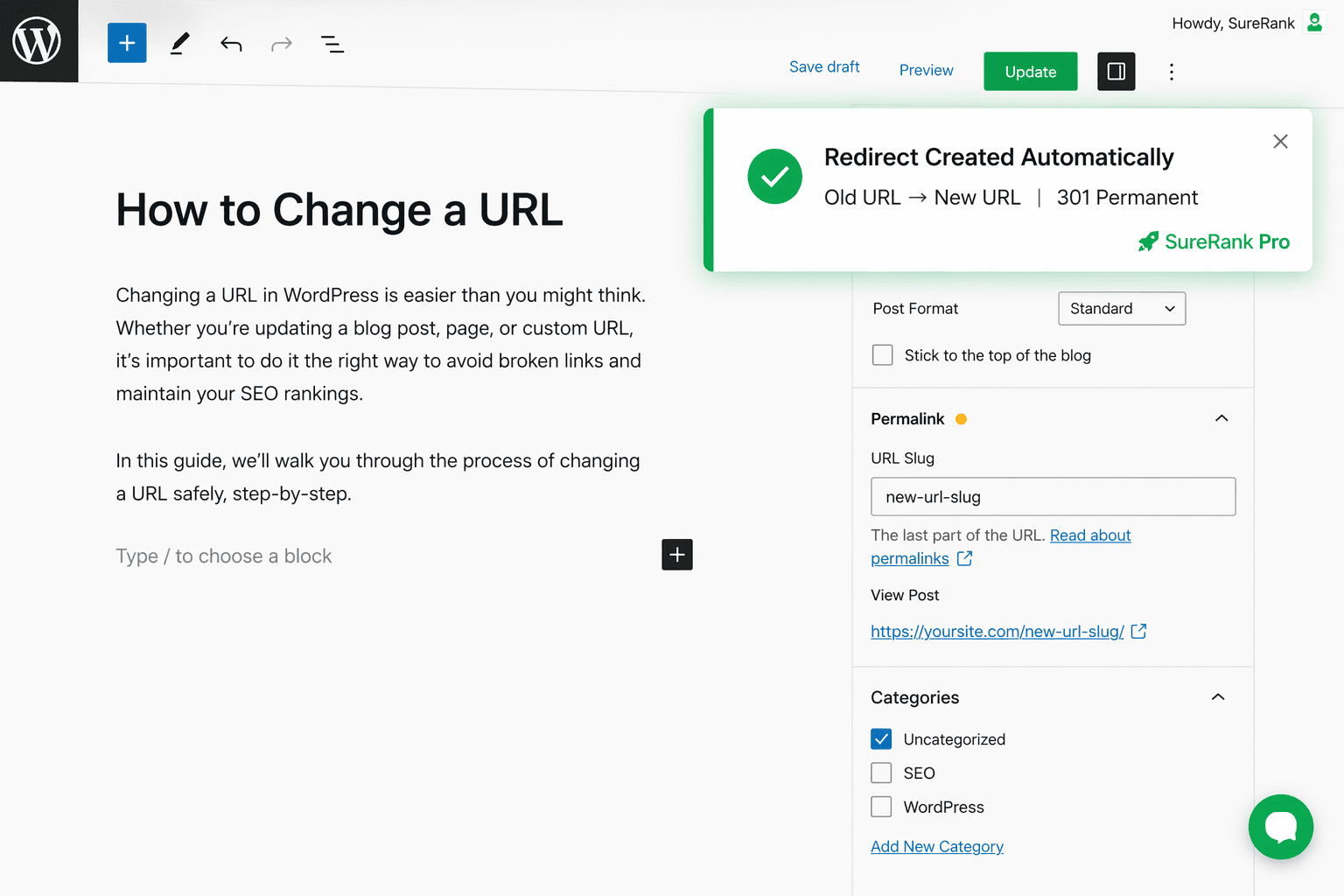
SureRank Pro can automatically handle this process for you.
When you change a permalink, SureRank Pro can create a redirect from the old URL to the new one. That helps prevent broken links without making you stop and do the work manually each time.
That means:
- less manual work
- less chance of forgetting
- fewer broken links
- a smoother experience for visitors
- better protection for your SEO
This is especially useful if you:
- publish new content regularly
- update old blog posts
- run an ecommerce store
- manage client sites
- want a cleaner SEO workflow
Instead of relying on memory, the redirect becomes part of the process.
How to Handle a URL Change Properly
Here’s a simple process you can follow any time you change a URL.
If you are doing it manually
- Copy the old URL before changing it
- Update the permalink
- Create a 301 redirect from the old URL to the new URL
- Visit the old URL to confirm it redirects correctly
- Update any important internal links if needed
If you are using SureRank Pro
- Change the permalink
- Let SureRank Pro create the redirect all by itself
- Test the old URL once to confirm everything works
This is what makes the feature valuable. It reduces a multi-step process into something much easier to manage.
How to Check if Your Redirect Is Working
After changing a URL, always test it.
Here’s the simplest way:
Step 1
Copy the old URL.
Step 2
Paste it into your browser.
Step 3
See where it goes.
If everything is set up correctly, it should send you straight to the new page.
If it shows a 404 error, the redirect is missing.
If it jumps through multiple URLs before reaching the final page, you may have a redirect chain, which is not ideal.
A quick test like this takes seconds and gives you peace of mind.
Common Redirect Mistakes to Avoid
Redirecting to an unrelated page
Some people redirect old pages to the homepage regardless of content
Forgetting old URLs after editing
This is the most common problem. The page changes, but no redirect gets added.
Creating redirect chains
Try to send the old URL directly to the final new URL, not through multiple hops.
Using temporary redirects for permanent changes
If the page has moved for good, use a 301 redirect.
Never testing the old link
Always check the old URL after making changes.
Manual Redirects vs SureRank Pro
Both approaches can work. The right choice depends on how you manage your website.
Manual redirects
Best if you:
- are comfortable with technical setup
- rarely change URLs
- do not mind the extra work
SureRank Pro
Best if you:
- want a simpler workflow
- update URLs from time to time automatically
- want to avoid missed redirects and 404
- prefer handling SEO tasks inside one tool
The main difference is not whether redirects are possible. They are possible either way.
The real difference is how easy it is to do them consistently.
Why This Matters Even on Smaller Websites
You do not need a huge site for redirects to matter.
Even one page can be important.
A single product page might be shared in a campaign.
A single blog post might rank for a useful keyword.
A single URL might have backlinks pointing to it.
If that link breaks, the size of the site does not matter. The lost experience is still real.
That is why redirects are worth taking seriously, whether you run a personal site, business website, blog, or store.
Final Thoughts
Changing a URL is normal.
Leaving the old one behind without a redirect is where the problem starts.
Redirects help search engines understand your changes and help visitors reach the right page without friction. You can create them manually for free, but that approach takes extra time and is easy to overlook.
If you want a smoother workflow, SureRank Pro makes the process easier by handling redirects when permalinks change, so you can protect your SEO without turning it into another manual task.
If you update pages often, that convenience adds up quickly.
Learn More About Automatic Redirects in SureRank Pro
Want an easier way to protect your traffic when URLs change?
See how SureRank Pro helps you handle redirects with less effort and gives you access to more SEO features in one place.
You can also upgrade to unlock this feature along with other useful SEO tools for just $99.


Recommended Articles
Where’s the Focus Keyword Field in SureRank?
Where Is the Redirection Feature in SureRank?
Is SEO Dead? Or Is It Evolving Again?