
Decide Who On Your Team Can Change Your SEO
Let writers set the title and description on their own posts, without opening up your sitemaps, schema, or Search Console. Set it once per role and SureRank adjusts what each person sees.
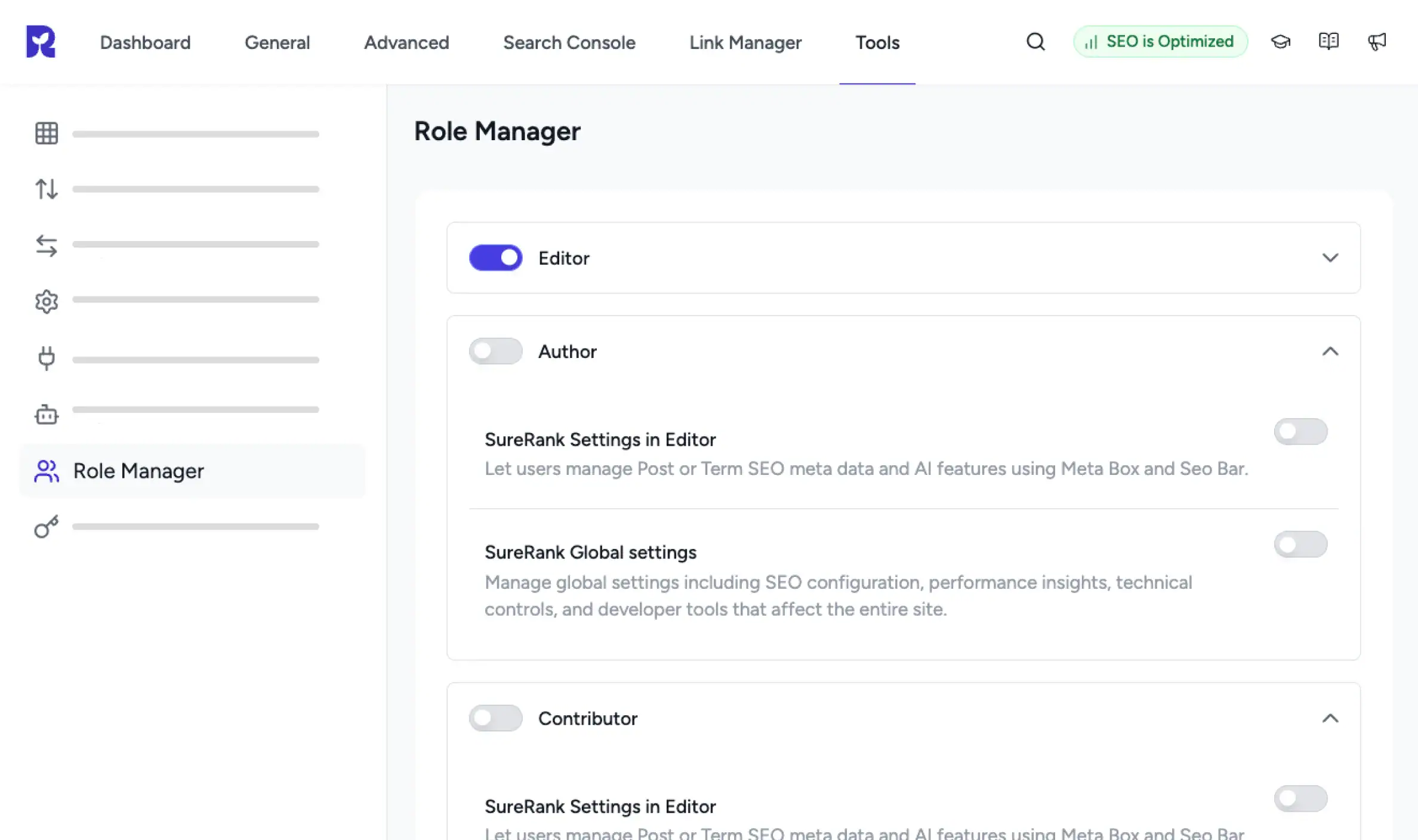
Built On The Roles You Already Have
Every Role On Your Site
Editor, Author, and Contributor are default. Other plugin roles appear automatically
Two Permissions To Assign
One for the SEO fields on posts and pages, one for the site-wide settings screens
Administrators Are Untouched
Admins always keep full access, and SureRank re-applies that on every load
What Role Manager Actually Does
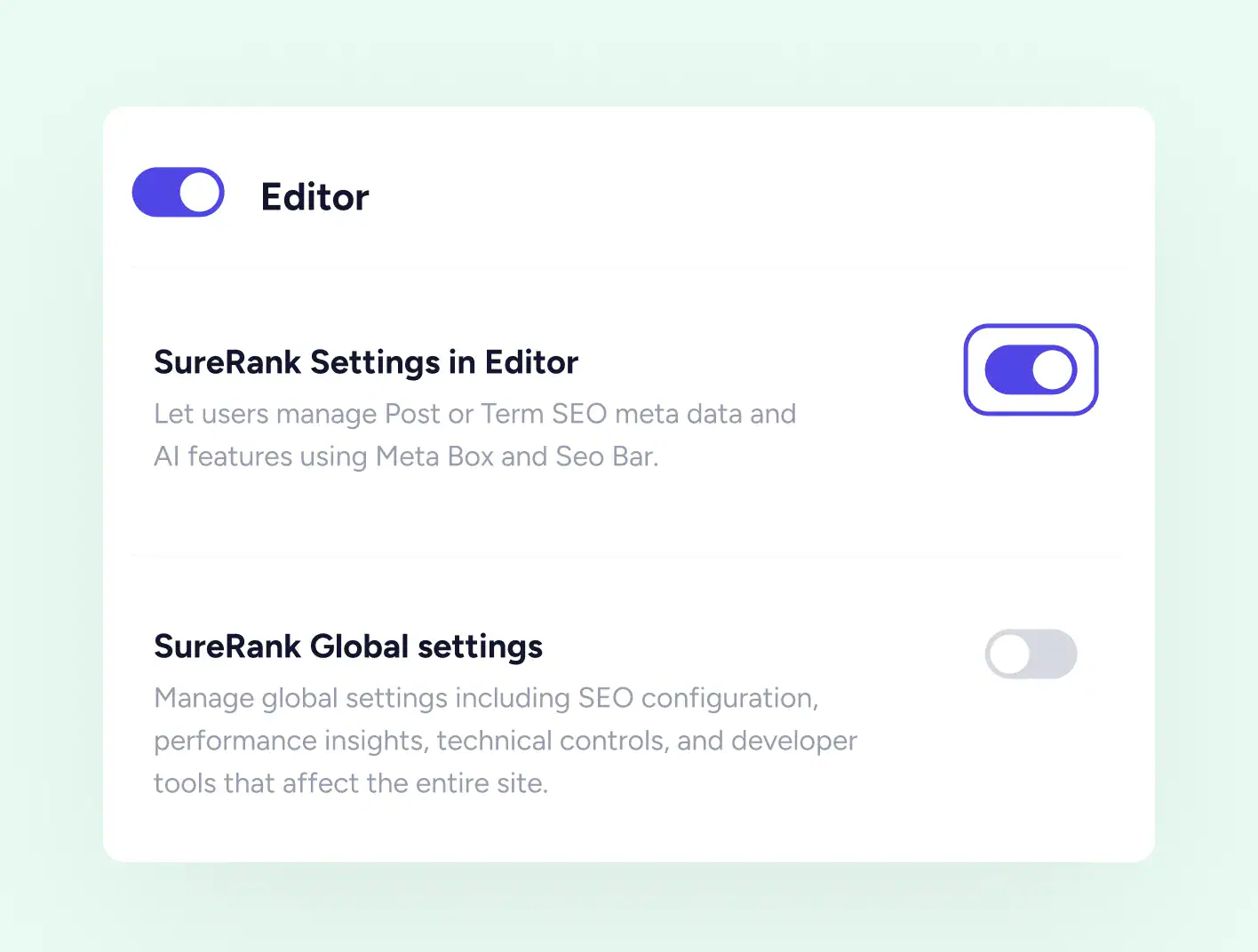
THE TWO PERMISSIONS
One For Writing, One For Configuring
Most teams want the same split. Writers should handle SEO on the posts they work on, without being able to change anything site-wide. Turn on either permission, both, or neither, for any role.
-
Post-level SEO access for all content types
-
Global access for the site-wide configuration screens
-
Turn both off to remove SureRank from that role entirely
WHAT WRITERS GET
SEO On Their Own Posts, And Nothing Else
With post-level access, the SureRank panel appears inside the editor. Writers open a post, set the search title and description, add a focus keyword, and review the page checks. Nothing they do there can reach a site-wide setting.
-
The SureRank panel in the post editor
-
Search title, description and focus keyword per post
-
Page level SEO checks on the content they are working on
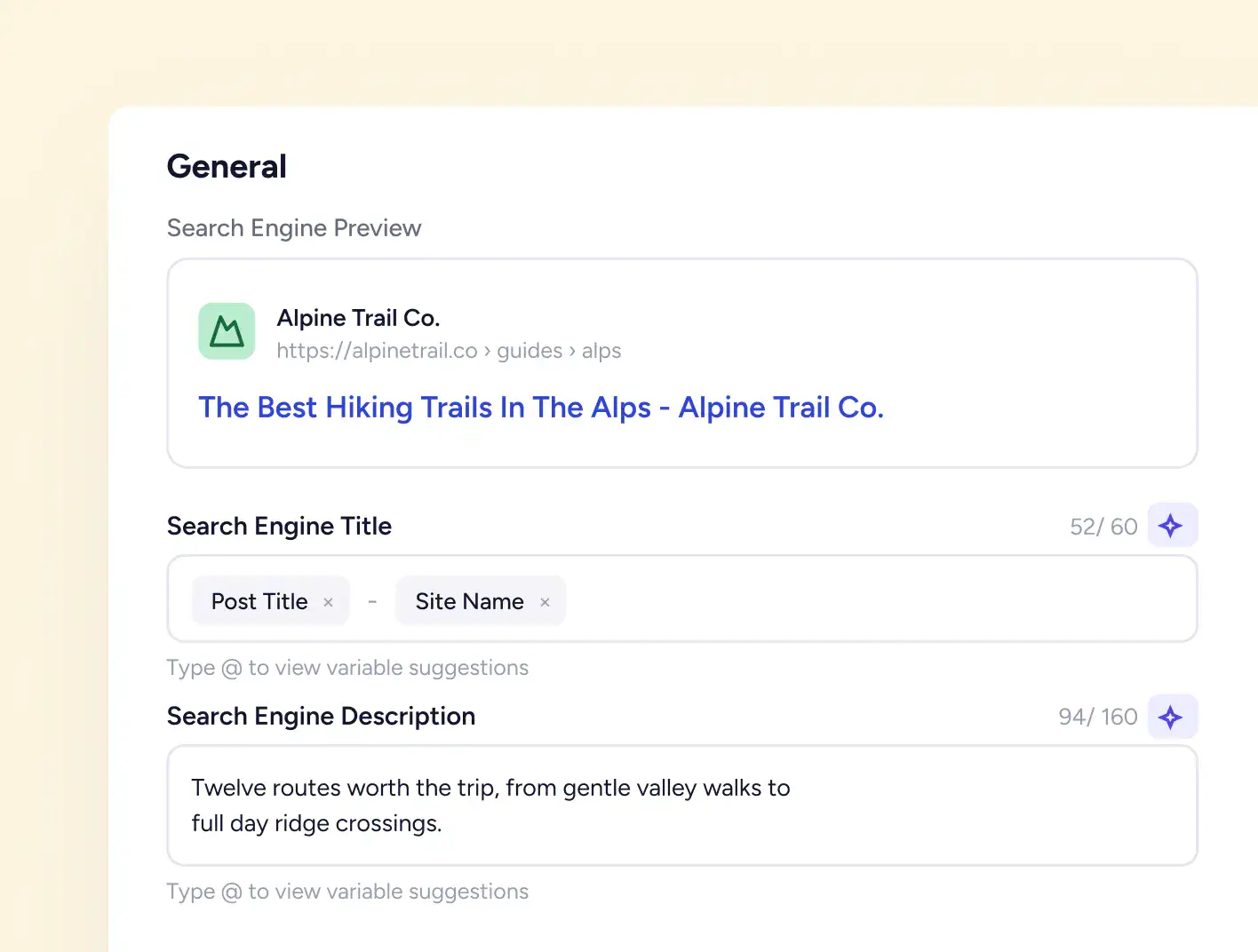
Page Level Override
People Only See What They Can Use
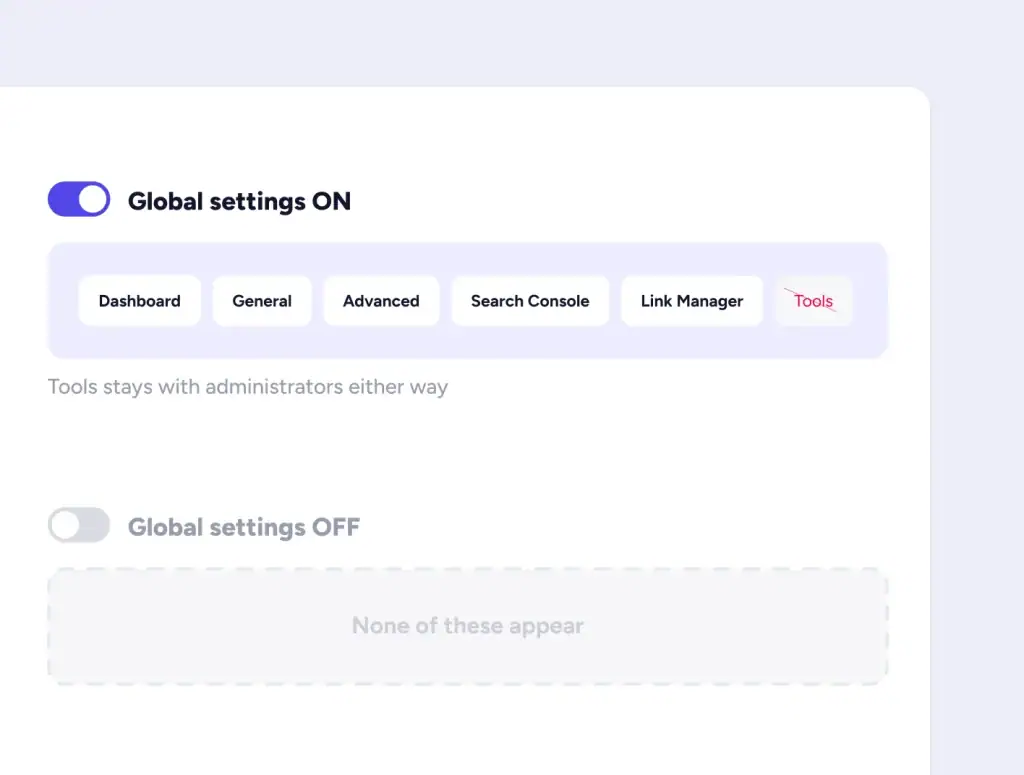
Rather than showing a screen that refuses to open, SureRank removes it. A role without global access does not see the settings screens in the menu at all, and a role with neither permission does not see SureRank.
-
Submenu items shown or hidden based on the role
-
No greyed-out screens and no permission errors
-
Some tools stay with administrators regardless
ENFORCED, NOT JUST HIDDEN
Blocked On Save As Well As On Screen
Hiding a field stops most people, but not a crafted request. SureRank filters settings in both directions, so anything a role cannot access is stripped from what it reads and rejected in what it tries to save.
-
Settings removed from API responses, not just the screen
-
The same check runs on save, preventing bypasses
-
Roles can’t store settings they can’t access
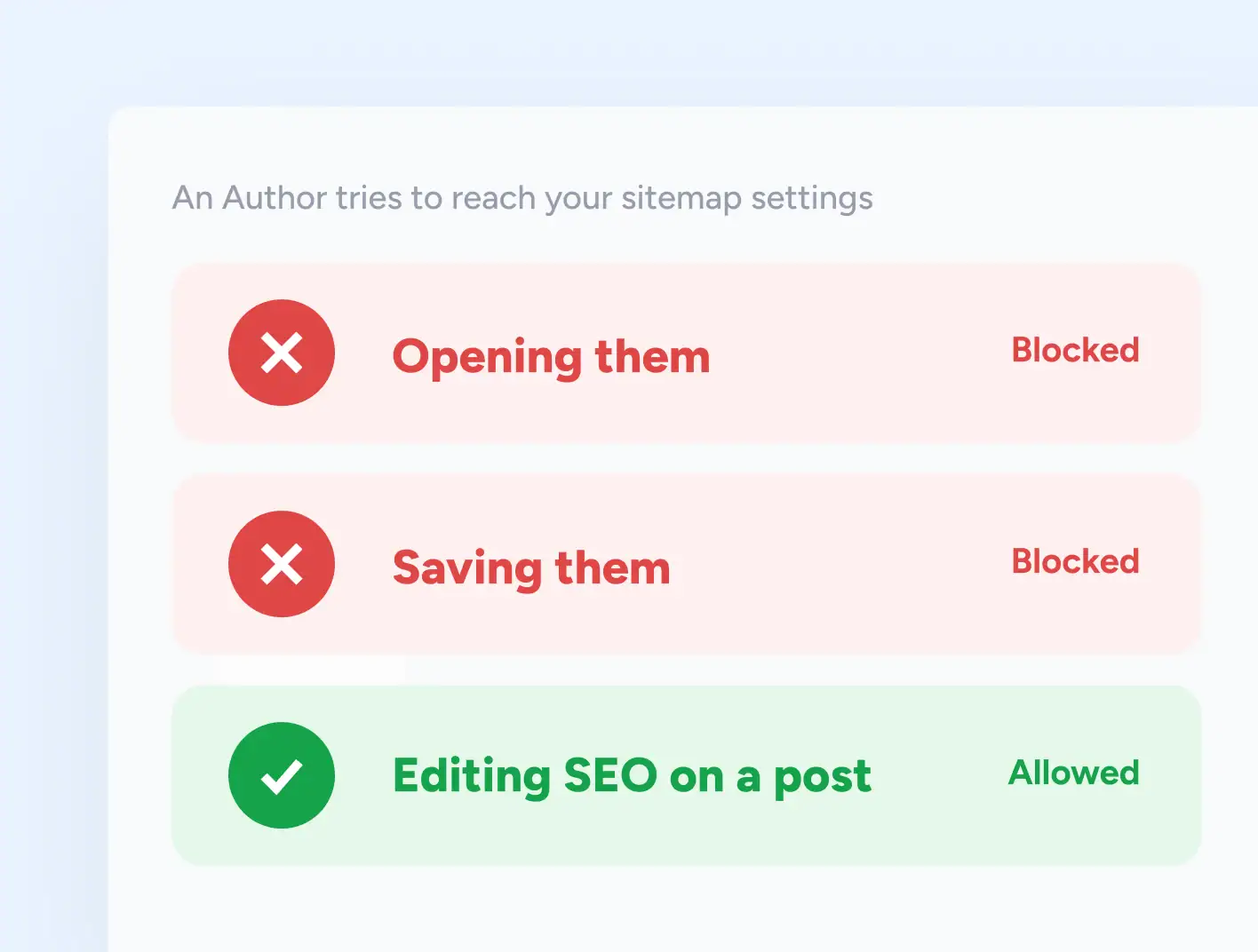
A Setup That Works For Most Sites
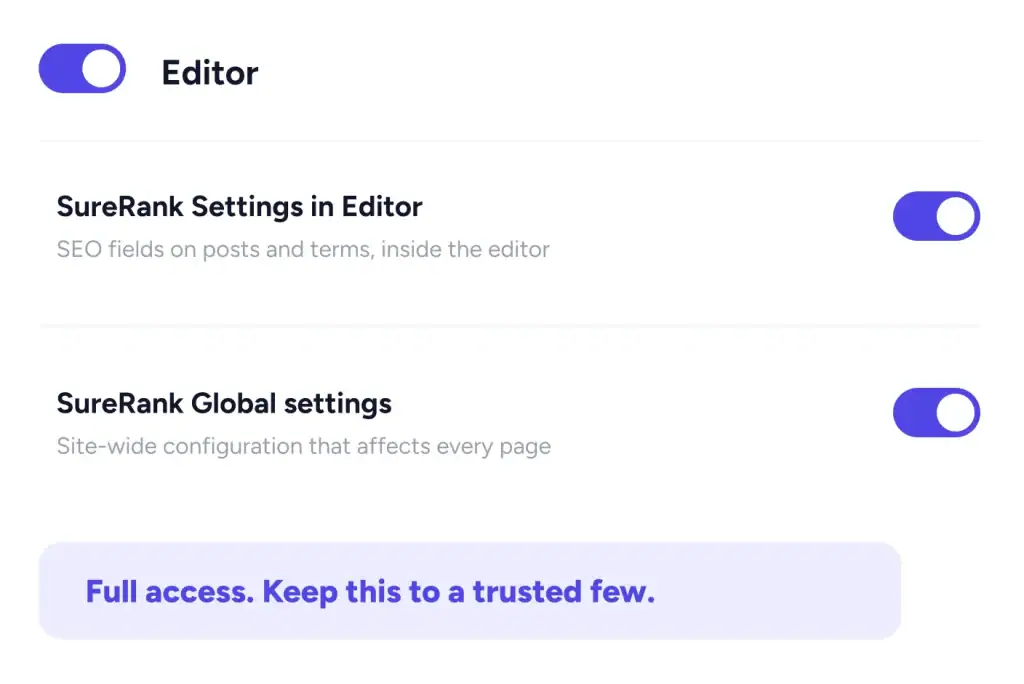
Global settings
Administrators and a small number of trusted people. These settings affect every page on the site.
Note under the section: you can change any of this later. Permissions apply as soon as you save.
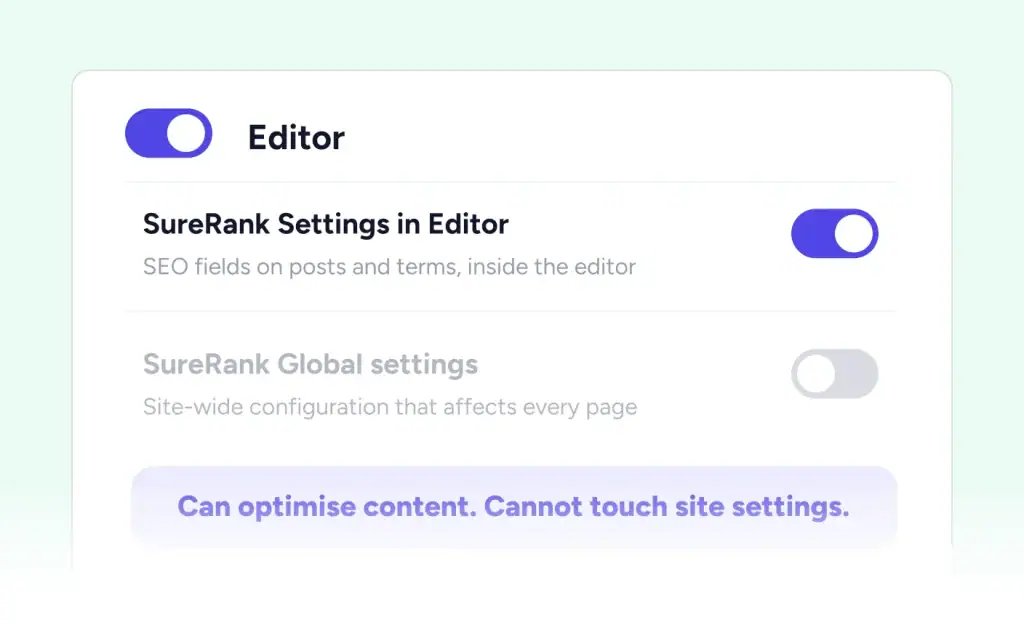
Editors and Authors
Post-level access only. They optimise what they write, and the site configuration stays closed.
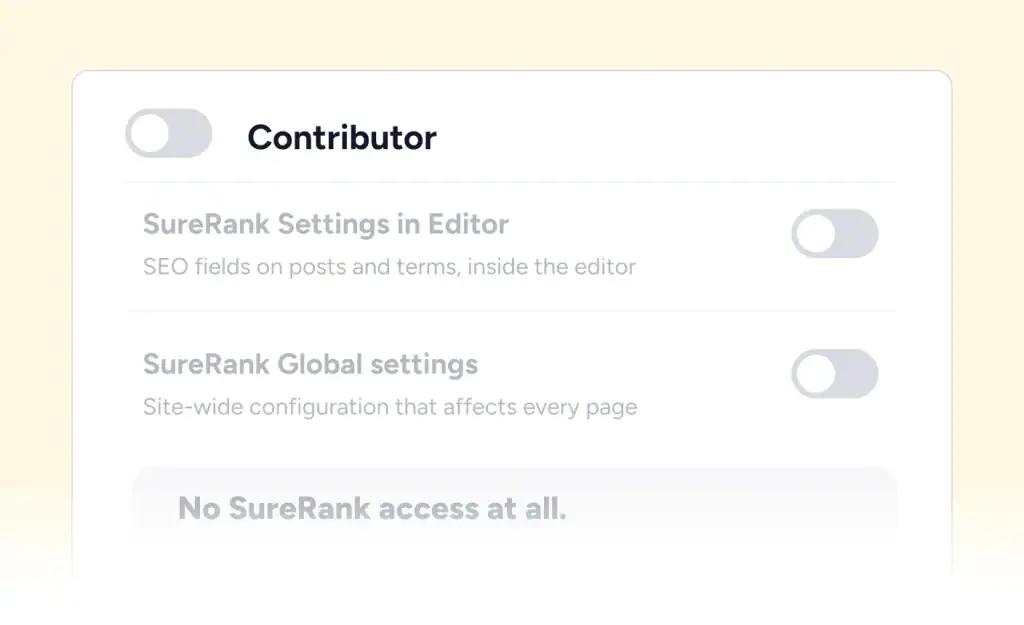
Contributors
Usually neither. They submit drafts, so there is rarely a reason for them to set SEO fields.
Give Your Team The Access They Need, And Nothing More
Role Manager is part of SureRank Pro
From Open To Assigned In Three Steps
Open Role Manager
Go to SureRank, then open Tools, then Role Manager
Open Role Manager
Every role on your site is listed, apart from Administrator and Subscriber
Choose Permissions & Save
Turn on post-level access, global access, or both. Changes apply straight away
We have multiple people working on our website, so keeping permissions organized is important. Role Manager makes it easy to give everyone the access they need without making things complicated.
Tom Bennett
WordPress Agency Owner
Who it suits
Built for Multi-User Dashboards
Four situations where this earns its place.
Online Stores
Shop roles from your store plugin appear in the list on their own
Agencies
Hand a client the editor without handing over the configuration
Larger Sites
Fewer people who can change a site-wide setting by accident
Editorial Teams
Writers set their own titles and descriptions, nobody touches the sitemap
Got Questions? We’ve Got Answers
All you need to know about SureRank

Have other questions?
Just reach out—we’re here to help!
No. Permissions are set per role, which is how WordPress handles capabilities. Move the user to a different role to change what they can do.
Administrators always keep full access by design, and Subscribers have no reason to reach SEO settings. A developer filter can change which roles are listed.
Yes. Roles are read from WordPress directly, so shop, membership and booking roles appear automatically.
It would not be, which is why SureRank does more. Settings a role cannot access are stripped from the API response and rejected on save, not just hidden from view.
There are two permissions, one for the SEO fields in the editor and one for the site-wide settings. It is a clean split rather than a long checklist.
As soon as you save.
No. Role Manager is part of SureRank Pro.


