
One Dashboard for Every Link on Your Site
Broken links flagged. Orphaned pages surfaced. 301 redirects managed. SureRank scans your entire WordPress site and gives you a clear picture of your link health without opening a single page manually.
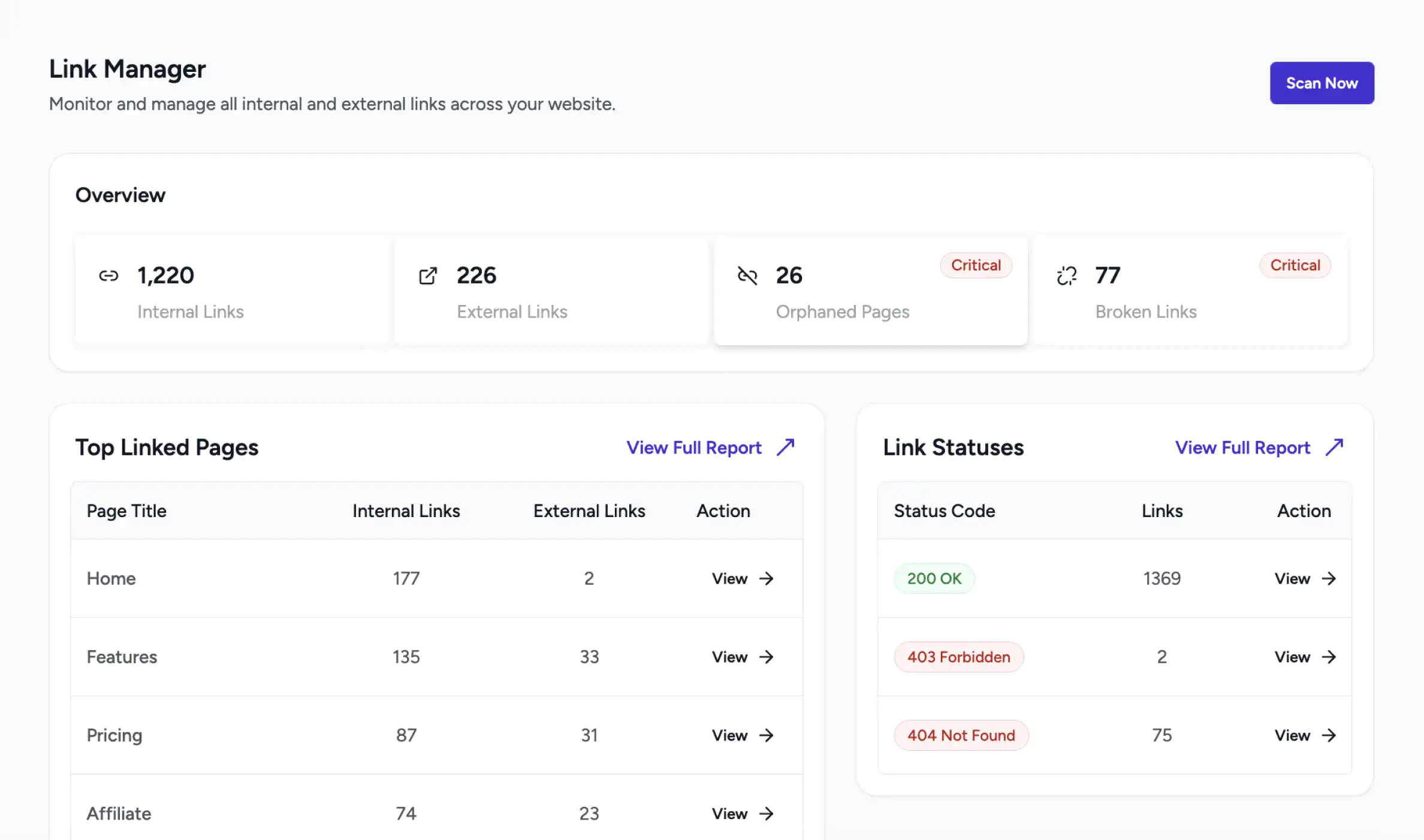
Healthier Links. Better Rankings. Less Manual Work.
Find Every Broken Link
SureRank checks every link across all published pages and flags anything returning a 404 or error response.
Surface Hidden Orphans
Pages with no inbound links are invisible to search engines. SureRank finds them and tells you what needs connecting.
Manage Redirects Easily
Create and manage 301 redirects from your dashboard. No .htaccess edits, no developer needed.
What Link Manager Does Inside SureRank
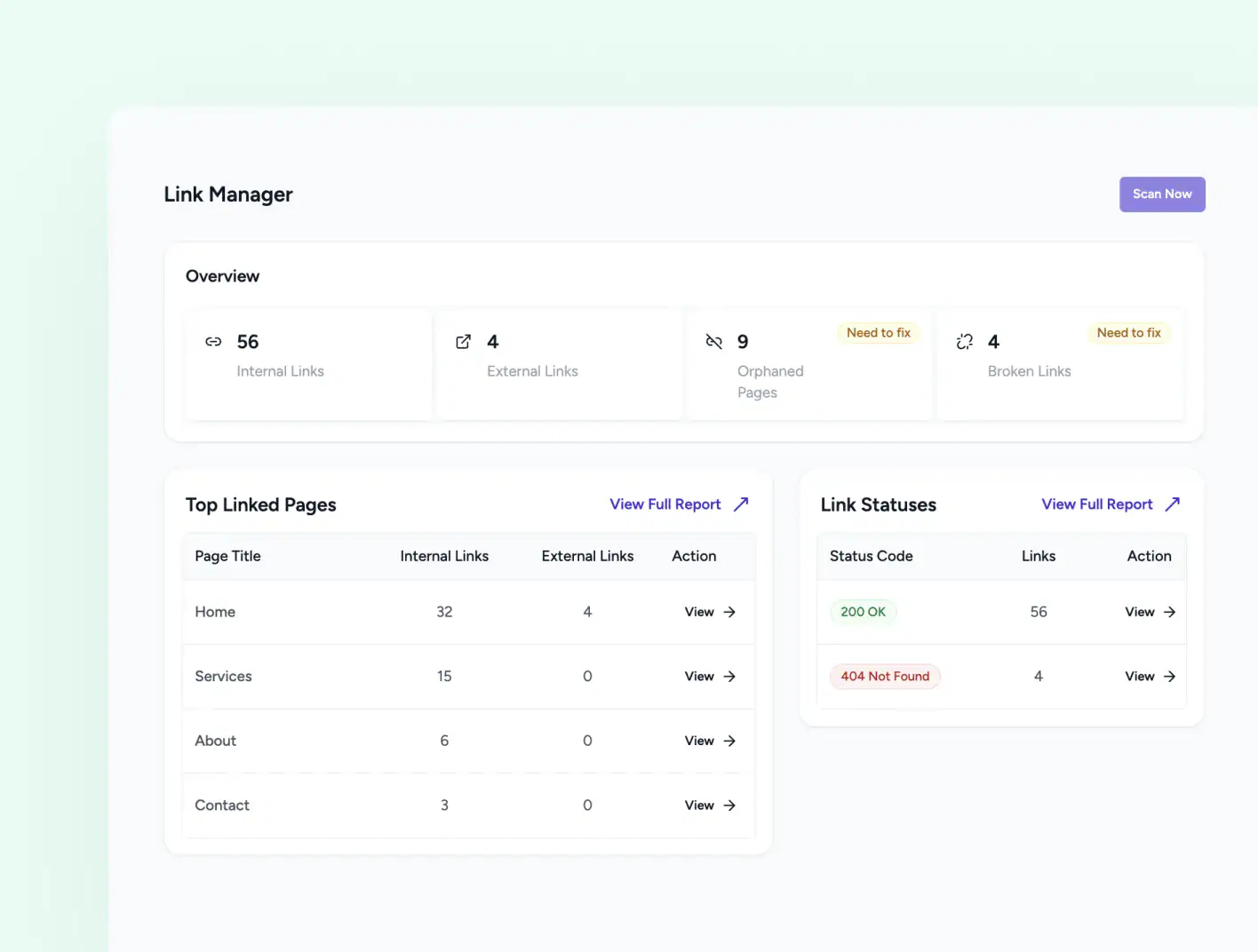
LINK MANAGER DASHBOARD
A Full-Site Link Scan in One Click Instantly
Open Link Manager from your SureRank dashboard and click Scan Now. SureRank crawls every published post and page you have selected and returns a complete breakdown of your site’s link health. The first scan is scheduled automatically when you open Link Manager for the first time.
-
Overview cards show link and page issues
-
Each card opens a filtered report for that category
-
Background scans run while you continue working
ALL LINKS REPORt
See Every Link, Its Source, Destination, and Status
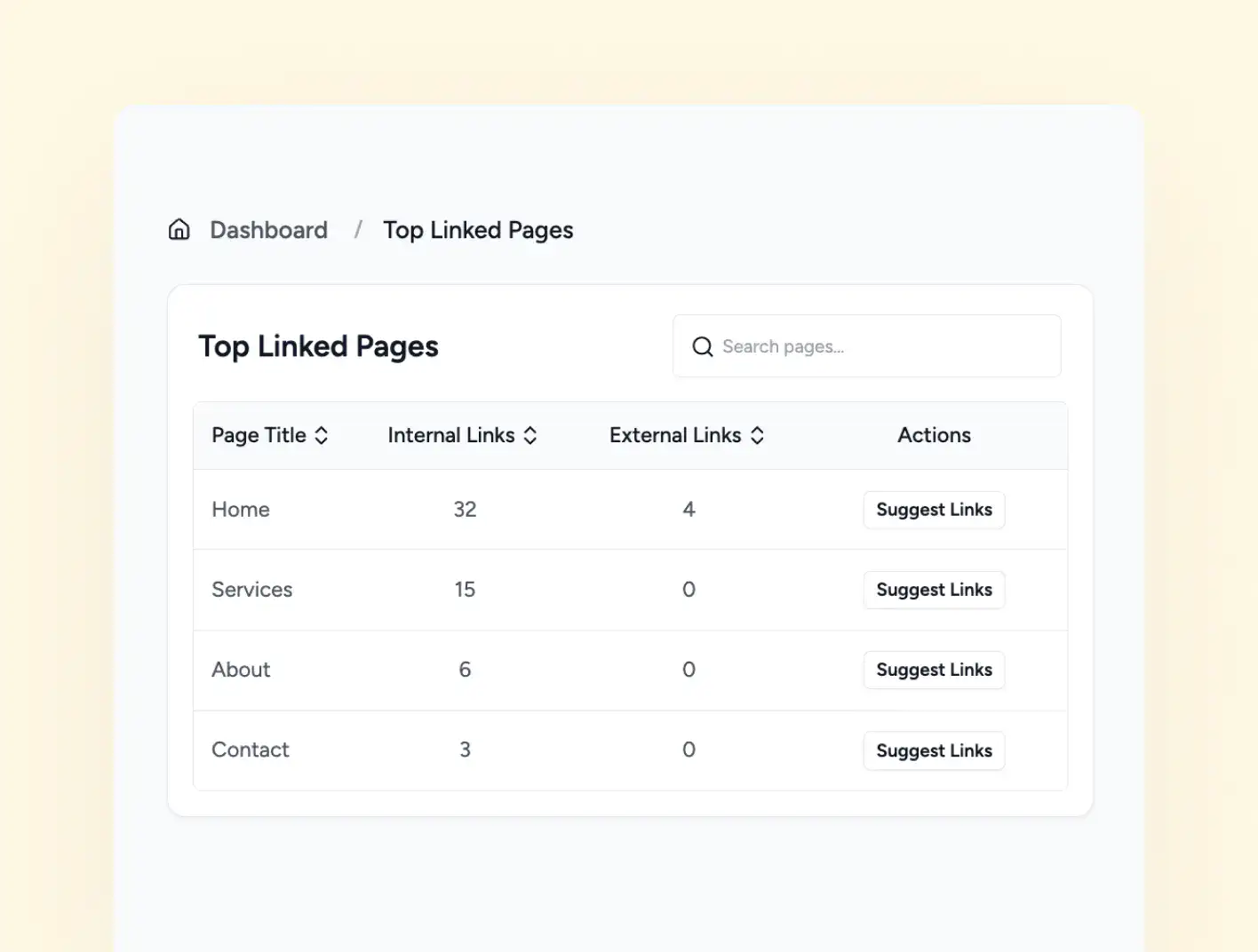
Click any card in the Overview to open a detailed report for that link category. Every link entry shows you the source page where it appears, the destination URL, the anchor text used, and the HTTP status code the link returns.
-
Edit link URLs and anchor text directly from the report
-
Remove links instantly using the unlink icon
-
Filter links by type and status code (200, 404, etc.)
ORPHANED PAGES REPORT
Find the Pages Google Cannot Reach
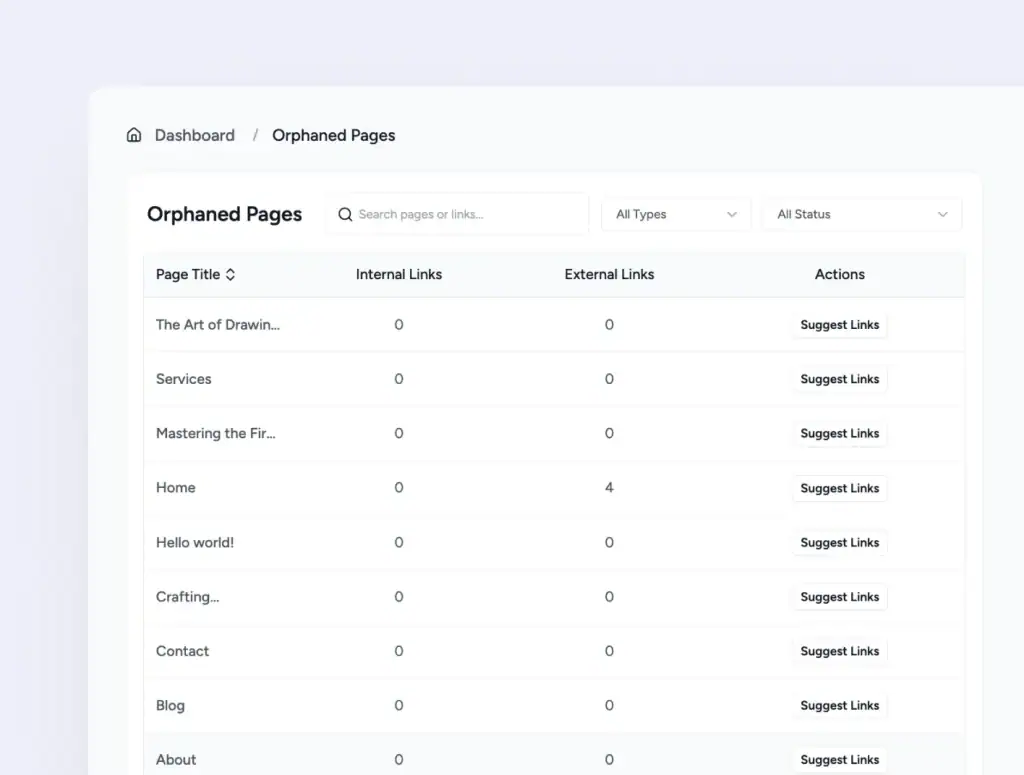
Any page with zero inbound internal links is invisible to search engines unless it is in your sitemap. The Orphaned Pages report lists every such page on your site with its outbound link counts and an AI-powered Suggest Links action so you can connect it to the rest of your content.
-
View orphaned pages and their outbound link counts
-
Fully isolated pages show 0 links across all metrics
-
AI suggests relevant pages to link from existing content
LINK MANAGER SETTINGS
Decide Which Content Gets Scanned
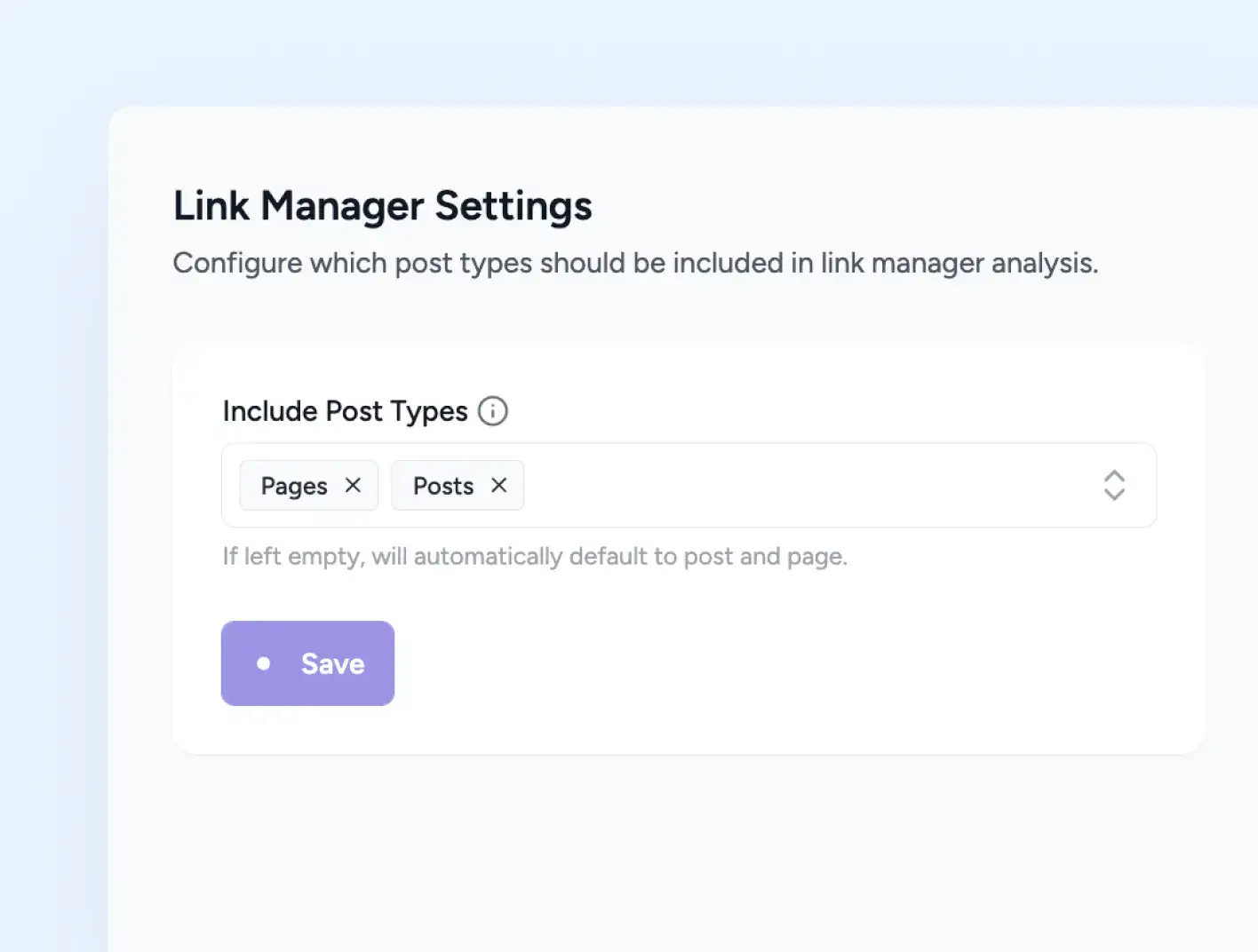
Link Manager Settings lets you pick exactly which post types feed into link analysis. Posts and Pages ship enabled by default. Any registered custom post type appears in the dropdown, so Media, Docs, Changelog, and anything else your site uses can be added or removed in seconds.
-
Post Types dropdown includes all registered post types
-
Posts and Pages are enabled by default, change anytime
-
Save the setting and the next scan respects it
LINK SUGGESTIONS
AI Identifies the Best Link Opportunities
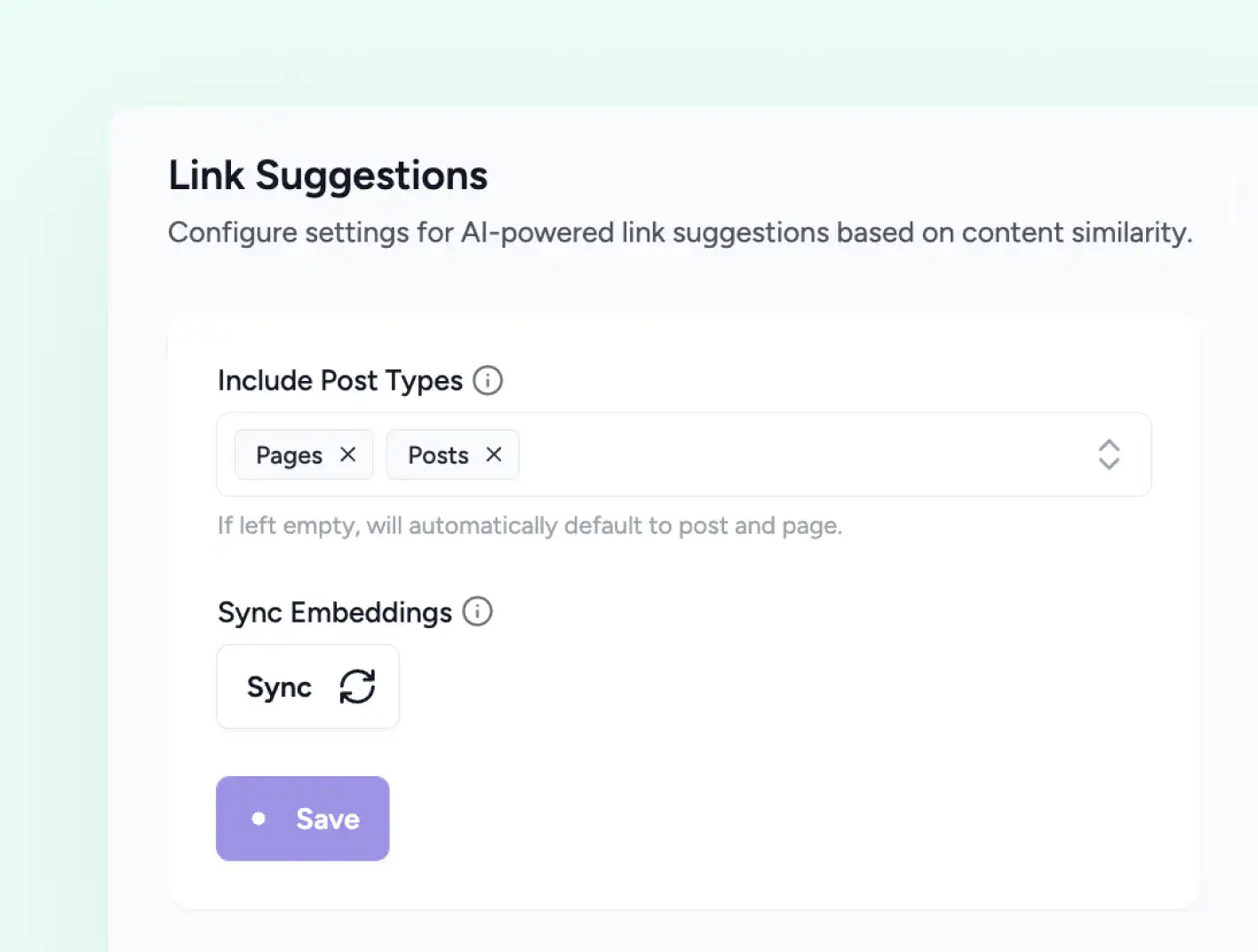
Link Suggestions reads your content and proposes related pages worth linking to, based on what each page is actually about. The suggestions appear right in your editor while you write, so you build internal links without leaving the page.
-
AI driven by content similarity, not just shared keywords
-
Configure which post types feed the engine in settings
-
Works in Gutenberg, Classic editor, Bricks, and Elementor
Stop Losing Rankings to Broken Links and Orphaned Pages
Run a scan. See your full link health. Fix issues in the same dashboard.
Link Manager Live in Four Steps
Install SureRank Pro
Activate SureRank and SureRank Pro on your WordPress site. Link Manager appears in the SureRank navigation automatically.
Open Link Manager and Choose Post Types
Go to SureRank → Link Manager → Settings. Choose which post types to include. Posts and Pages are enabled by default, with support for custom post types.
Run Your First Scan
Click Scan Now on the Link Manager Dashboard. SureRank scans all published content from your selected post types and populates the overview cards and reports.
Fix Issues From the Dashboard
Review broken links, orphaned pages, and redirect needs. Edit links, unlink them, add redirects, or use AI Suggest Links — all without leaving the dashboard.
Bulk Generate Alt Text turned a six month backlog into an afternoon. The AI descriptions are accurate, not generic, and accessibility scores jumped right away.
Davide Baraldi
SEO and WordPress Specialis
Who it suits
Link Manager for Every Type of WordPress Site
If any of these sound like your site, SureRank’s Image SEO will fit right in.
Content-Heavy Blogs
A full picture of internal link distribution across hundreds of posts, with AI suggestions to connect underlinked content.
Business and Service Sites
Broken link detection across landing pages and service pages so no lead is lost to a dead URL or missed conversion opportunity.
WooCommerce Stores
Orphaned product pages surfaced before they cost you organic traffic. Link health across the full product catalogue.
Agencies managing client sites
A fast scan that replaces manual page-by-page audits. Broken links and redirects handled from one dashboard per site.
Sites that have changed URLs
Auto Redirect catches slug changes as they happen. The Redirect Manager lets you clean up legacy redirects with precise match conditions.
Switching SEO Plugins
A post-migration link audit that catches any broken internal links created when URLs or slugs changed during the switch.
Got Questions? We’ve Got Answers
All you need to know about SureRank

Have other questions?
Just reach out—we’re here to help!
Link Manager scans published content from the post types you select in Settings. Posts and Pages are included by default. The first scan is scheduled automatically when you open Link Manager, and you can trigger additional scans at any time using Scan Now.
Posts and Pages are enabled by default. You can also add Media (attachments) and any custom post types registered on your site by opening Link Manager → Settings and selecting from the Include Post Types dropdown. Save your settings and run a new scan to apply the change.
When Auto Redirect is enabled, SureRank automatically creates a 301 redirect every time you change the slug of a post, page, or custom post type. The old URL redirects to the new one without you needing to add a manual redirect rule.
Yes. Each redirect in the Redirect Manager has an edit option to update the From or To URL and a delete option to remove it entirely. You can also enable or disable individual redirects using the toggle without deleting them.
An orphaned page has no inbound internal links — no other page on your site links to it. Search engines rely on internal links to discover and crawl pages. An orphaned page may still appear in your sitemap, but without internal links it receives no link equity and is harder for Google to understand in context. Link Manager flags these as Critical.
Scans run in the background using WordPress’s scheduled task system. They do not run in the browser and do not affect your site’s front-end performance. Avoid starting a new scan while one is already in progress, and avoid changing post type settings mid-scan.


