
- Sitemaps in SureRank
- How to Enable Video Sitemap in SureRank Pro
- How to Enable the News Sitemap in SureRank
- How to Show the HTML Sitemap on Your Site in SureRank Pro
- How to Regenerate the Sitemap After Excluding a Post Type in SureRank
- Change the Sitemap URL in SureRank
- How to Enable Author Sitemap in SureRank
- Schema Setup in SureRank
- How to Test Schema Markup
- How to Edit Page-Level Schema in SureRank
- Article Schema
- BreadcrumbList
- Organization Schema
- Product Schema
- Person Schema
- SearchAction
- WebPage Schema
- WebSite Schema
- FAQ Schema in SureRank
- HowTo Schema in SureRank
- Course Schema in SureRank
- Event Schema in SureRank
- Movie Schema in SureRank
- Podcast Schema in SureRank
- Software Application Schema in SureRank
- Dataset Schema in SureRank
- Video Schema in SureRank
- Claim Review Schema in SureRank
- Book Schema in SureRank
- Job Posting Schema in SureRank
- Service Schema in SureRank
- Recipe Schema in SureRank
- How to Use Schema Pro with SureRank
- How to Fix WWW and Non-WWW Version Redirects to Improve Your SEO
- How to Fix: No H1 Heading Found on Your Homepage
- How to Fix Missing H2 Headings on Your Homepage
- Re-run Checks Button in SureRank
- Fix Critical Error: Another SEO Plugin Detected in SureRank
- Fix Warning: Site Tagline Is Not Set in SureRank
- How to Fix Multiple SEO Plugins Detected on Your Site
- How to Fix: Homepage is Not Indexable by Search Engines
- Warning: Homepage Does Not Contain Internal Links
- How to Fix Missing Alt Text on Homepage Images
- How to Fix: Search Engine Title is Missing on the Page
- Page Level SEO: Broken Links Detected
- How to Fix Missing Alt Text on Images
- How to Fix Page URLs That Are Too Long
- Page Level SEO Warning: No Links Found on This Page
- Page Level SEO Warning: No Images or Videos Found
- Page Level SEO Warning: Missing Search Engine Description
- Page Level SEO Warning: No Subheadings Found on This Page
- Page Level SEO Warning: Canonical Tag is Missing
- Page Level SEO Warning: Open Graph Tags Missing
- What is Google Search Console and how does SureRank use it?
- Recommended Image Sizes
- SureRank – SEO Check Severity Guide
- Using SureRank with Other SEO Plugins – Best Practices
- Import/Export Feature – SureRank Plugin
- What is llms.txt and Does SureRank Support It?
- Does SureRank offer a keyword rank-tracking feature?
- Does SureRank Come With Google Analytics Integration?
- Customize Final Title Tag surerank_final_title
- Customize Post Type Archive Title Output surerank_post_type_archive_title
- Customize Archive Page Title with surerank_archive_title
- CustomizeModify the Search Results Page Title surerank_search_title
- Customizing the 404 Page Title surerank_not_found_title
- Customizing the Title Separator surerank_title_separator
- How to Remove Archive Prefixes from Titles Using SureRank
- Customize Homepage Pagination Format surerank_homepage_pagination_format
- Customize Maximum SEO Title Length surerank_title_length
- Enable/Disable Pagination in SureRank Archives surerank_show_pagination
HowTo Schema in SureRank
The HowTo Schema is designed to help search engines understand step-by-step instructions on your page and present them in a structured way. Traditionally, this allowed Google and other search engines to show rich results with clear steps, images, estimated time, and required tools or materials.
In SureRank, the HowTo Schema feature makes it simple to add structured data for guides, tutorials, or any process-based content without writing code. This means:
- Better clarity for search engines to understand your instructions.
- Potential for improved click-through rates when supported by search platforms.
- A clear, well-structured user experience for readers.
Note: According to Google’s announcement, HowTo rich results no longer appear on desktop or mobile search results. This result type is now fully deprecated. While SureRank still lets you implement the HowTo Schema for semantic accuracy and potential future uses, Google currently does not display these as rich results.
Adding HowTo Schema remains valuable for making your content more structured and accessible, and other platforms or future search changes may still benefit from this data.
Creating a HowTo Schema
Follow the steps below to add and configure the HowTo Schema using SureRank.
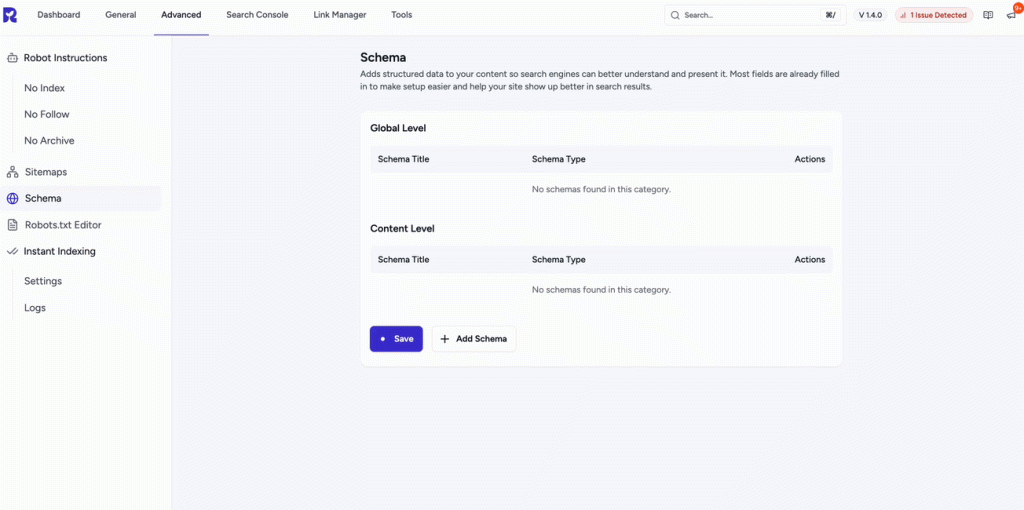
- Click on the Add Schema button.
- A popup will appear. From the dropdown menu, select HowTo Schema.
- Click on the Add Schema button to create the HowTo Schema.
- Once created, the HowTo Schema configuration page will appear, containing two tabs:
- Properties
- Display Conditions
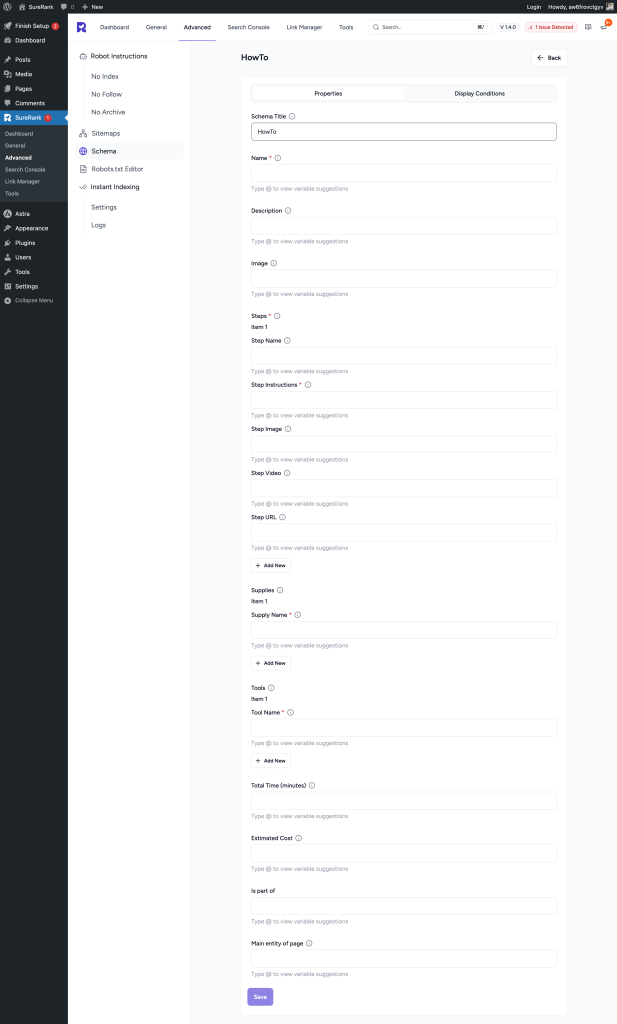
Properties Tab
The Properties tab contains a list of fields for rich results. Fields marked with an asterisk (*) are mandatory.
Here’s a breakdown of each field:
| Field Name | Description | Required |
| Schema Title | Add a custom internal title for your schema. This is only for your reference and not shown in search results. | No |
| Name* | Enter the official title of your website, article, or entity. This is what Google and users will see. | Yes |
| Description | Provide a short description of your website or content. Helps search engines understand the purpose. | No |
| Image | Add an image that best represents your website or content. Used in rich results. | No |
| Steps* | Define the steps for a process, guide, or recipe. Each step includes details like name, instructions, and media. | No |
| Item 1 | First step in your process/guide. Additional steps can be added. | No |
| Step Name | Enter the name/title of the step (e.g., Preheat oven). | No |
| Step Instructions* | Provide clear instructions for completing this step. | Yes |
| Step Image | Add an image showing this step in action. Helps with visual guidance. | No |
| Step Video | Add a video URL or embed showing how to complete the step. | No |
| Step URL | Add a direct link (if available) for more details on the step. | No |
| + Add New | Button to add additional steps. | – |
| Supplies | List the items needed to complete the process/guide (e.g., ingredients, materials). | No |
| Item 1 | First supply item. Additional items can be added. | No |
| Supply Name* | Enter the name of the supply (e.g., Flour, Paintbrush). | Yes |
| + Add New | Button to add more supplies. | – |
| Tools | List the tools required to complete the process/guide (e.g., Oven, Hammer). | No |
| Item 1 | First tool item. Additional tools can be added. | No |
| Tool Name* | Enter the name of the tool (e.g., Screwdriver). | Yes |
| + Add New | Button to add more tools. | – |
| Total Time (minutes) | Enter the estimated total time required to complete the process/guide. Value in minutes. | No |
| Estimated Cost | Add the approximate cost to complete the process/guide. | No |
| Is Part Of | Specify if this schema is part of a larger guide, series, or entity. | No |
| Main Entity of Page | Define the primary entity that this page is about (important for Google to match content correctly). | No |
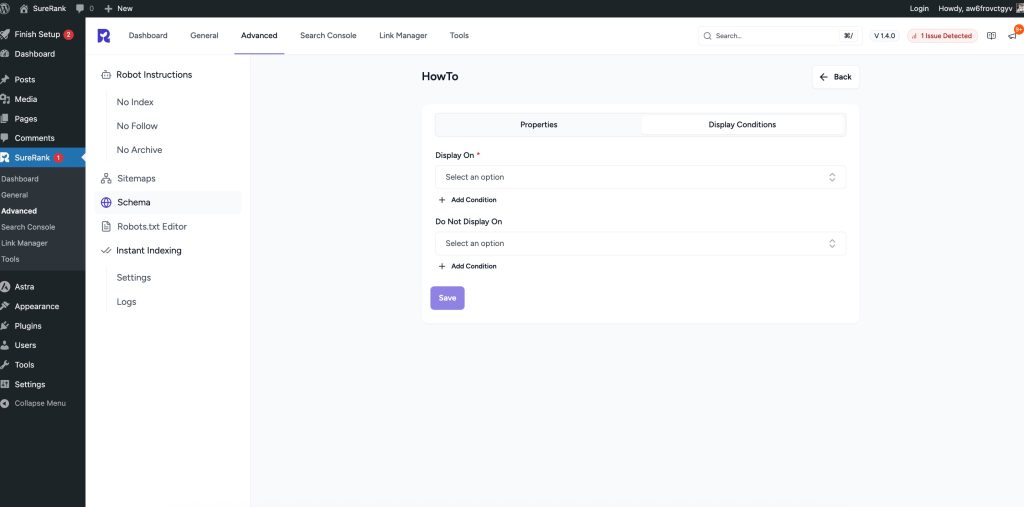
Display Conditions Tab
- Display On: Select where you want the HowTo Schema to appear (Required field).
- Do Not Display On: Define where the schema should not be applied.
Verifying the Schema
Once you have configured the schema, verify its correctness using one of the following tools:
This ensures your structured data is properly configured and eligible for rich results in search engines.
We don't respond to the article feedback, we use it to improve our support content.